The Index popdown
The Index pop-down allows you to
- Enter pop-downs or applications.
- Check whether the external cards have been recognised.
- Start PipeDream (or BBC BASIC) with a new, blank, document (or program).
- Obtain a list of all the suspended activities you have in the Cambridge Z88, and remove activities you no longer need.
- Insert and remove RAM, ROM, EPROM or FLASH cards, as explained in Section One - Getting started,
- Central point for information of the Z88 OZ system.
- Install or Remove an Application in RAM, rather than using a Flash or EPROM card (Refer to Appendix J - Installing applications in RAM).
The Index screen
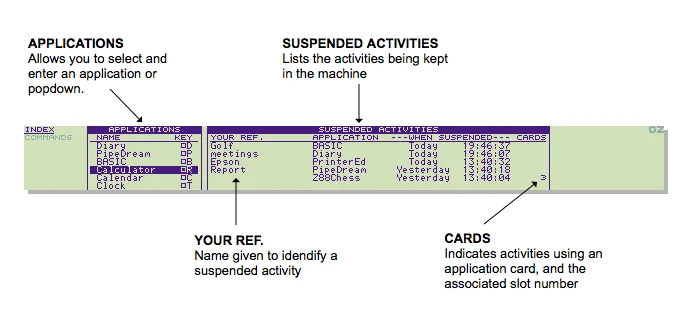
Entering an application
To enter an application, or a popdown, select its name on the APPLICATIONS list by moving the highlighting bar up and down with the cursor keys ↑ and ↓, and press the ENTER key:
| Diary | □D |
| PipeDream | □P |
| BASIC | □B |
| Calculator | □R |
| Calendar | □C |
| Clock | □T |
| Alarm | □A |
| Filer | □F |
| FlashStore | □J |
| PrinterEd | □E |
| Panel | □S |
| Terminal | □V |
| Imp-Export | □X |
| EazyLink | □L |
When the bar reaches the bottom of the screen, the list scrolls up to show the remaining options.
Entering PipeDream (or BBC BASIC) from the Index APPLICATIONS list creates a new, blank document (or program).
Index can be activated from any application or popdown with the INDEX key or □I.
Suspended activities
The SUSPENDED ACTIVITIES list shows the following information for each suspended activity:
| Heading | Meaning |
|---|---|
YOUR REF. | The name given to the document (with the PipeDream ◇FC or ◇FL commands, the Diary or PrinterEd ◇FC, ◇FS, or ◇FL commands, or the BASIC *NAME command) |
APPLICATION | The application name |
WHEN SUSPENDED | The time and date the document was suspended |
CARDS | The number of the card slot, for activities using an application card |
There can be more than one PipeDream and BBC BASIC suspended activity, but only one for each of the other applications.
Re-entering a suspended activity
To re-enter a suspended activity, select it by moving the highlighting bar across with the cursor keys, and then press the ENTER key. Alternatively, pressing □P or □B repeatedly will enter each PipeDream or BBC BASIC activity in turn.
Menu
To enter the Menu, use the MENU key.

Commands in SMALL CAPITALS i.e. KILL ACTIVITY, PURGE SYSTEM and REMOVE APPLICATION can only selected by using the individual ◇keys. Moving the cursor and selecting it using the ENTER key in the Menu, does not work.
Commands
ENTER — Execute
The ENTER key is used to select whatever the cursor is over.
ESCAPE
ESCThe ESC key gets you out of trouble by cancelling what you are about to select.
Card Display
◇CARD
The ◇CARD command shows the type and size of the card in each slot. It will not show an erased EPROM until it has been accessed by the Filer.

This screen shows a 512K/512K RAM/Flash Card used in Slot 1. The 192K ROM is OZ4.5 itself, 320K is the File Area that user files may be saved leaving 512K of RAM making up the full 1M memory that the slot is able to address. The graphical display on the right-hand side gives a representation of how much RAM has been used by the system (resources) and the user (files and open applications).
System Information
◇INFO
The ◇INFO screen is an addition to OZ V4.5 and later, showing information about the system which was shown in different places now in a central place. They are as follows:-

| KEY | Description |
|---|---|
| OZ | The version number of the Operating System |
| MACHINE | The name of the computer it is running on, normally the Z88. |
| TYPE | UNEXPANDED and EXPANDED types are shown. EXPANDED types have more than 128K of RAM. |
| BATTERY | There are three levels displayed. good - normal battery level low - low battery level screen fails to turn on, Battery too low for the Z88 to operate |
| BUILD | The build revision number of this OZ release with the date and time when source code of the OZ ROM was compiled. |
| FREE MEMORY | Free Memory was initially in the Diary but this information is valid for all the applications. Each byte represents the space needed for a character; approximately 2000 bytes are needed to store a typical A4 page of text. |
| FREE HANDLES | This information displays the total free ressources to manage open files and other system components such as RAM memory. If this number keeps dropping, it is an indication that an application or popdown is not closing files after use. |
KEY
Description
OZ
The version number of the Operating System
MACHINE
The name of the computer it is running on, normally the Z88.
TYPE
UNEXPANDED and EXPANDED types are shown. EXPANDED types have more than 128K of RAM.
BATTERY
There are three levels displayed.
good - normal battery level
low - low battery level
screen fails to turn on, Battery too low for the Z88 to operate
BUILD
The build revision number of this OZ release with the date and time when source code of the OZ ROM was compiled.
FREE MEMORY
Free Memory was initially in the Diary but this information is valid for all the applications. Each byte represents the space needed for a character; approximately 2000 bytes are needed to store a typical A4 page of text.
FREE HANDLES
This information displays the total free ressources to manage open files and other system components such as RAM memory. If this number keeps dropping, it is an indication that an application or popdown is not closing files after use.
KILL ACTIVITY
◇KILL
To kill a suspended activity, select it on the SUSPENDED ACTIVITIES list with the cursor, and type ◇KILL. The activity will be removed from the list, and the document (or program) associated with it will be lost.
PURGE SYSTEM
◇PURGE
is equivalent to a soft reset, which kills all suspended activities, and should therefore be used with great caution.
Install RAM Application
◇INS
To install an application in RAM, enter the .app filename, or select the file by marking it in the Filer. All required files (.app, ap0…) need to be in the same directory but they may be deleted after installation if desired.
Remove RAM Application
◇RMV
Uninstalls an application in RAM that the cursor is over. If multiple applications are required to be removed, place the cursor over the first application in the list.
Before using Remove RAM Application command, check that the application is not running as a suspended activity. If it is, remove it by placing the cursor over the suspended activity and then use the ◇KILL command.
Hidden Commands
These commands are reserved for advanced users.
Enquiry
◇NQ
When the select bar is in the application window, this command will show informations about the application.

When the select bar is in the suspended activities window, this command will show information about the suspended process.

Hard Reset
◇HARD
Performs a HARD RESET. All data in RAM will be lost. All files and applications in Eprom and Flash cards are preserved during hard reset.