Creating a project
A Klive project is a folder that holds your source files together with a klive.project file and a
build.ksx build script. Create one when you want to write a program: the project remembers the
machine it targets, its build root and your breakpoints, and gives you one-click Compile, Run and
Debug.
Create a project
Open the dialog
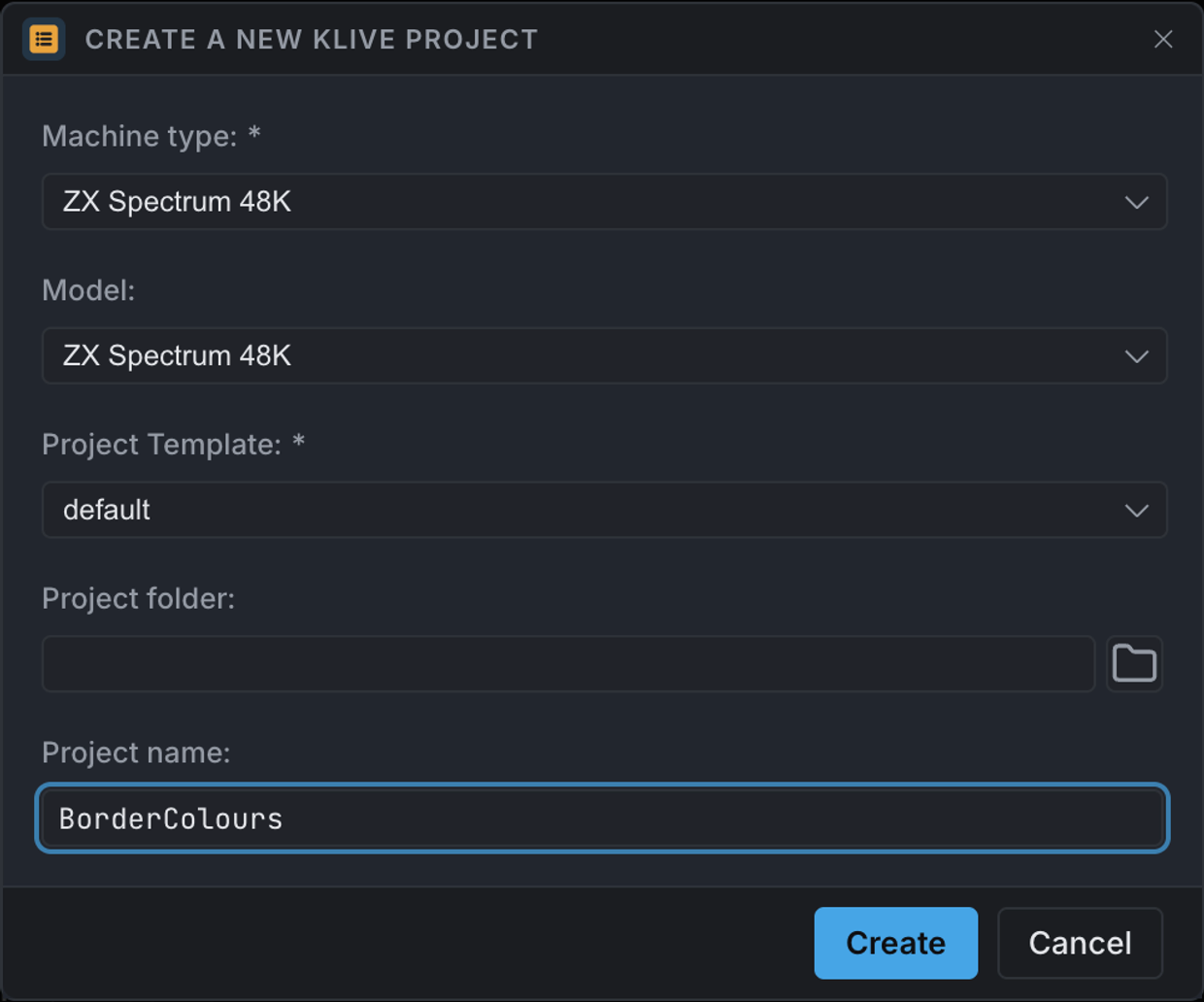
Choose File › New Project…, or click Create a Klive Project in the empty Explorer. The Create a new Klive project dialog opens.
Choose the machine and model
Pick the Machine type. The list is grouped into ZX Spectrum (48K, 128K, +2E/+3E, Next), Spectrum compatibles (Timex, Scorpion) and Other Z80 machines (ZX81, ZX80, Cambridge Z88, HT-1080Z). When the machine has more than one model, choose it under Model: the dialog starts on the model that is running now, or else on your favourite model of that machine.
Choose a template
Pick a Project Template. The list shows the templates of the chosen machine; default is a Klive
Z80 assembly project. Project templates lists them all.
Name the project
Type a Project name. Project folder is optional: the project is created as a subfolder of
it, or of the KliveProjects folder in your home folder when you leave it empty.
Create it
Click Create. Klive creates the folder, opens it and switches the emulator to the project’s machine and model.
You can also create a project from the command prompt with
newp, for example newp sp48 MyGame default -o.
To open an existing project, choose File › Open Folder… or File › Open Recent. A folder
without a valid klive.project file opens too, but as a plain folder: no build root, no build bar,
no Build menu. Klive then offers to make it a Klive project; see
Make a folder a Klive project.
Make a folder a Klive project
A folder you created with another tool (an editor, another IDE, a Boriel BASIC setup) has no
klive.project file. When you open it with File › Open Folder…, File › Open Recent or the
open command, or when Klive reopens it at startup as the last folder
you had open, the Make a Klive project dialog asks what to do with it. Klive never writes a
klive.project file into a plain folder unless you ask it to.
Make it a project, or keep it
Choose Make it a Klive project, or Keep it as a plain folder and click Keep Folder. Klive
remembers the second choice and does not ask again for that folder, however often you open it. The
choice is stored in Klive’s own settings file (klive.settings in the Klive folder of your home
folder, under plainFolders), never in the folder itself. Cancel leaves the folder plain for
now, and Klive asks again the next time you open it.
Choose the machine and model
Pick the Machine type and the Model. The dialog starts on the machine that is running. Only machines with project templates are offered, as in New Project.
Choose a template
Every Klive project is made from a template: its build.ksx holds the functions behind Compile,
Run and Debug, so there is no “no template” choice. The template’s files, such as build.ksx and a
sample program, are copied into the folder; see
Project templates. For a folder with .bas or .zxbas
files, the dialog picks the zx-basic template when the machine has one, and otherwise the
machine’s default template.
Check the files the template would replace
When a template file already exists in the folder, the dialog lists it with a checkbox, unticked. Klive replaces only the files you tick. A file whose name is taken by a folder is listed but never written.
Choose the build root
Build root lists the folder’s source files, root files first, and starts on the first of them. Choose The template’s build root to build the template’s sample program instead.
Make the project
Click Make Project. Klive writes the files, reopens the folder as a Klive project, switches the emulator to its machine and opens the build root.
To convert a plain folder later, or after choosing to keep it, choose File › Make Klive Project…, or right-click the root folder in the Explorer and choose Make Klive Project…. Once the folder is a Klive project, Klive forgets that you kept it plain.
To have Klive ask again without converting the folder, close Klive and delete the folder’s entry
from the plainFolders list in klive.settings. The IDE has no command that undoes Keep Folder.
What a project contains
A new project from the default template on the ZX Spectrum 48K looks like this:
MyGame/
├─ code/
│  └─ code.kz80.asm   the build root
├─ build.ksx          the build functions
└─ klive.project      the project's settings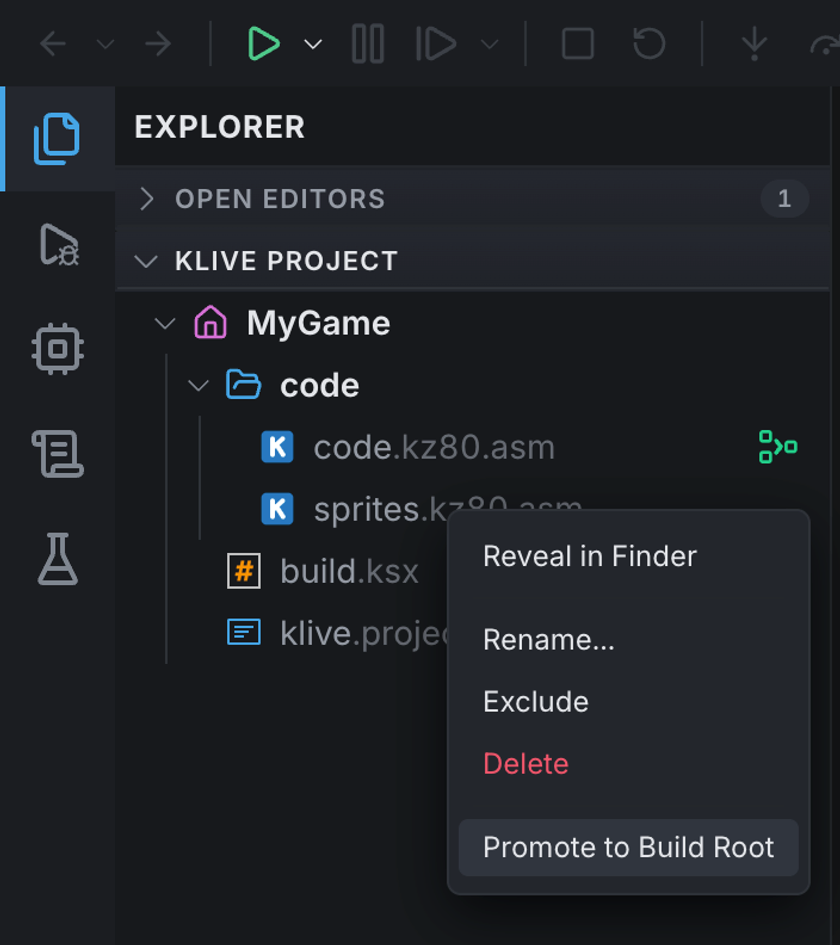
klive.projectstores the project’s machine and model, its build root, breakpoints, project settings and IDE state. Klive updates it while you work. It opens read-only in the editor.build.ksxholds the functions behind Compile, Inject, Run, Debug and Export, and any build commands you add. See The build system.- The source files of the template.
In the Project Explorer, a home icon in front of the root folder’s name means the folder is a Klive project.
Do not edit klive.project while the project is open in Klive: Klive writes the file itself and
overwrites your changes. If Klive cannot read the file when it opens the folder, the folder opens as
a plain folder.
The build root
The build root is the main source file, the one Klive compiles; the files it includes are compiled with it. A project has one build root, which the template sets. The Explorer marks it with a build icon after the file name.
To make another file the build root, right-click it in the Explorer and choose Promote to Build Root. The command appears only for source files (see File types). Demote from Build Root on the current build root leaves the project without one. Renaming the build root keeps it the build root.
Build, run and debug from the build bar
When the build root is the active document, the build bar appears at the right end of the document tab bar:

| Button (tooltip) | build.ksx function | What it does |
|---|---|---|
| Compile code | buildCode | Compiles the build root. Errors go to the Build output and the editor. |
| Inject code into the virtual machine | injectCode | Compiles, then writes the code into the paused machine’s memory. You resume the machine and start the code yourself, for example with RANDOMIZE USR 32768. Not shown on the ZX Spectrum Next, which loads a .nex file instead. |
| Inject code and start the virtual machine | runCode | Compiles, restarts the machine, injects the code and runs it. |
| Inject code and start debugging | debugCode | The same, in a debug session: breakpoints stop the program. See Running and debugging. |
| Show script output | – | Opens the output of the last build function the bar ran, as a document. |
The buttons are disabled while a compile is running. Each one runs a function of build.ksx, so you
can change what a button does by editing that function. The same functions, with Export code…,
are in the Build menu.
When you run or debug, Klive compiles the code (and stops if it fails), restarts the machine and lets its ROM reach a point where starting a program is safe, typing keys for it where needed. Then it pauses the machine, injects the code, sets the program counter to the entry point and resumes.
Projects created before Klive v0.32.0 have no build.ksx, and the build bar does nothing for them.
The build system shows the file to add.