The Eazylink popdown
The EazyLink popdown is run on the Z88, and is the Server part which listens to commands sent to it from the serial port. The Client part is run on a desktop operating system like Windows, Mac or Unix and functions as the window to the filing systems of both computers.
About EazyLink

Introduction and History
When the Z88 came out, there were loads of different desktop computers that were being used. This meant that to transfer with the Z88 and any other computer would have to be simple and reliable. Cambridge Computers initially came out with PC Link.
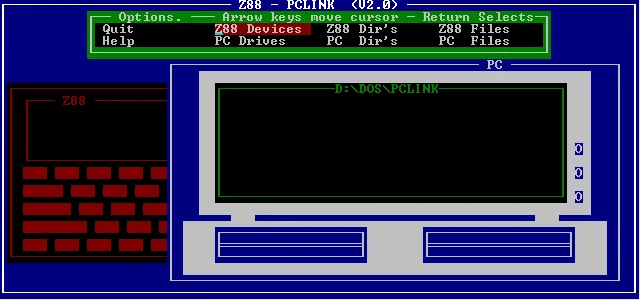
This was a DOS based file request program which used the Imp/Export popdown on the Z88 and required the user to type commands on both the Z88 and the desktop computer. This was not very popular as it meant the user needed two pairs of hands. Around the same time Colton Software were working on a PC version of PipeDream. they wanted additional commands sent from the desktop computer to communicate with the Z88, like selecting directories, and so the protocol of PC-LINK II was born.
EazyLink is based on PC-LINK II, using a “file server” (Z88) and a “client” (desktop computer) that requests file handling. It supports the existing file transfer protocol of PC-LINK II for compatibility. This enables you (if required) to use the original PC-LINK DOS application for transferring of files between DOS and the Z88.
EazyLink’s additional communication protocol offer
- faster transfer rates using 38400 BPS (16K in approx 13s)
- remote date stamp
- file size requests
- CRC-32 checksum validation after binary file upload
- backup only updated files*
- read/write Z88 clock (to allow Z88’s time and date to be set by file client seamlessly)
It automatically
- creates the Z88 path, including directories when receiving a file
- creates MSDOS/Z88 line feed and ASCII character conversions during transfer
Everything this popdown can do is requested and displayed from the Client application, as the “server” just sits at the other end and handles the various requests.
Backup only updated files*
This was implemented in Eazylink desktop client v1.6.2 (for Windows 95). This is planned to be implemented in Eazylink2 desktop client at a later date.
Text and Binary Files
PC Link II came with several file conversion programs. Two of these programs, ISO to IBM and IBM to ISO were needed for text files on the foreign Z88s. These users became very irritable having to run a separate program before being able to use them on their Desktop computers. The result is that in EazyLink, the character conversion is performed during the transfer of the file, making this process transparent to the user. Other variables that need to be changed, have been included using this method.
Binary Files
When Program or Binary files are transferred the user must ensure that Toggle Translation Mode and CRLF Mode is OFF, the default mode of this command.
Selecting EazyLink.

EazyLink can be started from the INDEX using the cursor bar or can be selected at any time using □L.
Checking Version Number

Use the HELP key whilst in the application to display the version number. If the version number is lower than displayed, consider updating to this latest version. The version number is displayed in the bottom left-hand corner together with the protocol level it supports, in this case Version 5.4 Protocol level 9.
Eazylink commands are sent from the Client
Apart from starting this application there is no need to give any further commands on the Z88 itself. All commands are received from the Desktop Computer including Quit.
They are shown here for completeness together with a detailed description of the different functions.
Menu
Pressing the MENU key reveals the following commands:-

The Main Menus are selected in the application itself.
Log Files
This is used for development. These features are disable by default.
The log files are created in the default RAM device and are named
- “rs232snd.log” for bytes sent to the RS-232 port
- “rs232rcv.log” for bytes received from the RS-232 port
Enable :COM.0 logging
Selection is made by either pressing the ENTER key with the cursor over the command in the menu or it can be selected with◇D.
Confirmation is given in the EazyLink window

Disable :COM.0 logging
This disables the logging feature
Selection is made by either pressing the ENTER key with the cursor over the command in the menu or it can be selected with◇Z.

Once again, confirmation is given in the eazylink window
Main Menu
To select a function on the menu on the left-hand side of the display, use the cursor ↑or ↓keys followed by the ENTER key.
MAIN MENU |
|---|
| TOGGLE TRANSLATION MODE |
| TOGGLE LINEFEED MODE |
| USE ISO/IBM TRANSLATIONS |
| LOAD TRANSLATIONS |
| QUIT EAZYLINK |
When EazyLink starts the status of the three different modes are displayed in the EazyLink window.

tofToggle Translation Mode
The default mode of this command is OFF.
Description to be added
Changing the state of this mode or any of the other commands is achieved by pressing the ENTER key when the cursor is over the desired command. It is already over the Toggle Translation Mode by default.

Pressing the ENTER key again changes the state again.

The change of state is displayed in the EazyLink window.
tofToggle Linefeed Mode

The default mode of this command is OFF.
Auto CRLF is short for Carriage Return, Line Feed.
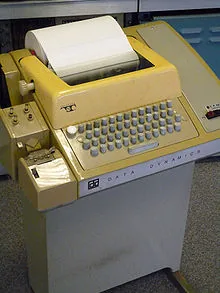
This command is due to historical reasons when teleprinters ruled the day. The two commands were issued separately. This allowed time for the carriage to return before issuing the line feed character, before sending the next character at the beginning of the line.. When sending a CR - Carriage Return character, some Word-processors will put another line-feed character in with it. If after sending a file across to your word-processor or printer you find there is an issue with blank lines or over-typing a line, changing the state of this command may correct this.
As previously stated, changing the state of this mode is achieved by pressing the ENTER key with the cursor over the Toggle Linefeed Mode .
tofUse ISO/IBM Translations

The default mode of this command is ON.
The ISO/IBM Translations converts files between the ISO and IBM character sets and visa versa.
Although IBM compatible PCs running under DOS used the IBM character set, applications running under Windows use the same ISO 8859-1 (ISO Latin 1) character set as the Z88. Therefore the IBM/ISO conversion is not necessary on files to be imported to Windows word-processors.
When sending a file from the Z88 to the Desktop, the ISO character set is converted to the character set used on the IBM PC and other Desktop computers. This allows PipeDream or text files containing international characters that are outside the normal ASCII character set to be used. These characters are commonly the accented characters used in European languages.
The conversion does not alter the structure of the file, but translates the characters in the file. When transferring a file created in PipeDream on the French Z88 to a Desktop word-processor, the file will appear the same as it did on the French Z88.
Alternatively, you may wish to transfer a file from PipeDream on the Z88 in plain text and load the text file into another word processor that uses the IBM character set.
This conversion does not affect characters in the range 32 - 127; these are standard ASCII characters that are common to both character sets. The conversion translates, where possible, character values outside this range to the corresponding character in the other character set.
These characters are usually in the range 128 - 255, but there are some exceptions.
Note
Not all characters in the ISO set have an equivalent in the IBM character set, and it is thus not possible to get a perfect translation. However, the most commonly used characters are in both character sets.
The international versions of the Z88 do not support the whole ISO character set, just a subset required for each country. Refer to the Z88 manual of the country in question to see which ISO characters are available. In the UK version, no accented characters are available.
OZ contains all those ISO characters implemented that supports French, Spanish, Italian, German, Danish, Swedish, Norwegian and Finnish (corresponding to country’s keyboard layout).
Characters that are translated
Here is a list of all the characters that can be successfully translated between the IBM and ISO character sets:
| Character Description | Character Description | ||
| ¡ | Inverted exclamation mark | Ø | O with stroke |
| ¢ | Cent symbol | Ü | U diaeresis |
| £ | Pound symbol | ß | German sharp S |
| ¤ | General currency symbol | à | a grave |
| ¥ | Yen symbol | á | a acute |
| ¦ | Broken bar | â | a circumflex |
| § | Paragraph symbol | ä | a diaeresis |
| ª | Feminine ordinal | å | a with ring above |
| « | Left angle quotation | æ | a e diphthong |
| ¬ | Not sign | ç | c cedilla |
| ° | Degree symbol | è | e grave |
| ± | Plus or minus sign | é | e acute |
| ² | Superscript 2 | ê | e circumflex |
| µ | Mu symbol | ë | e diaeresis |
| ¶ | Pilcrow symbol | ì | i grave |
| · | Middle dot | í | i acute |
| º | Masculine ordinal | î | i circumflex |
| » | Right angle quotation | ï | i diaeresis |
| ¼ | Quarter symbol | ñ | n tilde |
| ½ | Half symbol | ò | o grave |
| ¿ | Inverted question mark | ó | o acute |
| Á | A diaeresis | ô | o circumflex |
| Å | A with ring | õ | o diaeresis |
| Æ | A E diphthong | ÷ | Division symbol |
| Ç | C cedilla | ù | u grave |
| È | E acute | ú | u acute |
| Ñ | N tilde | û | u circumflex |
| Ö | O diaeresis | ü | u diaeresis |
| ý | y diaeresis |
tofLoad Translations

Description to be added
tofQuit Eazylink

This command closes the application.
The ESC key may also be used.