Using the HT-1080Z
The HT-1080Z was the computer of Hungarian schools in the 1980s, built by Hiradástechnika Szövetkezet. It is a close relative of the TRS-80 Model I: a Z80 at 1.77 MHz, Microsoft’s Level II BASIC in ROM, a 64 × 16 character screen with block graphics, and a cassette recorder. Hungarian versions added accented letters, and the HT-1080Z/64 a sound chip and more memory.
Choose a model with Machine › Machine Type or Select machine… (see Choosing a machine):
| Model | Memory | What it adds |
|---|---|---|
| HT-1080Z Series I | 16K | The first machine: the TRS-80’s character set |
| HT-1080Z Series II (the default) | 16K | The accented capitals and small letters Á É Ö Ü á é ö ü |
| HT-1080Z/64 | 48K | All the Hungarian accented letters, Greek and mathematical signs, and an AY-3-8910 sound chip |
| Series I (48K), Series II (48K) | 48K | The same machines with the RAM expansion |
The /64 runs at 1.777 MHz, the others at 1.774 MHz. Every model has the TRS-80’s semigraphics: each
character cell is 2 × 3 blocks that SET, RESET and POINT draw with.
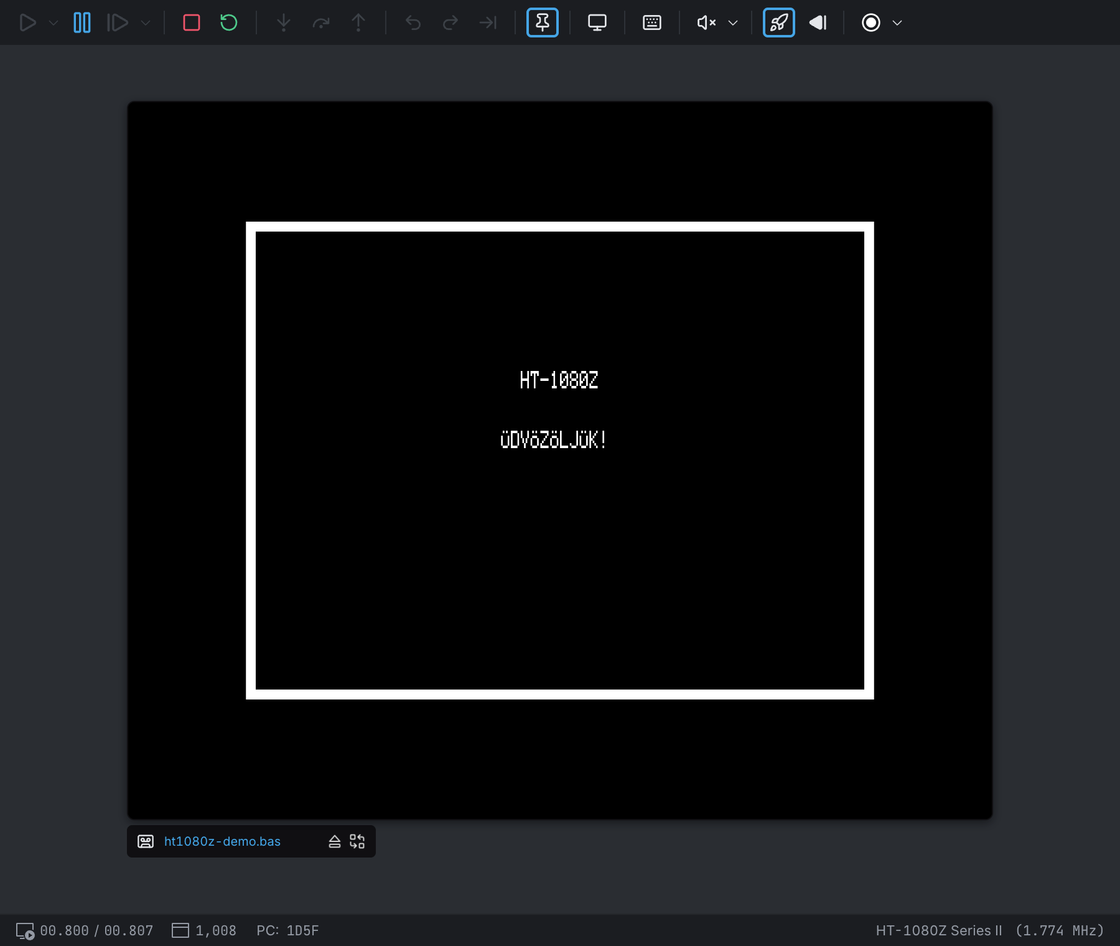
Starting up
At power-on Series I and II ask READY ? and the /64 asks MEMORY SIZE?. Press Enter to answer:
BASIC uses all the memory and shows its > prompt.
Some features live in the extension ROM, which is off at power-on: lower-case letters, the
accented characters and a block cursor. Type SYSTEM, then /12288 at the *? prompt, to switch it
on. Series I answers NEW KEYBOARD ROUTINE ENABLE, the /64 BASIC ROM EXTENSION 2.51.
Typing
Your keyboard maps to the HT-1080Z’s keys by position:
| Your key | HT-1080Z key |
|---|---|
| Both Shift keys | SHIFT |
| Enter | NEW LINE |
| Escape | BREAK |
| Home | CLEAR |
| The arrow keys | the arrow keys |
| Backspace | ← (deletes the last character) |
- | - and = |
; | ; and + |
' | : and * |
\ | @ |
| Page Up or Page Down | PAGE |
Because the keys go by position, SHIFT with a key gives the HT-1080Z’s shifted symbol, not the one
printed on your keyboard: SHIFT+2 is ", SHIFT+8 is (.
Accented letters. With the extension ROM on:
- On Series II, hold CLEAR (Home) and press A, E, U or O for Á, É, Ü or Ö; add SHIFT for the small letters.
- On the /64, type
`(SHIFT+@) and then a key: A E I O U for Á É Í Ó Ú, 3 4 5 6 for Ö Ő Ü Ű, and with SHIFT the small letters. The digits and letters 7 8 9 B G M S give Ω ∞ ■ Ψ π λ Σ, and with SHIFT ω α √ β γ μ ∫. PrintCHR$(21)once (PRINT CHR$(21)) to have these pairs shown as their characters.
The virtual keyboard has black legends on white keys, as on the real machine. It shows each model’s accent keys, and its PAGE and F1 keys latch:

PAGE switches between the left and right halves of each row while the screen is in 32-column mode. F1 keeps the internal recorder’s motor running, for winding a tape by hand.
The commands Klive types for you, such as those of Load and Run below, go by character, not by position: they come out as written.
Tapes
The HT-1080Z loads programs from cassette. Klive takes three kinds of file:
| File | What it is | How it loads |
|---|---|---|
.cas | A recording of the tape, the bytes the ROM wrote | CLOAD for BASIC, SYSTEM for machine code |
.cmd | A machine-code program | Klive turns it into a SYSTEM tape |
.bas | A tokenised BASIC program | Klive turns it into a CLOAD tape |
A .bas file is an HT-1080Z program only when it is one: Level II saves it as an FFh byte followed by
the program’s binary lines, and Klive looks at the content, not just the extension. Any other .bas
is BASIC source text, which the other machines’ projects use: it opens in the code editor, and the
HT-1080Z’s deck refuses it. The Explorer shows the two kinds with different icons, and a tokenised
.bas is never offered as a build root.
To load one:
- choose Machine › Tape › Insert Tape…, then Machine › Tape › Load and Run the Program; or
- drop a
.cas,.cmdor tokenised.basfile onto the emulator window, or open it with File › Open File…; or - right-click one in the Explorer and choose Load and run tape, or use the buttons on its document’s tab; or
- run
tape-load <file> -rin the command prompt.
Load and Run restarts the machine and types what you would: NEW LINE for the power-on question,
then CLOAD and RUN, or SYSTEM, the program’s name and /. It types each command only when
BASIC waits for a key, so it never types over a load. With Fast Load on (the default) the program
loads at once, through the ROM’s own cassette routines; with it off, the tape plays in real time and
the two stars in the top right corner blink as on the real machine.
To start debugging a machine-code program at its first instruction, choose Debug from the start
address in the Explorer, use the matching button on the tape’s tab, or run tape-load <file> -e.
Klive loads the tape under the debugger and stops at the start address the tape names (the / at
the *? prompt would jump there), so you can step from there in the Disassembly view.
CSAVE "A" writes A.cas to the saved-files folder (see Tapes).
The emulator window shows the tape in the deck under the screen, with buttons to eject or change it.
Viewing tape files
Click a .cas, .cmd or tokenised .bas file in the Explorer to see what is in it. The viewer shows
a summary at the top (the format, the name, the program or code, where the code starts, how long the
tape plays, and whether it fits a 16K model), then a picture of the file and its parts:
- a
.cashas a timeline: the leader, the sync byte, the header, the program or the code blocks and the end, each as wide as its share of the playing time; - whatever the file loads is drawn on a memory map of the HT-1080Z’s 64K, so code that loads above
$7FFFis seen to need a 48K model; - a
.bashas a strip of its lines, each as wide as its bytes.
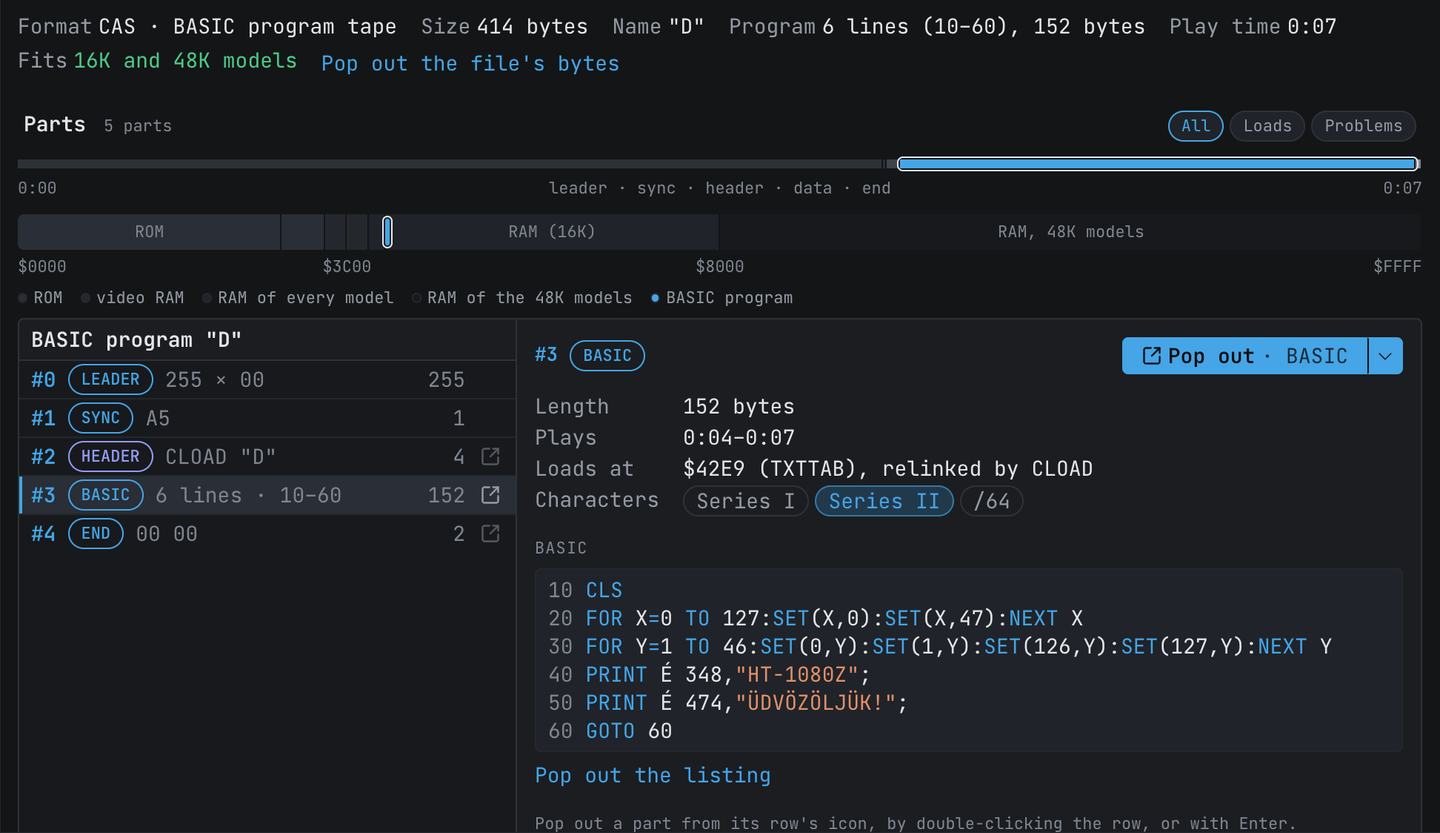
Click a part in the list, the timeline or the memory map to see its details: where it loads, its
checksum, and its bytes field by field. Point at a field to see which bytes hold it. A BASIC program
is listed with its keywords picked out; the Characters switch shows it in the Series I, Series II
or /64 characters (it starts with the model the emulator runs, or Series II), as PRINT @ lists as
PRINT É on a Series II.
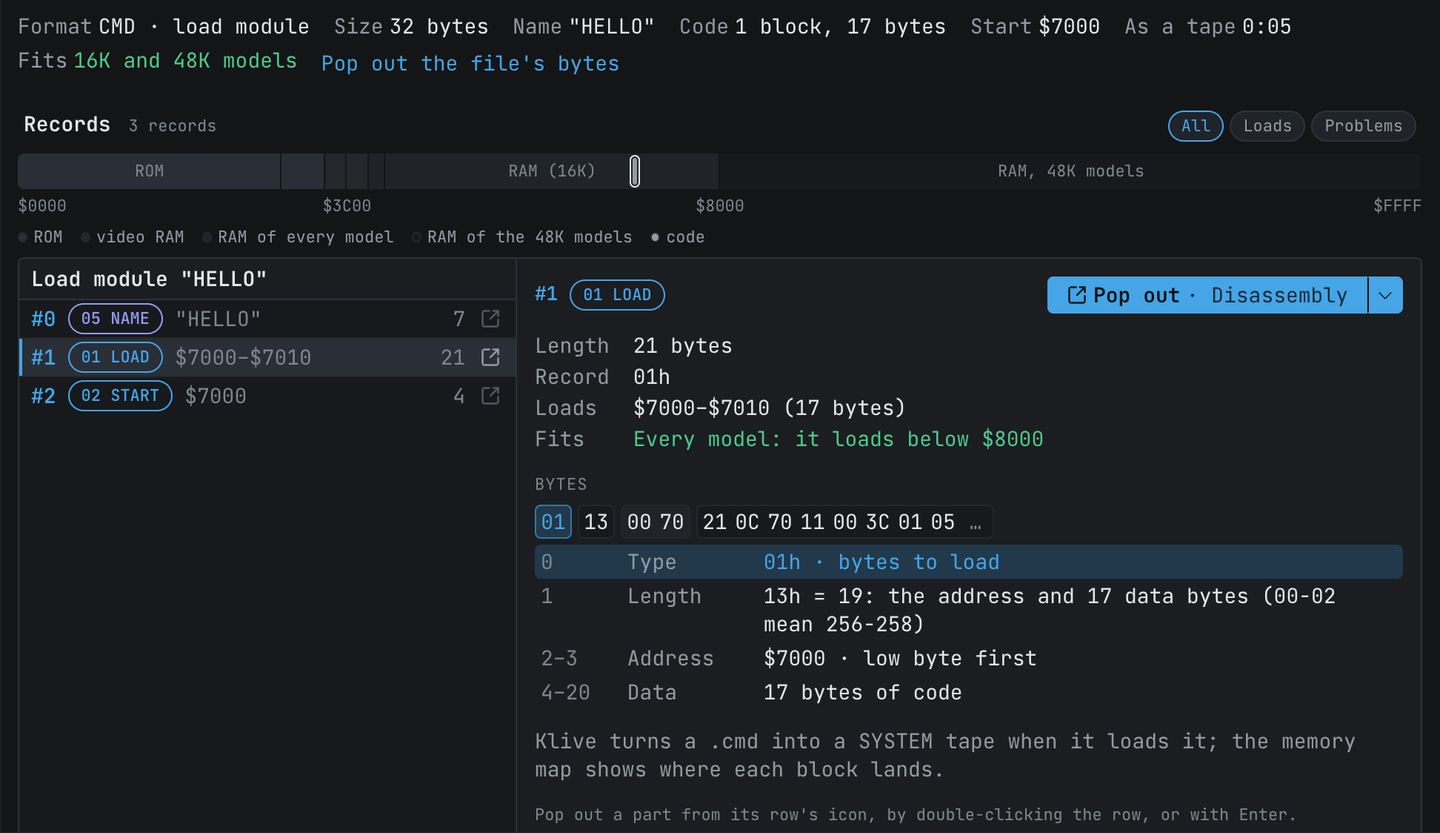
Each part pops out into its own document, from its row’s icon, by double-clicking it or with Pop out in the details: a BASIC program as a listing, code as a disassembly or as memory at the address it loads to. Pop out the file’s bytes in the summary shows the whole file in hex. A damaged part (a wrong checksum, a file cut short) is marked in the list and explained in the details. Click the Start address in the summary to select the record that holds it.
Sound
The HT-1080Z beeps through its cassette port: OUT 255 with the bottom two bits drives the speaker.
The relay that starts the recorder’s motor mutes it. The /64 adds an AY-3-8910 sound chip: OUT 31
selects a register, OUT 30 writes it, and INP(31) reads it back. The PSG panel shows its
registers and channels, as for the Spectrum 128.
The Machine menu
The HT-1080Z’s hardware items are in the Machine › HT-1080Z submenu:
- Press the RESET Key: the RESET key on the back of the machine. It returns BASIC to its
>prompt and keeps your program. This is not the IDE’s reset, which switches the machine off and on. - Press the PAGE Key: the latching PAGE key, as on the keyboard.
- VIDEO CUT: the switch that blanks the picture while programs keep running.
- Show Video RAM Access Dash: on the real machine, a program that reads or writes the video memory while the screen is drawn leaves short dashes in the picture. They show by default; turn this off for a clean picture.
Debugging
Breakpoints, stepping, the CPU and memory panels, the execution history, reverse debugging, code coverage, the profiler and the beam position work as on the other machines, and you can save the machine’s state (see Saving the Machine State).
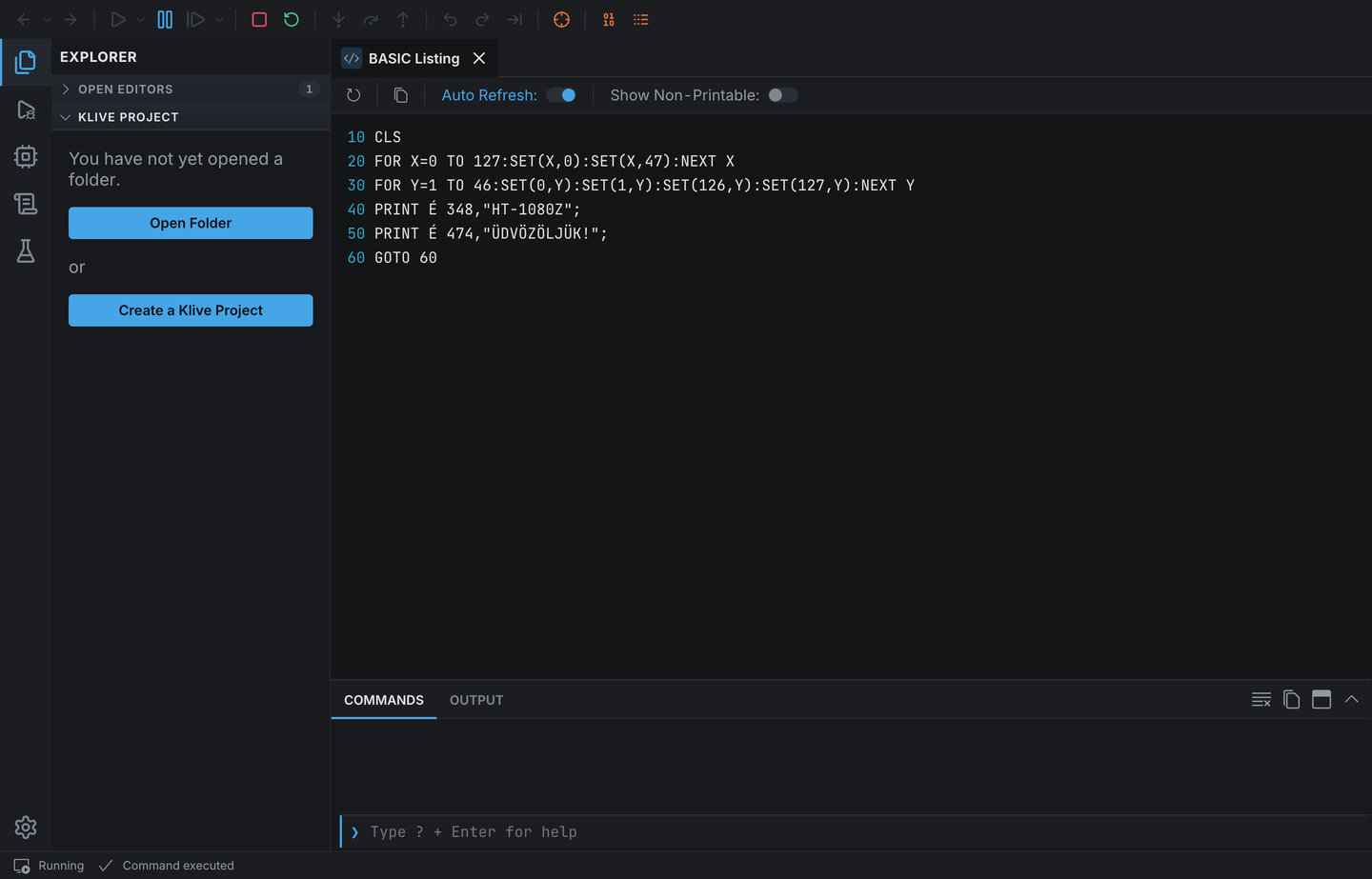
The BASIC Listing view (View › Machine Views › BASIC Listing)
lists the program in memory the way the machine’s own LIST does. It uses each model’s own
characters, so on Series II, whose character set has É where the TRS-80 has @, PRINT @ 348 lists
as PRINT É 348, exactly as on the screen:
The disassembly shows the byte after RST 08h as the character BASIC’s syntax check expects, and
lists the ROM’s tables (the keywords, the routines they run, the error codes) as data. The memory
panel shows each model’s characters, and the block graphics as blocks.
Writing machine code
Create a project for the HT-1080Z: its default template is a Z80 program that prints a welcome in
the middle of the screen and goes back to BASIC. Run switches the machine on, answers its
power-on question so BASIC keeps below your code, writes the code into RAM and starts it; Debug
does the same with your breakpoints; Export writes a .cmd or .cas file that loads with
SYSTEM. HT-1080Z Development explains .model HT1080Z,
where code may go and the useful ROM routines.
The command line
klive run game.cas (or a .cmd or .bas file) starts an HT-1080Z, loads the tape and runs it,
without the IDE; klive run <project folder> builds an HT-1080Z project and starts it as Run does. Pass --machine ht1080z:ht1080z-64 to choose a model.
The ROMs
The HT-1080Z’s BASIC, extension and character ROMs ship with Klive, unmodified. They come from the
HT preservation group’s archive (ht.homeserver.hu); their notice is in
roms/ht1080z-roms-readme.txt next to the ROM files.