The editor
Klive edits source code with Monaco, the editor of Visual Studio Code, so the editing keys you know from VS Code work here too. On top of it, Klive adds language features for its languages: hovers, go to definition, rename, error markers and colouring that follows what the compiler understood. This page covers the editing basics and the editor’s preferences.
Editing basics
| Action | macOS | Windows and Linux |
|---|---|---|
| Find / replace | Cmd+F / Cmd+Opt+F | Ctrl+F / Ctrl+H |
| Go to line | Ctrl+G | Ctrl+G |
| Select the next occurrence | Cmd+D | Ctrl+D |
| Add a cursor above / below | Opt+Cmd+↑ / ↓ | Ctrl+Alt+↑ / ↓ |
| Add a cursor with the mouse | Opt+click | Alt+click |
| Fold / unfold the block | Cmd+Opt+[ / ] | Ctrl+Shift+[ / ] |
| Undo / redo | Cmd+Z / Cmd+Shift+Z | Ctrl+Z / Ctrl+Y |
| Editor command palette | F1 | F1 |
- The command palette (F1) lists Monaco’s editor actions, such as Fold All or Change All Occurrences. Klive’s own commands are typed at the command prompt instead.
- The minimap at the right edge is a zoomed-out view of the file; click it to jump. It and the scrollbar mark the lines with errors and warnings.
- Folding: the arrows in the gutter fold and unfold blocks.
- Brackets and quotes close automatically, the matching bracket is highlighted, and new lines are indented.
- Each file keeps its own undo history while you switch between tabs.
Language features
What Klive adds depends on the language of the file (see File types):
- Klive Z80 assembly has the most: hovers with symbol information, go to definition (F12), find references, rename (F2), semantic colouring, block folding and inline errors. See Klive Z80 Assembler.
- ZX BASIC (built with Boriel BASIC) gets colouring, keyword help, keyword and library completion, signature help for the built-in functions, folding and block highlights. The editor does not know your program’s own names: there is no hover on them, no go to definition, find references, rename or symbol outline. Errors mark the whole line. See Editing ZX BASIC.
- C and sjasmplus get colouring, breakpoints in the gutter and the compiler’s errors.
- Every source language can show breakpoints in the gutter and the execution point while you debug, where its compiler gives Klive the line information (Breakpoints).
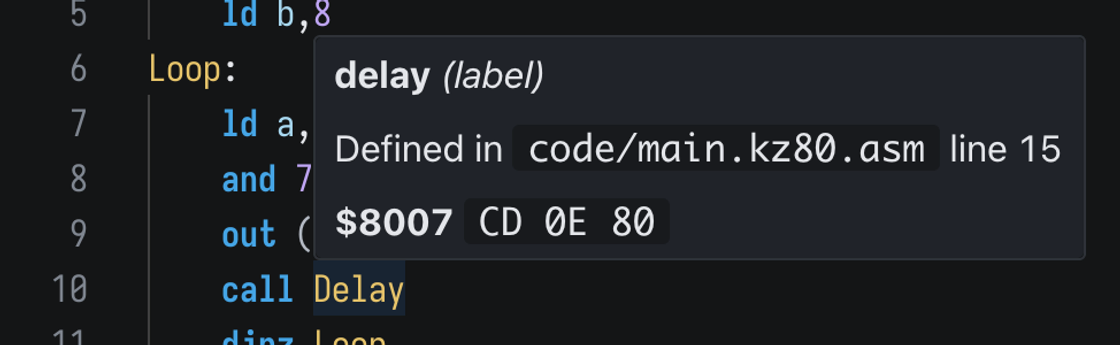
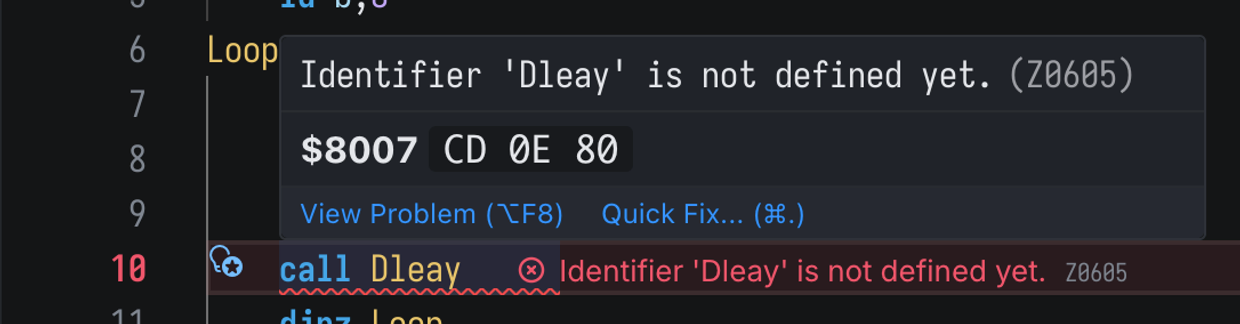
The live features come from background compilation: Klive compiles the project quietly a moment after you stop typing. With Settings › Editor › Compile in the background on, a line with an error is tinted and underlined, its line number turns red, and the message and its code follow the line. The hover shows every message on the line; for a mistyped label it offers Quick Fix… with the label you probably meant:
The counter in the editor’s top-right corner shows how many errors and warnings the file has, and its arrows step through them (Alt+F8 does the same). A file with errors also shows its error count on its tab.
Go to definition and opening an #include file are remembered as jumps, so
Ctrl+- (macOS) or Alt+← (Windows and Linux) takes you
back. See Navigating back and forward.
A document in its own window
Right-click a document’s tab and choose Pop Out to Window to move the document out of the IDE into a window of its own. Move and resize it like any other window, for example onto a second screen next to the emulator. The document leaves its tab strip: it is open in one place at a time.
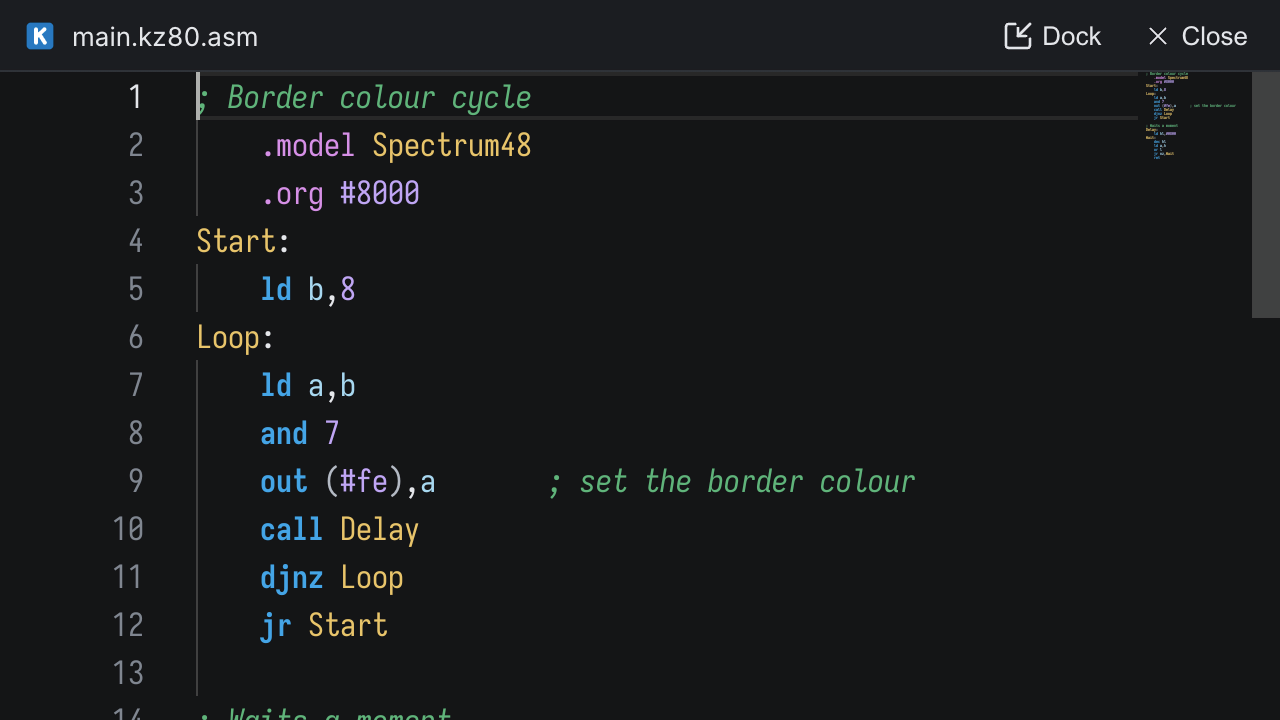
The window’s title bar shows the document’s name, the buttons its tab strip shows in the IDE (a build root’s Compile, Inject, Run and Debug, or a tape’s or a NEX file’s launch buttons), and two buttons of its own:
- Dock puts the document back into the IDE, in the editor area it came from (or the active one if that area is gone), with its cursor and scroll position.
- Close closes the document, asking about unsaved changes as closing its tab does. Closing the window from the operating system (Cmd+W, Alt+F4) does the same.
A floating document works as it does in the IDE: breakpoints, the execution point, the editor’s keys, the menu’s shortcuts and Go to Definition. Opening it again from the Explorer, the error list or a breakpoint brings its window to the front. Go Back and Go Forward move through one history shared with the IDE, so they return to a floating document’s window as they do to a tab. Up to 4 documents can float at a time. The project remembers them: reopening it reopens them in their windows, where you left them.
Closing the project closes the floating windows; their changes are saved first.
Editor preferences
Set the editor’s preferences on the Editor page of Settings (Klive › Settings…, Cmd+,, on macOS; File › Settings… on Windows and Linux; see Settings). They are saved with the IDE, so they apply to every project.
| Setting | What it does | Default |
|---|---|---|
| Font family | The editor’s monospace font; the choices depend on your system. | – |
| Font size | The editor’s font size. | – |
| Render whitespace | Shows spaces and tabs: None, All but single spaces between words, Inside the selection or All. | None |
| Tab size | The width of a tab, in spaces. | 4 |
| Insert spaces instead of tabs | Tab inserts spaces rather than a tab character. | On |
| Detect indentation | Takes the tab size and the spaces-or-tabs choice from the file’s content, overriding the two settings above. | On |
| Enable autocomplete | Offers completions while you type. | Off |
| Quick suggestion delay | How long the editor waits before offering completions, from Instantaneous to Longest (1 s). | Short (100 ms) |
| Highlight the selection’s other occurrences | Marks the other places where the selected text appears. | On |
| Highlight the symbol’s occurrences | Marks the other uses of the symbol under the cursor, without selecting it. | On |
| Compile in the background | Shows errors inline while you type, and compiles the external toolchains in the background too. See Background compilation. | Off |
The colours of the editor’s tokens follow the theme and its accent. To change them, see Syntax colors.