Settings
Klive keeps its preferences in one Settings dialog. The menus hold commands (things that act now), and the dialog holds what you set once and forget. This page shows how to open it, lists its pages, and explains the theme and accent.
Opening the Settings
| Platform | Menu | Shortcut |
|---|---|---|
| macOS | Klive › Settings… | Cmd+, |
| Windows and Linux | File › Settings… | — |
Some menus also have an item that opens the dialog on the page you need:
- Machine › Configure machine… (the first item; machine is the running machine’s name) and the emulator toolbar’s Machine settings button open the Machine page.
- Machine › Input › Input Settings… opens the Input page.
- Machine › Record › Recording Settings… opens the Recording page.
- Debug › Debugger Settings… opens the Debugging page.
The dialog opens in the window you are working in, the IDE or the emulator, so it works while the IDE
is hidden. The settings command opens it from the IDE’s command prompt, and settings <page> opens
a page, for example settings machine.
How It Works
- Changes apply immediately. There is no OK or Cancel button: switch an option and Klive uses it at once, just as the menu check items used to. Close the dialog when you are done.
- Search with the box at the top. It looks through the options of every page, so you can find an option without knowing which page it is on.
- Reset Page to Defaults returns every option of the current page to its default value.
- Options that restart the machine, such as a new ROM or another Z88 LCD size, say so in their description.
The Pages
General
| Option | What it does |
|---|---|
| Open the last project at startup | Klive opens the project you used last when it starts. See The two windows. |
| Close the emulator when the IDE is closed | Closing the IDE window also closes the emulator, and with it Klive. |
| Focus the emulator after Run or Debug | Once Run or Debug has started your program, the emulator window gets the keyboard focus, so the keys you press reach the machine. On by default; switch it off to keep typing in the IDE. |
| Record tab switches in the navigation history | Clicking a document tab adds a place to the navigation history. |
| Excluded items | Manage… lists the files and folders hidden from the Project Explorer. Available while a Klive project is open. |
| Let scripts drive Klive | Opens a local channel for the klive ide command line and your own scripts. Any program running as you can use it while this is on. See Automation. |
| What scripts may do | Read (state, memory and screenshots), Control (also run, pause, step, edit memory and build) or Full (also any IDE command, which can reach your files). |
Language
| Option | What it does |
|---|---|
| Display language | The language of menus, dialogs and panels, or System default. See The display language. |
| Translations | How much of the chosen language is translated; Help translate explains how to fix a translation or add a language. |
Appearance
| Option | What it does |
|---|---|
| Tone | Light or Dark. View › Switch to Light Theme / Switch to Dark Theme flips it from the menu. |
| Accent | The accent colour. See Theme and accent. |
| Panel font, Panel font size | The font of the IDE’s panels. |
| Sidebar on the right | Moves the sidebar to the right side of the IDE window. |
| Command and Output on top | Moves the Command and Output area above the editor. |
| Maximize Command and Output | Lets the Command and Output area take the whole editor area. |
Editor
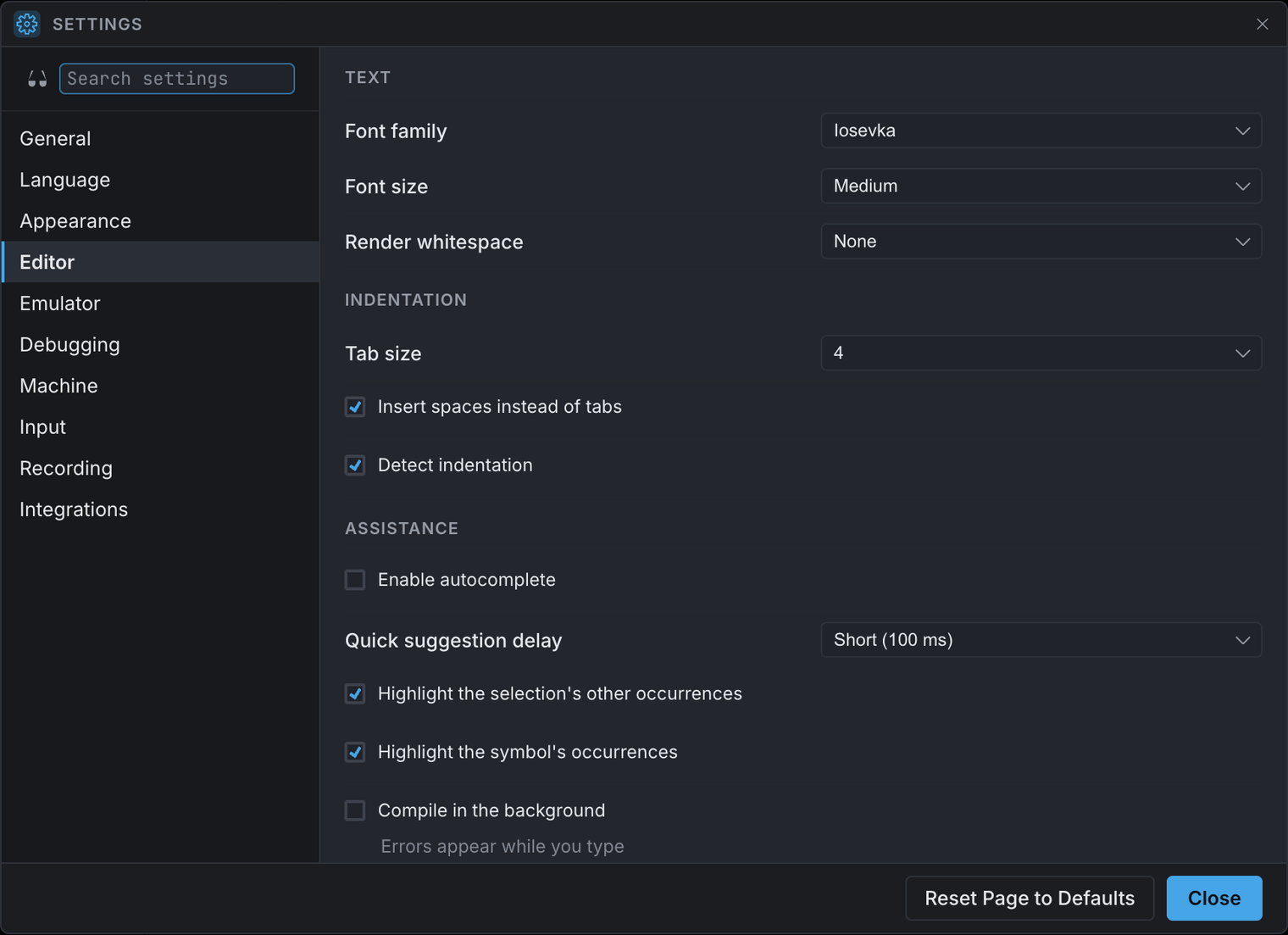
The code editor’s options: the font family and size, autocomplete, selection and occurrences highlighting, the quick suggestion delay, detecting the indentation, inserting spaces for a tab, rendering whitespace, the tab size, and background compilation. See Editing Code.
Emulator
| Option | What it does |
|---|---|
| Zoom steps | The zoom steps of the emulator screen. |
| Scanline effect | Draws CRT-style scanlines over the picture. |
| Show the instant screen | See The paused screen. Also a button in the emulator toolbar. |
| Show the beam position while paused | See The paused screen. Also a button in the emulator toolbar. |
| Keep the emulator on top | On by default. See Keeping the emulator on top. Also the pin on the emulator toolbar. |
| Show performance info | Shows the emulator’s performance figures in its status bar. |
| Show media information | Shows the media strip (tapes, disks, cartridges) in the emulator’s status bar. |
| Show the Layers strip | Shows the ZX Spectrum Next’s Layers strip under the screen. |
| Fast load | Loads tapes at once instead of in real time. Also Machine › Tape › Fast load and the rocket button on the emulator toolbar. See Tapes. |
Right-clicking the emulator’s status bar toggles the performance info, the media information and the Show the Layers strip, too.
Debugging
| Option | What it does |
|---|---|
| Stop in interrupt handlers while stepping | Stepping goes into an interrupt routine instead of over it. |
| Stop at runtime errors | The debugger stops where a program raises a runtime error. |
| Just My Code | Stepping steps over code that has no source. |
| Sync the source with the current breakpoint | The editor shows the source line where the machine stopped. Also Debug › Sync Source with Breakpoint and an IDE toolbar button. |
| Group breakpoints by kind | Groups the Breakpoints view by breakpoint kind. |
| Advanced debugging | Turns the advanced debugging features on or off: the execution history, reverse debugging, debug recordings, code coverage and the profiler. On by default. Takes effect when Klive restarts. |
| Reverse debugging | Stepping back puts the whole machine in the past, and you can continue from there. Takes effect at the next debug session. See Reverse Debugging. |
| Memory for the reverse-debugging timeline | How much memory the timeline may use: Automatic (512 MB, or a sixteenth of the computer’s memory) or a fixed size. More memory reaches further back. |
| Clear coverage when the machine starts | Coverage and the heat map start over when the machine starts from Stopped. |
| Clear coverage after code injection | The ROM’s boot to the injection point does not show as covered. |
| Count executions, reads and writes | Off: only whether each byte was executed, read or written, which costs less. |
| Tint covered source lines | A tinted background in the editor as well as the coverage strip. On by default. |
| Profile hints in the editor | Each routine’s first line shows its share of the time and its calls. On by default. |
The two reverse-debugging rows appear while the advanced debugging features are on; the five Coverage and profiling rows appear on machines with code coverage.
Machine
This page shows the options of the running machine only; switch machines to see another’s. Options that apply to only some machines are here, not on the Emulator page.
| Option | Machine | What it does |
|---|---|---|
| ZX Spectrum 48K ROM | ZX Spectrum 48K | Browse… picks a custom ROM, Reset returns to the original. |
| TR-DOS ROM | Pentagon 128, Scorpion | Names your TR-DOS ROM image. See TR-DOS disks. |
| esxDOS ROM | ZX Spectrum 16K, 48K, 128K, +2A/+3/+2E/+3E | Names your esxDOS ROM; the DivMMC stays off without it. |
| Interface 1 ROM | ZX Spectrum 16K, 48K, 128K with the Interface 1 | Another 8K Interface 1 ROM; empty means the shipped second edition. See The Interface 1 and Microdrives. |
| Scorpion ZS-256 ROM | Scorpion ZS-256 | Names your copy of the Scorpion’s 64K ROM. |
| Timex ROM | Timex models | Names your copy of that model’s ROM. |
| Keyboard layout | Cambridge Z88 | The Z88’s keyboard layout. |
| LCD resolution | Cambridge Z88 | The size of the Z88’s screen. Changing it restarts the machine. See The Cambridge Z88. |
| Show TV noise without sync | ZX80, ZX81 | While the machine sends no usable sync (a ZX81 running a program in FAST mode, a ZX80 computing), shows the noise a real television showed instead of a black screen. Only the display changes, not the machine. |
| Show the snow effect | ZX Spectrum 16K, 48K, 128K | With the I register in contended memory, the CPU’s memory refresh disturbs the ULA’s screen reads and the picture shows “snow”, as on the real machine. On by default. Also Machine › ZX Spectrum 48K / 128K › Snow Effect. |
| Late ULA timing | ZX Spectrum 16K, 48K, 128K | Runs the ULA one T-state later against the interrupt, as many real machines do: contention, the screen reads, the border and the floating bus all move by one T-state. Off by default (the documented timings). Also Machine › ZX Spectrum 48K / 128K › Late ULA Timing. An .szx snapshot sets it to the timing its machine ran. |
| ZX Spectrum Next sound output | ZX Spectrum Next | Which of the Next’s outputs Klive plays: the audio jack (the default), the internal speaker or HDMI, each as the real machine builds it. Also Machine › Sound › Output. See From the Machine to Your Speakers. |
| The clock follows | ZX Spectrum Next | What the Next’s real-time clock (RTC) shows: the host’s clock (the default; the real time) or emulated time, which stops while the debugger pauses. See The real-time clock. |
| Keep the time and the clock’s RAM between sessions | ZX Spectrum Next | Keeps a time set with .time or .date, and the clock’s 56 bytes of RAM, until the next start, as the battery on a real board does. Each Next model keeps its own. On by default. |
| Kept clock | ZX Spectrum Next | When the running model’s clock was last saved. Set to host time sets it to the computer’s time; Forget deletes the kept clock and clears its RAM. |
The ROM files have Browse… and Forget (or Reset) buttons; Custom ROMs explains each.
Input
| Option | What it does |
|---|---|
| Key mapping file | Browse… picks a key mapping file, Reset returns to the default mapping. |
| Joystick bindings | ZX Spectrum Next and Timex. Configure… sets which keys and controller buttons drive the joysticks. |
| Mouse | ZX Spectrum Next: mouse capture, showing the captured pointer, and sensitivity. |
See Keyboard, joysticks and mouse.
Recording
| Option | What it does |
|---|---|
| Format | MP4, WebM or MKV. |
| Quality | How much the video is compressed. |
| Frame rate | The machine’s own, or half of it (every second frame). |
| IDE + Emulator: IDE position | Where the IDE goes next to the emulator in an IDE + Emulator recording. |
| IDE + Emulator: Include the pointer, Show mouse clicks | Draw the mouse pointer and its clicks into the video. |
| IDE + Emulator: Full resolution (HiDPI) | Records at the display’s full pixel density. |
See Recording the Emulator Screen for what each option does.
Integrations
| Option | What it does |
|---|---|
| SjasmPlus | Configure… opens the SjasmPlus Integration dialog. See SJASMPLUS Integration. |
| Boriel BASIC | The folder Boriel BASIC, the compiler that builds .zxbas and .bas files, is installed in, or Not set up. Configure… opens the Boriel BASIC dialog, which installs the bundled Boriel BASIC 2, accepts an installation you already have, and repairs or updates one. See Boriel BASIC. |
| z88dk | The folder of the z88dk installation that builds .c files. Configure… opens the z88dk Integration dialog, which finds installations on your computer or downloads a release from GitHub. See z88dk (C). |
| Compiler, C library, Optimisation | Shown while a project is open; saved in the project. The C compiler (sccz80 or SDCC), the library programs link with, and the optimisation of Run and Export builds. See Build options. |
Theme and accent
The Theme group of the Appearance page sets how Klive looks:
- Tone is Dark or Light. View › Switch to Light Theme (or Switch to Dark Theme) flips it from the menu.
- Accent is the colour of selections, focus and highlights: Sinclair Blue (the default), Spectrum Magenta, Ember, Ultraviolet, Deep Teal or Phosphor Green. Any accent pairs with either tone.
The accent also reaches the data views: the memory dump, the disassembly and the machine-state panels pick out their values in it, and the code editor shows keywords in it. The rest of the editor’s colours are fixed, so code stays readable with every accent; see Syntax highlighting colors.
In the Windows Themselves
A few controls moved out of the menus into the part of the window they change:
- The emulator toolbar’s sound button has a dropdown with the sound levels.
- In the emulator status bar, the machine name opens the Select Machine dialog, and the MHz label opens the list of speeds.
- Right-clicking the emulator status bar toggles the performance info, the media information and the Show the Layers strip.
- The IDE toolbar’s navigation dropdown has Clear Navigation History.
Where Did It Go?
The menus were reorganised. If you are looking for an item from an earlier version of Klive:
| Earlier menu item | Now |
|---|---|
| File › Load ZX Spectrum Snapshot, File › Play RZX Recording, File › Load Machine State | File › Open File… (opens snapshots, .kls states, .rzx recordings and tapes; the same as dropping the file onto the emulator) |
| Machine › Load Snapshot / Load State, Machine › Open Z88 Snapshot, Machine › RZX › Play Recording | File › Open File… |
| Machine › Save Snapshot / Save State | File › Save Snapshot… / File › Save Machine State… |
| Machine › Quick Save State / Quick Restore State | File › Quick Save State / File › Quick Restore State |
| File › Manage Excluded Items | Settings › General › Excluded items |
| IDE › IDE Settings | Settings › General |
| IDE › Show Machine Memory / Show Disassembly / Show BASIC Listing | View › Machine Views › Memory / Disassembly / BASIC Listing |
| IDE › Go › Back / Forward | View › Go Back / View › Go Forward |
| IDE › Go › Clear Navigation History | The IDE toolbar’s navigation dropdown |
| IDE › Integrations › SjasmPlus Assembler | Settings › Integrations › SjasmPlus |
| View › Theme | Settings › Appearance; View › Switch to Light/Dark Theme |
| View › Editor Options | Settings › Editor |
| View › Panel Options, Move the Sidebar to the Right, Move Commands and Output to the top, Maximize Commands and Output | Settings › Appearance |
| View › Screen Zoom Steps, Show Performance Info, Show Media Information, Show Layers | Settings › Emulator (the last three also from the emulator status bar’s right-click menu) |
| View › Show the Instant Screen, Show the Beam Position, Keep Emulator on Top | Settings › Emulator, or the emulator toolbar buttons |
| View › Sync the Source with the Current Breakpoint | Debug › Sync Source with Breakpoint, or the IDE toolbar |
| Machine › Start with Debugging, Step Into, Step Over, Step Out, Step Over Line | Debug menu |
| Machine › Step Copper | Debug › Step Copper |
| Machine › Clock Multiplier | Machine › Speed, or the MHz label in the emulator status bar |
| Machine › Sound Level | Machine › Sound, or the emulator toolbar’s sound dropdown |
| Machine › Select Tape File, Rewind Tape, Eject Tape, Fast Load | Machine › Tape (Insert Tape…, Rewind, Eject, Fast Load) |
| Machine › Floppy Disks, Create Disk File, Boot Disk in Drive A | Machine › Disks |
| Machine › Insert Cartridge (Timex) | Machine › Cartridge |
| ZX Spectrum Next SD card items | Machine › SD Card |
| Machine › Joystick, Mouse | Machine › Input |
| Machine › Hotkeys (ZX Spectrum Next) | Machine › ZX Spectrum Next |
| Z88 Soft Reset, Hard Reset, Press Both SHIFT Keys, Raise Battery Low Signal | Machine › Cambridge Z88 |
| Machine › Scanline Effect | Settings › Emulator |
| Machine › Select ROM File / Reset to Default ROM, TR-DOS ROM, Scorpion ROM, TC2048/TC2068/TS2068 ROM | Settings › Machine |
| Machine › Keyboard layout, LCD resolution (Z88) | Settings › Machine |
| Machine › Select Key Mapping / Reset Key Mapping | Settings › Input |
| Machine › Recording (start, pause, IDE + Emulator) | Machine › Record |
| Machine › Recording (format, quality, half fps, IDE + Emulator options) | Settings › Recording (Machine › Record › Recording Settings…) |
| Machine › RZX (record, rollback, render to video) | Machine › Record (RZX: Record, RZX: Stop and Save…, …) |
| Machine › Layers (ZX Spectrum Next) | The Layers strip under the screen; the Layers document is View › Machine Views › Layers |
| Machine › Show Copper List, Show Sprite / Tilemap / Layer 2 Inspector | View › Machine Views |
| Z88 help links | Help › Cambridge Z88 Resources |
Related
- The display language
- Keyboard shortcuts
- Custom ROMs
setcommand: settings without a page in the dialog