The File Manager
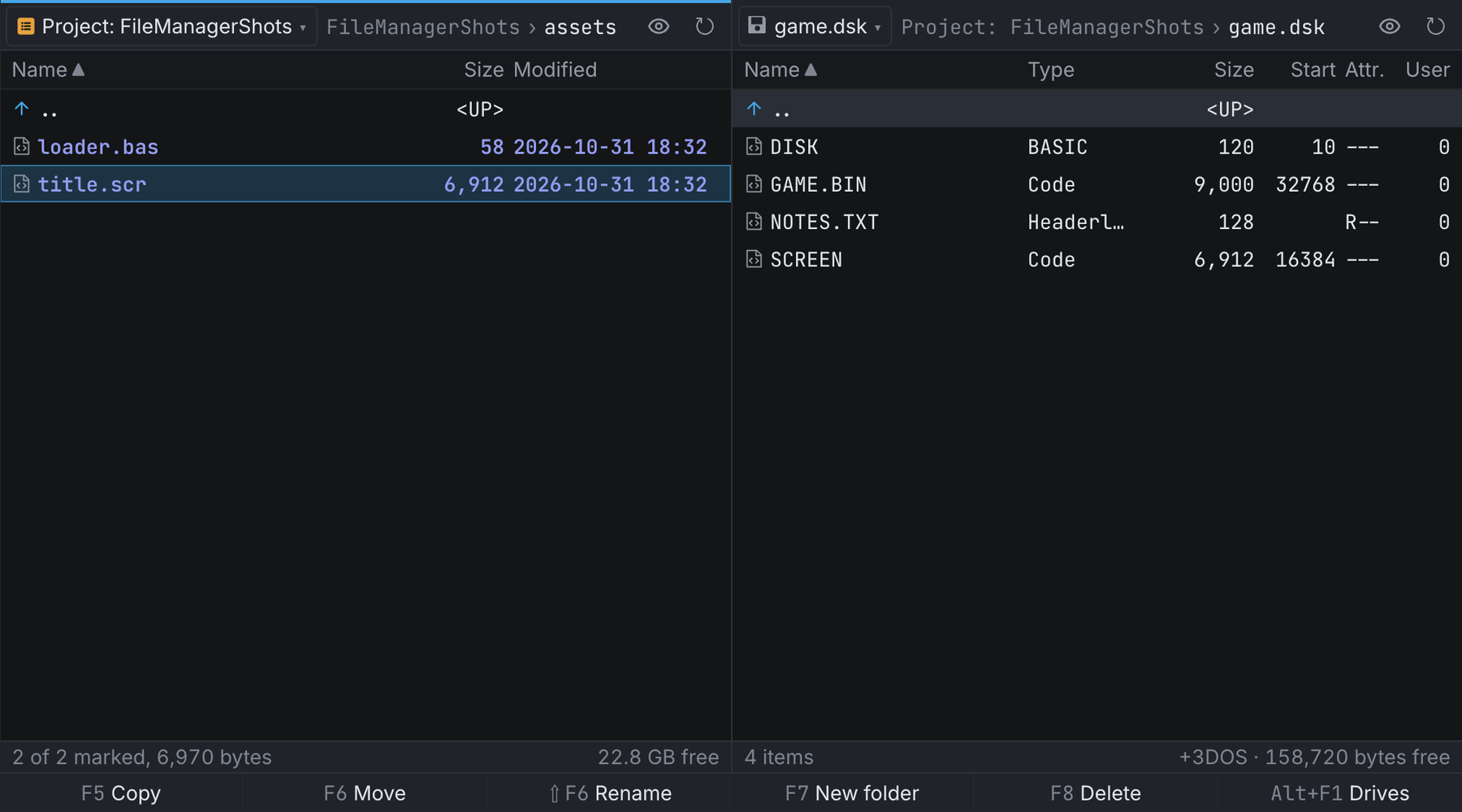
The File Manager shows two folders side by side, each on a drive of its own, in the style of
two-pane file managers such as Total Commander. A drive can be a disk of this computer, the open
project, a disk image, an SD card image, a tape, or the machine’s own SD card, disks and tape while
the machine is stopped. Copying between them converts each file to what the other side keeps, so a
.tap on this computer lands on a +3 disk as its programs and code.
Opening the File Manager
Choose File › File Manager…, or type fm (show-file-manager) at the command prompt. It opens
as a document tab, and it opens again where you left it: each pane remembers its drive and folder.
Moving around
Click a pane to make it active, or press Tab. The active pane’s header has an accent rule.
| Key | Does |
|---|---|
| ↑ ↓ Page Up Page Down Home End | Move the cursor. |
| Enter, or a double-click | Open the folder, or enter the disk image or tape under the cursor. |
| Backspace | Go to the folder above, or out of an image. |
| Alt+F1, Alt+F2 | Open the left or the right pane’s drive menu. |
| Ctrl+R | Read the folder again. |
| Ctrl+H | Show or hide hidden files. |
Click a column header to sort by it, and again to reverse the order. The path above the list goes to any folder on it when you click it.
Drives
The drive menu lists, in groups:
- This computer: its disks, your home folder, and Klive’s
KliveandKliveProjectsfolders. - Project: the open project.
- Machine storage: the current machine’s SD card (ZX Spectrum Next, or a DivMMC), drives A: and B:, Microdrives 1 and 2 (with an Interface 1), and the tape in the tape player. These are drives only while the machine is stopped.
- Disk images: the images opened this session. Open image as drive… opens another one.
A disk image (.dsk, .trd, .scl, .mdr, and the MGT +D/DISCiPLE’s .mgt), an SD card or hard
disk image (.img, .hdf, .cim) or a tape (.tap, .tzx) is also entered like a folder from the
pane that lists it. A hard disk image is one drive for each of its partitions: each FAT partition, and
each +3DOS partition of a ZX Spectrum +3e disk (IDEDOS), named after the partition.
Choosing files
A command works on the marked files, or on the file under the cursor when none is marked.
- Insert or Space marks the file under the cursor and moves down.
- Ctrl+click (⌘+click on macOS) marks a file.
- + marks the files whose names match a mask such as
*.tap;*.tzx, - unmarks them, and Ctrl+A marks every file. - Esc clears the marks.
The status line under each pane counts the marked files and their size.
Copying and moving
Choose the files
Open the folder that holds them in one pane, and the folder or disk they go to in the other. Mark the files, or put the cursor on one.
Press F5 to copy, or F6 to move
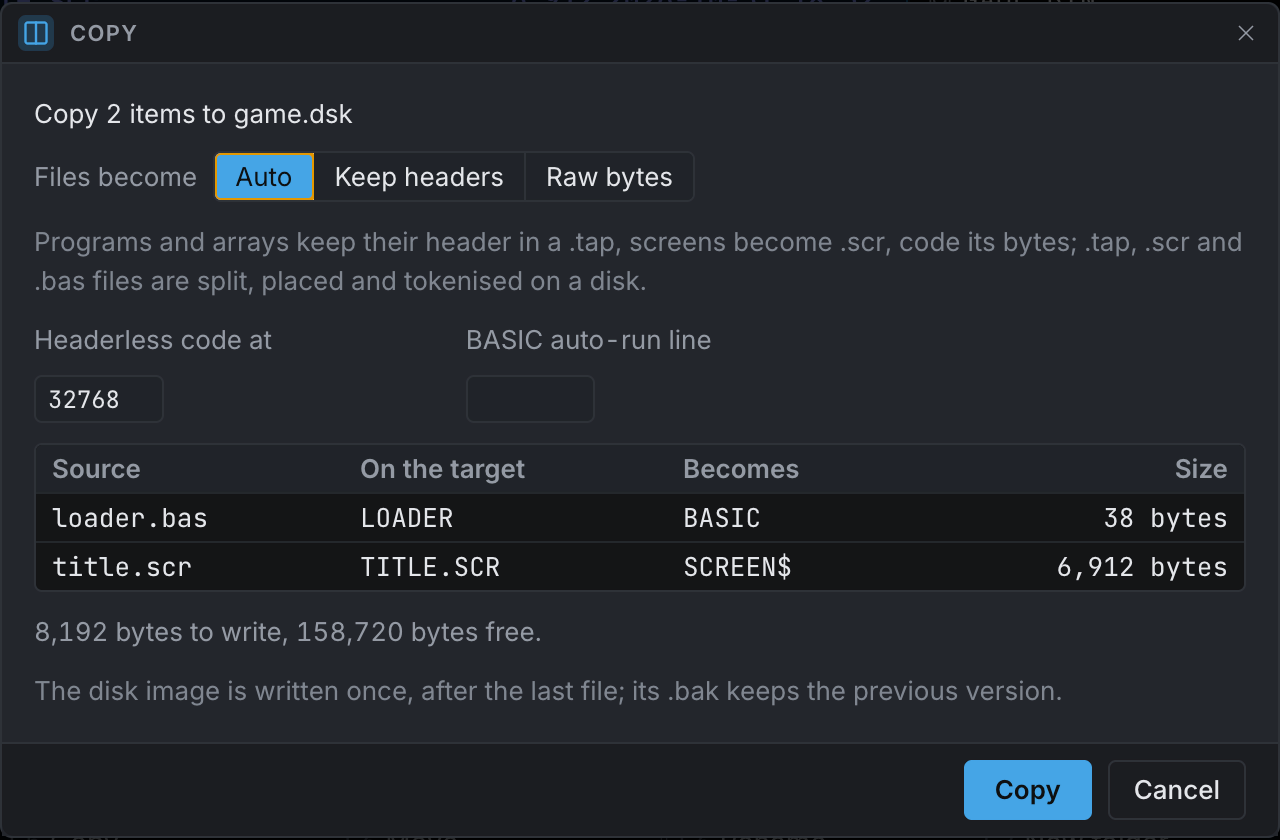
The copy dialog lists what each file becomes on the other side and the name it gets there, and says whether everything fits.
Choose how files cross, and copy
Between this computer and a ZX Spectrum disk, cartridge or tape, Files become decides what happens to each file (see the table below). Press Copy (or Move).
You can also drag files from one pane to the other (hold Shift to move), or drop files on a pane from the Project Explorer or from your system’s file manager.
A progress line shows the file being written, with Cancel (or Esc). When the copy ends, a line above the buttons says what it did: how many files it wrote, and any it skipped or could not write, and why.
A disk image, cartridge or tape is written once, after the last file. A cancelled copy, or one that
fills the disk, leaves the image as it was, and the first change of a session keeps a .bak of the
image beside it.
What a file becomes
| From | To | Auto | Keep headers | Raw bytes |
|---|---|---|---|---|
| This computer or an SD card | A disk, cartridge or tape | A .tap gives its files; a .scr becomes a SCREEN$ at 16384; a .bas is tokenised (with the auto-run line you give); anything else becomes CODE at the address you give | As Auto | Every file becomes CODE at the address you give |
| A disk, cartridge or tape | This computer or an SD card | A program or an array becomes a one-file .tap that keeps its header; a SCREEN$ becomes a .scr; code becomes its bytes | Every file with a header becomes a one-file .tap | The bytes, without the header |
| A disk, cartridge or tape | Another one | The header goes with the file | The header goes with the file | The header goes with the file |
| This computer | An SD card, and back | The file as it is | The file as it is | The file as it is |
Names are made to fit the target: eight characters, a dot and three on a +3 disk, eight and a type letter on TR-DOS, ten on a Microdrive, an MGT disk or a tape. The copy dialog shows every name that changed. Folders are copied with what they hold where the target has folders; a disk without folders takes their files only when you tick Copy the files of folders too.
Files that are already there
When a file of the same name is on the target, the copy asks what to do with it: Replace it, Copy as another name (a free one is suggested), or Skip it. Replace all and Skip all answer the rest. The copy dialog can answer them all before you start.
Other commands
| Key | Command |
|---|---|
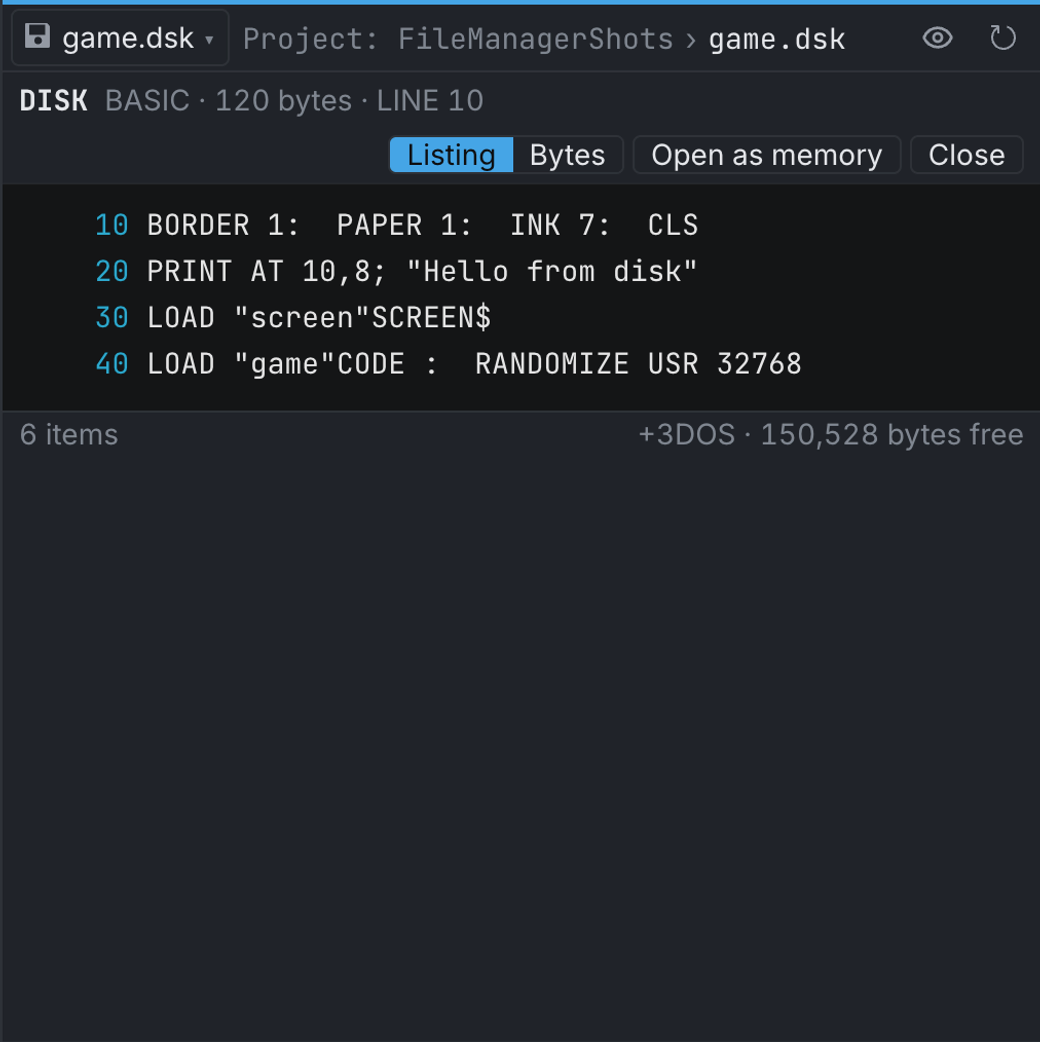
| F3 | View: a BASIC program as its listing, a screen as its picture, text as text, anything else as bytes. Open as memory opens the bytes in a memory view with disassembly. F3 or Esc closes it. |
| F4 | Edit: opens a project file in its editor or viewer. |
| Shift+F6 | Rename the file under the cursor. |
| F7 | New folder (on this computer and on SD cards). |
| F8 or Delete | Delete. On this computer files go to the system’s trash; on an image they are deleted for good. |
| Alt+↑ Alt+↓ | On a tape, move the file one place earlier or later. |
The buttons along the bottom do the same, for keyboards without function keys. Right-click a file for the same commands, and Reveal in the system’s file manager for a file of this computer.
The machine’s own storage
The machine’s SD card, disks, cartridges and tape are drives only while the machine is stopped, so nothing the File Manager writes meets a running program. While the machine runs, they are greyed in the drive menu, and a pane on one says that the machine is running, with a Stop the machine button. Once the machine stops, the pane reads its folder again. If the machine starts during a copy, the copy stops before its next file.
Settings
Settings › General › File Manager has two switches:
- Show hidden files in new panes.
- Delete this computer’s files permanently, instead of moving them to the system’s trash.