Welcome to Klive
Klive is an emulator and an Integrated Development Environment (IDE) in one app. It runs the ZX Spectrum, the ZX Spectrum Next and several other Z80 machines, and it lets you write, build, run and debug programs for them in Z80 assembly or ZX BASIC. It runs on macOS, Windows and Linux.
Windows and monitors
Klive starts with two main windows that work together:
- The emulator shows the machine: its screen, a toolbar to start, pause and stop it, and, if you want one, a virtual keyboard.
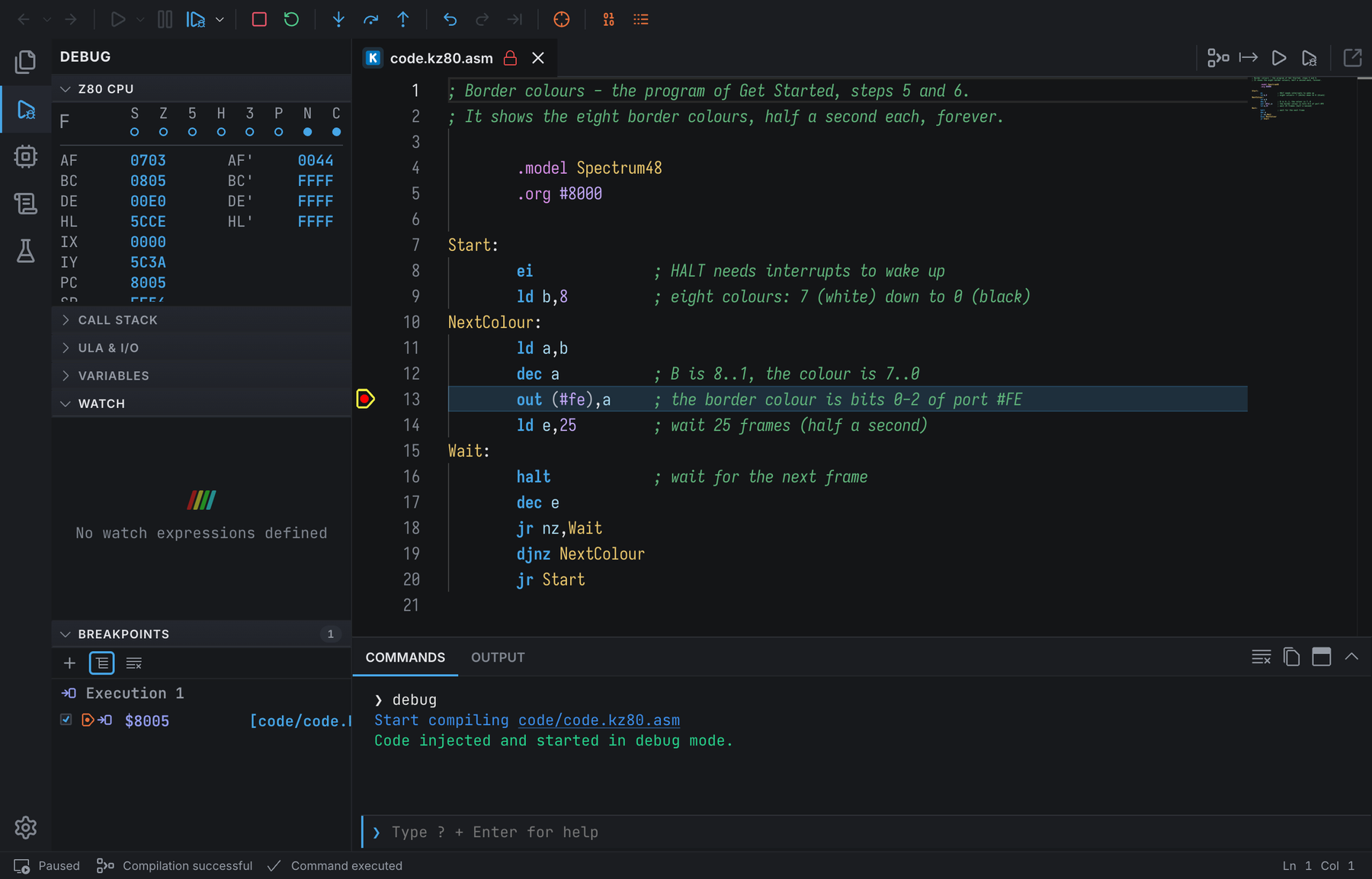
- The IDE is where you write code: a project explorer, a code editor, a command prompt, and the debugging panels that show the machine’s registers, memory and more.
You are not limited to these two. Right-click a document’s tab in the IDE and choose Pop Out to Window to move that document into a window of its own: a source file, the Memory View or the Disassembly View, for example. Up to four documents can have their own windows at a time. A popped-out document works as it does in the IDE, with its breakpoints, the execution point and its keyboard shortcuts, and its Dock button puts it back into the IDE.
Klive uses every monitor your computer has. You can keep the emulator on one screen, the IDE on another, and the code you are debugging next to the emulator. Klive remembers where its windows were and opens them there next time. A document in its own window has the details.
What you will do
This tutorial takes about 90 minutes. Each page builds on the one before it, but you can stop after any of them.
Download and install Klive on macOS, Windows or Linux.
1. Install KliveStart a ZX Spectrum, type a BASIC program, and choose another machine.
2. Meet the emulatorLoad and run a .tap file, quickly or in real time.
Find your way around the IDE and set its language.
4. Meet the IDESee what a Klive project adds to a folder, and make a folder from another tool a project.
5. How Klive handles projectsCreate a project, write Z80 assembly, and run it.
6. Your first assembly programStop at a breakpoint, step through the code, and watch the registers change.
7. Debug your programWrite ZX BASIC, compile it with Boriel BASIC, and debug it statement by statement.
8. Your first BASIC programPut a hardware sprite on the Next’s screen.
9. Your first ZX Spectrum Next programExport your program as a tape file that other emulators and real machines can load.
10. Save and share your workPick your next topic.
11. Where to go next