Breakpoints
A breakpoint stops a debug run when the program reaches an instruction, touches a memory address or uses an I/O port. This page shows how to set one from the editor, the Disassembly view and the Breakpoints panel, how to make it stop only once, and how breakpoints on banked memory work. Conditions, hit counts and logpoints have a page of their own.
Breakpoints stop the machine only in a debug run (Debug Project or Debug Machine, see Running, pausing and stepping).
Set a breakpoint in the editor
Click the margin
Click the margin left of the line number. A breakpoint mark appears; click it again to remove it. In a language with several statements on a line (ZX BASIC), each further statement has its own small inline marker: click it to set a breakpoint on that statement.
Build and debug
Start a debug run. A breakpoint set in the source is resolved to an address when the project is built; until then it is listed as not resolved and cannot stop the machine.
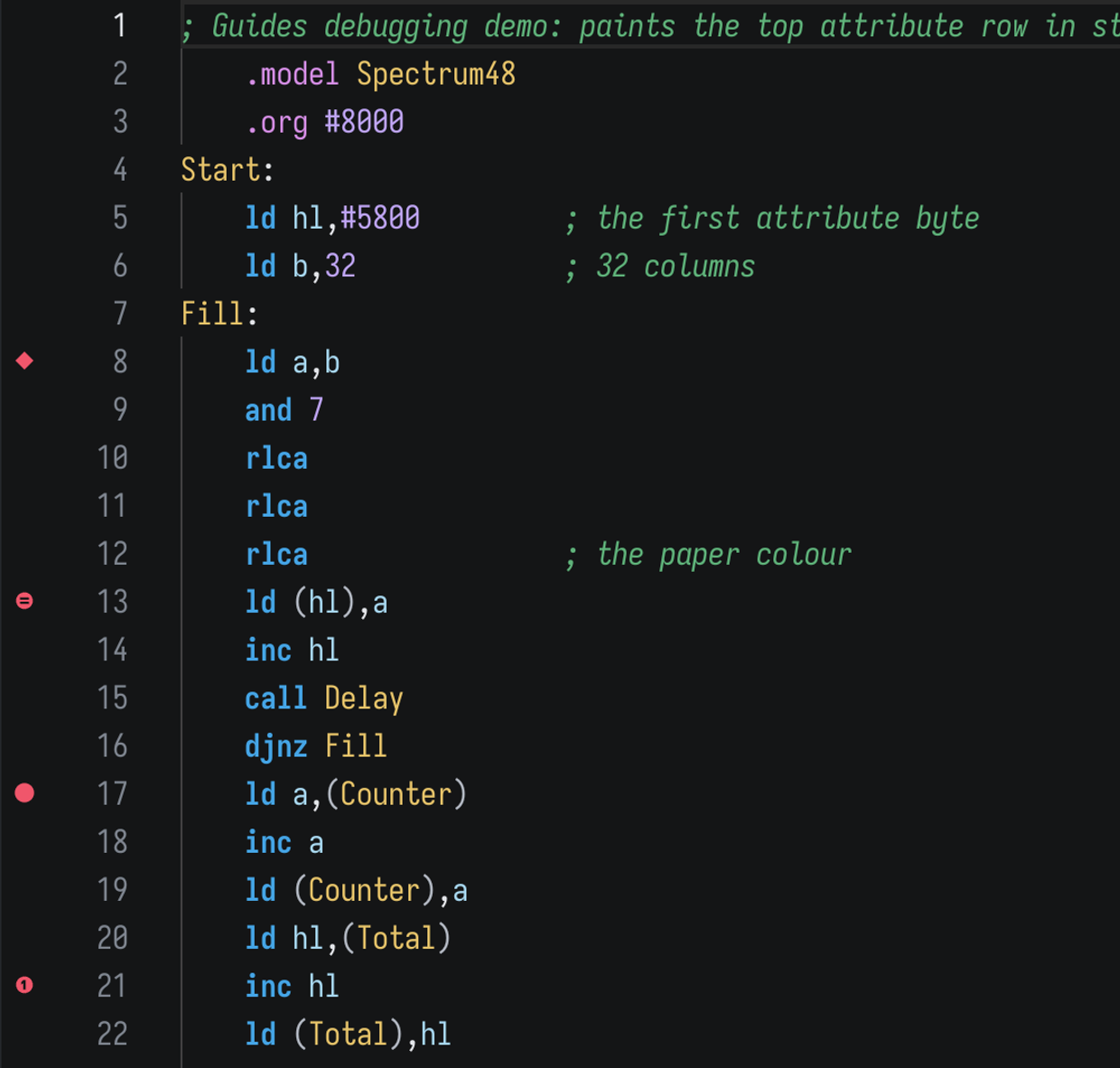 1234
- An ordinary breakpoint.
- A conditional breakpoint.
- A one-shot breakpoint.
- A logpoint.
The mark’s shape tells you what kind it is:
| Mark | Meaning |
|---|---|
| Filled dot | An ordinary breakpoint |
| Dot with = | A breakpoint with a condition or a hit-count rule |
| Hollow dot | A condition that cannot stop the machine right now (it names a label the last build does not define) |
| Dot with 1 | A one-shot breakpoint |
| Diamond | A logpoint: logs a message instead of stopping |
A disabled breakpoint keeps its shape but is drawn muted. Hovering a mark shows its condition, hit rule and hit count, and, when it cannot stop, why.
The margin’s menu
Right-click the margin, or an inline statement marker, for the rest:
- on an empty line: Add Breakpoint, Add One-Shot Breakpoint, Add Conditional Breakpoint… and Add Logpoint… (the last two open the breakpoint dialog on the condition or the message; Cancel removes the breakpoint again);
- on a breakpoint: Edit Condition…, Edit Hit Count…, Convert to Logpoint…, Remove After It Stops (or Keep After It Stops), Disable Breakpoint / Enable Breakpoint, Reset Hit Count and Remove Breakpoint;
- on a logpoint: Edit Log Message…, the condition and hit count items, Convert to Breakpoint, and the rest as above.
The editor’s own context menu (right-click in the text) adds Toggle Breakpoint at Statement, Stop Here Once and Run to Cursor for the statement under the cursor.
One-shot breakpoints
A one-shot breakpoint removes itself the first time it stops the machine: “stop here once”.
Hold Shift and click the editor margin (or an inline marker) or the Disassembly view’s
gutter. Shift+click on an empty place adds a one-shot, on a regular breakpoint makes it a one-shot,
and on a one-shot removes it. The same is offered by name in the menus above, as the Remove after
it stops checkbox of the breakpoint dialog, and as -once on
bp-set.
A one-shot keeps its condition and hit rule, and is removed only when those let it stop: a one-shot
with -hit 10 stops on the tenth hit and is then gone. One-shots are never saved with the project;
Keep After It Stops makes one a regular breakpoint again and puts it back in the project.
Run to a line
To stop somewhere once without setting anything, use Run to Cursor in the editor’s context menu, Ctrl+click (Cmd+click on macOS) on a row of the Disassembly view’s gutter, or Run to Here in its row menu. The breakpoint Klive uses is removed as soon as it is reached and never replaces a breakpoint you set at the same place. See Run to Cursor.
Breakpoints in the Disassembly view
The Disassembly view has a breakpoint gutter left of the addresses:
- right-click the gutter to add an execution breakpoint, or to remove the one there;
- double-click a breakpoint to edit it in the dialog, where its type can be changed to any other;
- Shift+click for a one-shot, Ctrl/Cmd+click to run to the row.
Right-clicking a row outside the gutter opens a menu with the same actions by name: Add Breakpoint / Remove Breakpoint, Add One-Shot Breakpoint, Run to Here and Edit Breakpoint….
The Breakpoints panel
The Breakpoints panel of the Debug activity lists every breakpoint, however it was made: in the margin, in the Disassembly view, in the dialog or with a command.
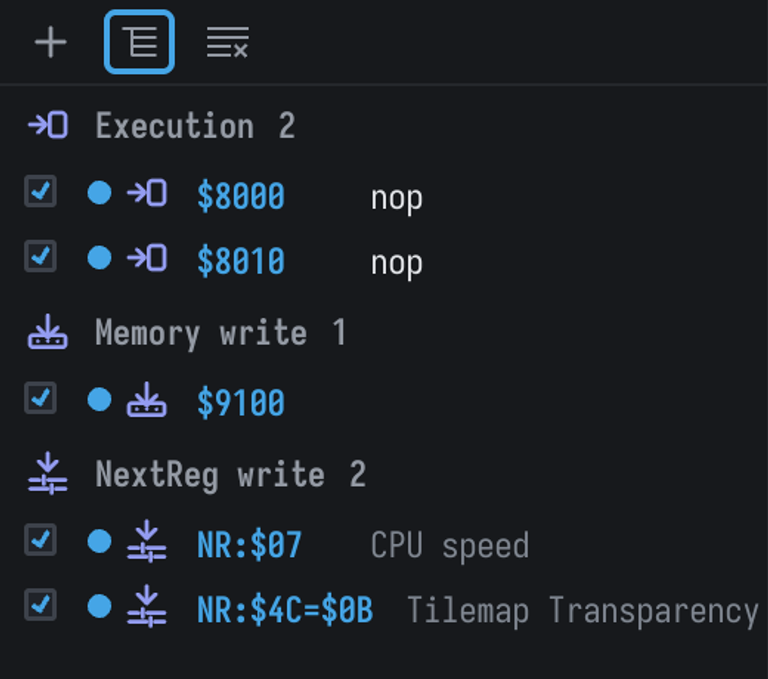
Each row has:
- a checkbox: clear it to disable the breakpoint without removing it;
- the breakpoint’s mark (the shapes above) and an icon for its type;
- its address or source location, and for a source breakpoint the address it resolved to;
- the disassembly at that address;
- for a breakpoint with a condition or hit rule: the live hit count (
9×), the rule (hit *4) and the condition (if A == $FF). Hover the row to read a long condition in full.
Right-click the mark to remove the breakpoint. Double-click a row to edit it. Right-click a row for Edit breakpoint…, Remove after it stops (or Keep after it stops), Enable breakpoint / Disable breakpoint, Remove breakpoint, Reset hit count, Reset all hit counts and Remove all breakpoints. On a memory breakpoint whose address a build symbol starts at, the menu also offers Add to Watch, which adds a watch over the same bytes.
The panel’s toolbar has Add breakpoint (opens the dialog), Group breakpoints by kind / Ungroup breakpoints, and Remove all breakpoints. Removing all also removes the source-code breakpoints, and the confirmation says how many. Grouped, each kind has a header with a count; within a kind, rows are sorted by address either way.
Below the breakpoints, the panel lists breakpoints that come from source comments and the log groups.
The breakpoint dialog
Add breakpoint and Edit breakpoint… open a dialog with every option bp-set accepts,
without the flag syntax. Like the Settings dialog, it has a list of pages on the left; under each
page’s name is a one-line summary of what is set there (Execution $8000, A == $FF · At least 5,
Stop), so you can read the whole breakpoint without opening every page.
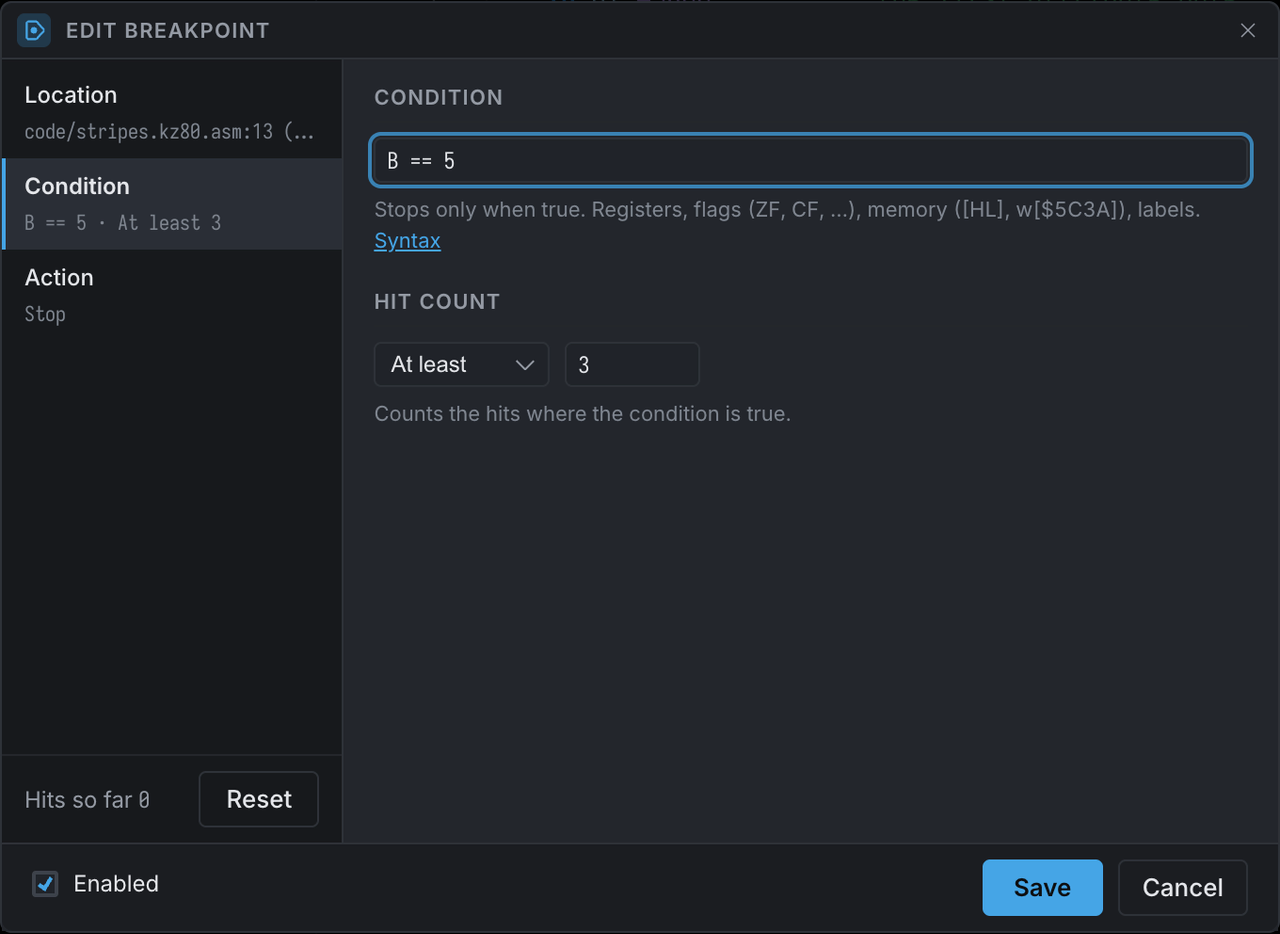
Trigger says what makes the breakpoint fire:
- Type: one of the breakpoint types. The CPU’s types are in the first column, the ZX Spectrum Next’s hardware types in the second.
- Address (or Port):
$8000,32768or%1000000000000000, or a bank-relative address such as05:+$0100. The other types ask for a register, a Copper list index, a sprite or an interrupt event instead. - Length (memory types): how many bytes to watch from the address, so one breakpoint can guard a buffer.
- Port mask (I/O types): leave it empty to match the port exactly.
- Partition: on machines that page ROM or RAM, Break only in a specific partition ties the breakpoint to one partition. The partition names are those of the Memory view. Not for I/O breakpoints, which watch a port.
Condition holds the Condition and the Hit count; see Conditions, hit counts and logpoints. The condition is checked as you type; the Syntax link opens that page.
Action says what happens when it fires: Stop, with Remove after it stops for a one-shot, or Log message for a logpoint, with its Message. For the Next’s hardware types it also says where the machine stops.
Enabled is beside the buttons, and when you edit a breakpoint, Hits so far and a Reset button are under the page list. A page with a mistake on it gets a red dot after its name, and Add (or Save) opens the first such page.
The dialog refuses an address that already has a breakpoint of the same type.
A source-code breakpoint belongs to the editor, which moves it with its line as you edit. Opened on
one, the dialog’s first page is Location, which shows the line (and the address it resolved to)
instead of the type, address and partition; the dialog opens on Condition and edits only the
condition, hit count, action and enabled state. To script one, use
bp-set [myfile.asm]:12.
Breakpoint types
| Type | Stops when |
|---|---|
| Execution | The CPU is about to execute the instruction at the address. |
| Memory read | An instruction reads the address as data. Fetching opcodes and operands does not count; LD HL,($8000) reads both $8000 and $8001. |
| Memory write | An instruction writes the address. |
| I/O read | The CPU reads the 16-bit port (with the port mask applied). |
| I/O write | The CPU writes the port. |
| NextReg write | A Next register is written (ZX Spectrum Next). |
| Copper instruction | The Copper completes an instruction of its list (ZX Spectrum Next). |
| Sprite attribute write | An attribute byte of a sprite is written (ZX Spectrum Next). |
The three ZX Spectrum Next types watch a machine event rather than an address, so they have no margin to click. They are described in Next breakpoints.
From the command prompt: bp-set $8000 (execution), bp-set $5800 -w -len 768 (memory write),
bp-set $FE -i (I/O read), bp-list, bp-del, bp-en, and bp-ea to remove them all. See
bp-set.
Bank-relative breakpoints
Applies to: ZX Spectrum 128K, +2A/+3, +2E/+3E, Pentagon, Scorpion, ZX Spectrum Next; the 48K and Timex models in the 128K’s numbering.
A partition-scoped breakpoint sits at one Z80 address and fires only while a given partition is paged there. Code whose bank moves between slots needs something else: a bank-relative breakpoint names the bank and an offset inside it, and fires wherever that bank is paged.
bp-set 05:+$0100This breaks at offset $0100 of 16K bank 5. The bank is a 16K bank number in hexadecimal, and the
offset runs from $0000 to $3FFF: the units of a NEX file and the .bank pragma. bp-del
and bp-en take the same form. The banks are 00-6F on the ZX Spectrum Next, 00-07 on the
128K, +2A/+3, +2E/+3E and Pentagon, and 00-0F on the Scorpion. The 48K and the Timex name their
RAM as the 128K does in 48K mode (bank 5 at $4000, bank 2 at $8000, bank 0 at $C000), so a
breakpoint written for a 48K program keeps its meaning on a 128K. The ZX80 and ZX81 have no banks,
and I/O breakpoints cannot be bank-relative.
A breakpoint can also be anchored to a label of the active annotation set (bp-set 07:MainLoop),
so it follows the label when the code moves, or to a ROM label (bp-set ROM:<name>). See
Annotations on every machine.
On the ZX Spectrum Next a memory partition is an 8K page while a bank here is 16K, so a bank-relative breakpoint resolves to one of the bank’s two partitions, depending on whether its offset is in the low or the high half.
Bank watchpoints
The Memory read and Memory write types accept a bank-relative address, which gives “stop when this byte of this bank is written, wherever the bank is paged”:
bp-set 05:+$0100 -wWithout typing: use Add breakpoint in the Breakpoints panel and enter the bank-relative address in Address, or set an execution breakpoint in a popped-out bank, double-click it and change its Type. The disassembly gutter shows one mark per line, so a line with both an execution breakpoint and a watchpoint shows the execution one; the Breakpoints panel lists both.