Examining Core Update Files (TBBLUE.TBU)
TBBLUE.TBU is the file the ZX Spectrum Next’s updater writes into the FPGA’s flash: one or more
cores, each for one board. Klive opens it in a viewer that shows which cores the file carries,
checks every image the way the updater does before it erases anything, and lists what each
bitstream tells the FPGA. Use it to check a file before you press U, or to see what a system
release contains.
Applies to: ZX Spectrum Next core update files. The viewer only reads the file; it never changes it.
Opening the file on your SD card
With the ZX Spectrum Next selected, choose Machine › SD Card › Show TBBLUE.TBU, or type
show-tbu at the command prompt. Klive reads TBBLUE.TBU from the root folder of the card the
machine uses: the model’s own card, or the image you chose with Select Image…. It works while
the machine runs, and each time you choose it, it reads the card again. The tab is named after the
card, for example TBBLUE.TBU · ks2-30303.cim.
The update file on the card is the one the updater would write when you press U, so this is the quickest way to see which core an update would put on your board.
Opening a file from elsewhere
Put the file in your project
Copy TBBLUE.TBU into your project folder, for example from a system release of the Next’s
distribution or from a real card.
Open it
Click the file in the Explorer, or type nav TBBLUE.TBU at the command prompt.
The viewer opens only a file named exactly TBBLUE.TBU (in any letter case). Other .tbu files are
not this format. To keep several releases, give each its own folder rather than renaming the file.
What the viewer shows
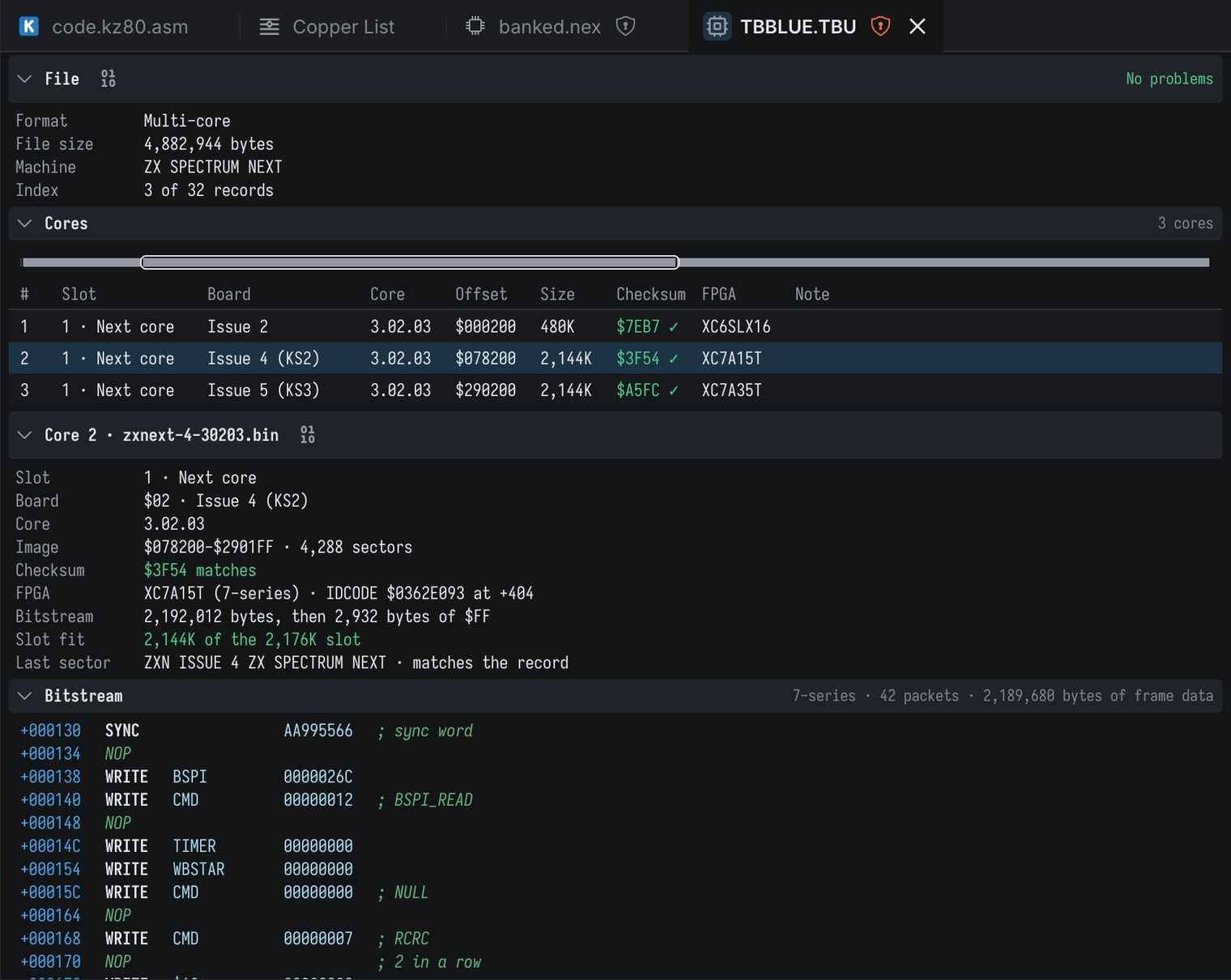
The viewer has four sections, each of which you can fold away:
| Section | What it shows |
|---|---|
| File | The format, the file size, how many of the 32 index records are used, and a verdict: No problems, or the number of errors and warnings, each described in a sentence. The button beside the heading opens the 512-byte header as a memory dump. |
| Cores | A strip of the file to scale (the header, then each image) and a table with one row per core: its flash slot, board, core version, where its image is, its size, its checksum and the FPGA it is for. Click a row, or an image in the strip, to select that core. |
| Core | The selected core in detail: the board byte, the image’s range in sectors, the checksum the updater will compute, the FPGA part and its ID, how much of the image is bitstream and how much padding, whether it fits the board’s flash slot, and the identification text in its last sector. The button beside the heading opens the image as a memory dump. |
| Bitstream | The selected core’s configuration packets, as a listing. |
Checking a file before an update
The updater reads the whole image for your board and checks its checksum before it erases slot 1. The viewer does the same for every core in the file, so you can check a copy before you put it on a card:
- The checksum of every core shows a tick when it matches. A damaged image shows a cross, and the File section says which core it is. The updater would stop with FAIL on it.
- Your board must have a row. The Issue 2 board reads its board ID as
$00, the Issue 4 (KS2) as$02and the Issue 5 (KS3) as$03; a file with no row for your board updates nothing. - Slot fit says whether the image fits the board’s flash slot (512K on Issue 2 and 3, 2,176K on Issue 4 and 5).
- The FPGA column names the part each bitstream is built for (XC6SLX16, XC7A15T, XC7A35T). A bitstream for another board’s FPGA is reported as an error.
A file can hold several records that use the very same image: newer releases carry three Issue 2 records, two of them sharing one image. The table notes it (“Same image as 5”), and the strip draws the image once.
The board byte’s high four bits hold a variant number in newer files ($10, $20, …), and some
records carry a type other than the slot 1 core. Their meaning is not documented, so the viewer shows
them as numbers, for example Issue 2, variant 2 or Type 3.
Reading the bitstream
An FPGA bitstream is a short program of register writes around one large block of configuration
data. The Bitstream section lists that program, one packet per line: its offset in the image,
the operation, the configuration register, the value written, and a comment that names a command
(RCRC, START, DESYNC) or the FPGA an IDCODE write checks for. A run of NOPs is one line with
a count. The frame data, nearly all of the image, is one line with its size: it is the FPGA’s
configuration itself and is not decoded.
The Issue 2 and 3 boards use a Spartan-6 FPGA, whose bitstream is made of 16-bit packets; the Issue 4 and 5 boards use Artix-7 parts, whose packets are 32-bit. The register names are Xilinx’s.
Older update files
Update files from 2019 and earlier hold a single core and a simpler header. The viewer shows them as Legacy single-core: the hardware ID, the core version, the image size against the file and the XOR checksum those files use, and the bitstream’s packets.
Related
- The FPGA and its cores: how the updater writes a core, the flash slots and the anti-brick core
- The SD card: copying files to and from the emulated card
- The firmware file (TBBLUE.FW): the updater that writes the core is one of its modules
- ZX Spectrum Next models
- The Memory view