Choosing a machine
Klive emulates more than a dozen machines and models, from the ZX81 to the ZX Spectrum Next. This page shows how to switch between them, how to keep the ones you use in the Machine Type menu, and where each machine’s own menus and settings appear once it runs.
Pick a favourite from the menu
Machine › Machine Type lists your favourite models, then Select machine…. Click a model to switch to it. If the machine you are running is not a favourite, the menu still shows it, ticked, below the favourites.
The machine’s name also shows at the right end of the emulator’s status bar. Click it to open the Select machine dialog.
Switch with the Select machine dialog
Open the dialog
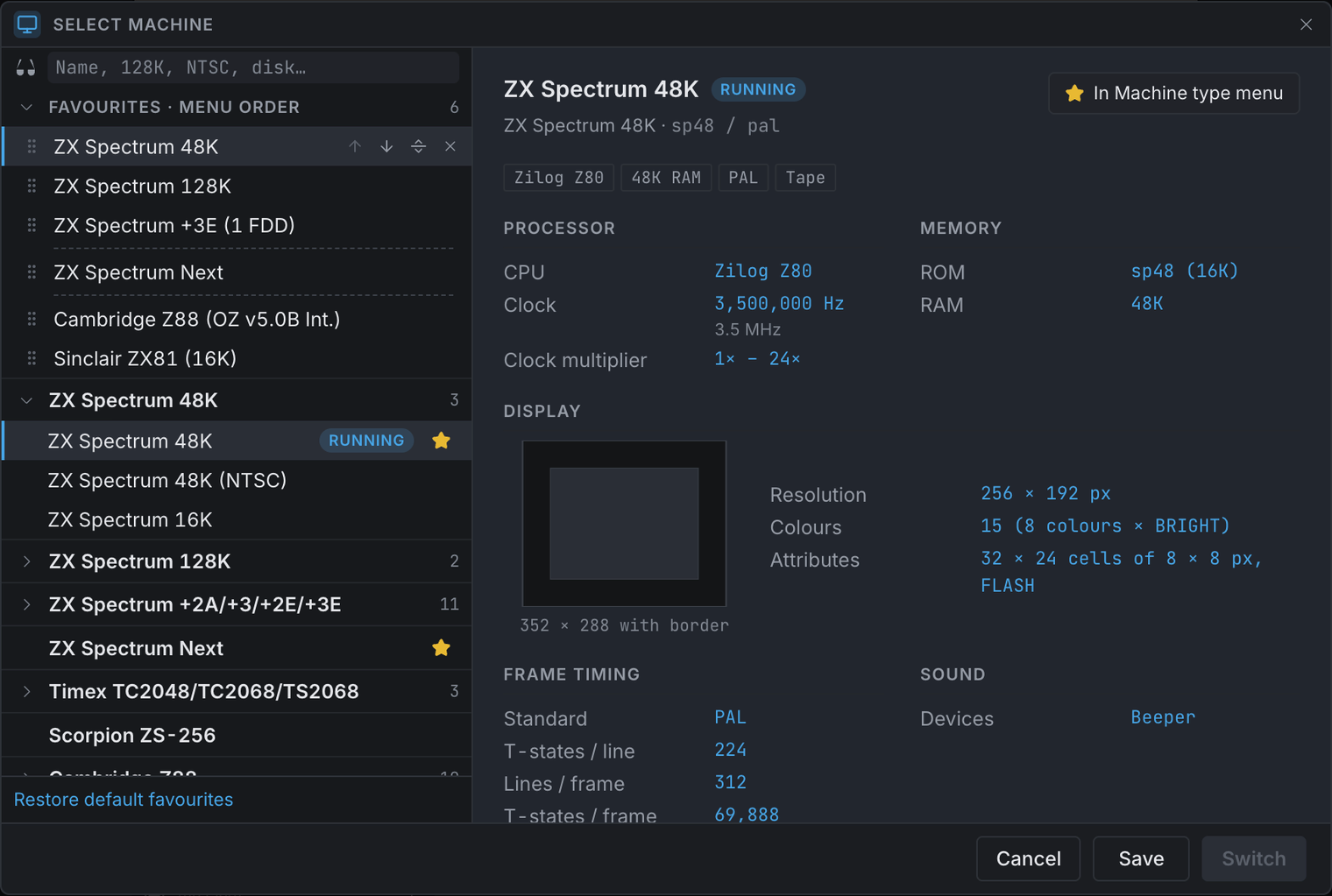
Choose Machine › Machine Type › Select machine… (Cmd+Shift+M on macOS, Ctrl+Shift+M on Windows and Linux), or click the machine name in the emulator’s status bar.
Find the model
The left side lists the machine types; open one to see its models. The model running now is marked
Running. Type in the Filter machines box to narrow the list: it matches names and hardware
facts, so 128K, NTSC, disk or OZ all work.
Read its details
Select a model to see its hardware on the right, in the groups Processor, Memory, Display, Frame timing, Sound and Storage & input: the CPU and its clock, ROM and RAM, the screen with its border, the frame timing, the sound devices, and the storage and input devices.
Switch to it
Click Switch to model name, double-click the model, or press Enter.
The emulator sets up the new machine. With a Klive project open, the project remembers the machine you switched to.
A snapshot, a state file or an RZX recording chooses its own machine when you open it. With a project open, Klive refuses one made for another machine type instead of switching the project. See ZX Spectrum snapshots.
Edit your favourites
The same dialog edits the Machine Type menu:
- Click the star next to a model, or Add to Machine type menu above its details, to make it a favourite. Click the star again to remove it.
- The Favourites · menu order section at the top lists the favourites in menu order. Drag them, or use Move up (Alt+↑) and Move down (Alt+↓), to reorder them. The separator button adds a menu separator after an item, and Delete removes the selected favourite.
- Save keeps the changes; the dialog says Unsaved menu changes until you do. Restore default favourites brings back the original list.
Favourites are your own setting, not a project’s: they stay the same whichever project you open.
Each machine’s menus and settings
Klive builds the Machine menu for the running machine. Its device submenus appear only when the machine has the device:
| Submenu | Machines | What it holds |
|---|---|---|
| Tape | ZX Spectrum models, Timex, Scorpion, HT-1080Z | Insert, rewind and eject a tape; fast load. See Tapes. |
| Program | ZX81, ZX80 | Select a .p/.o program and load it. See The ZX81 and ZX80. |
| Disks | +2A/+3/+2E/+3E, Pentagon 128, Scorpion | Floppy drives. See TR-DOS disks. |
| Cartridge | TC2068, TS2068 | The .dck cartridge. See Timex and Scorpion. |
| SD Card | +2A/+3/+2E/+3E (the DivMMC), ZX Spectrum Next | The DivMMC or the Next’s SD card image. |
| Interfaces | ZX Spectrum 16K, 48K, 128K | The Interface 1 or the DivMMC. See The Interface 1 and Microdrives. |
| Input | Every machine | Joysticks and the mouse where the machine has them, and Input Settings…. See Keyboard, joysticks and mouse. |
A machine with hardware actions of its own gets a submenu named after it, such as Machine › ZX Spectrum 48K (Snow Effect, Late ULA Timing), Machine › Cambridge Z88 (the resets) or Machine › HT-1080Z (the RESET and PAGE keys). View › Machine Views adds the machine’s own views (the BASIC listing, the Next’s Copper List and inspectors), and the Z88 adds Help › Cambridge Z88 Resources.
Settings you choose once, such as ROM files and the Z88’s keyboard layout, are on the Machine page of the Settings dialog. That page shows only the running machine’s options; switch machines to see another’s. Custom ROMs lists them.
Related
- Machine types: every machine and model, with its ID
- The emulator window
- Custom ROMs
- Other machines: the ZX81 and ZX80, the HT-1080Z, the Cambridge Z88, Timex and Scorpion