Your first ZX Spectrum Next program
The ZX Spectrum Next is a modern ZX Spectrum with a faster Z80 (the Z80N), more memory, and new video hardware: layers, a tilemap, a Copper, and 128 hardware sprites. On this page you put one sprite on the screen and move it across, without drawing a single pixel with the CPU.
Create the project
Choose File › New Project… with these settings:
- Machine type: ZX Spectrum Next.
- Project Template:
default. - Project name:
NextSprites.
Write the program
Replace the contents of code/code.kz80.asm with this program and save it:
; A sprite on the ZX Spectrum Next - the program of Get Started, step 8.
; It uploads one 16x16 sprite pattern and moves the sprite across the screen.

        .model Next
        .org #8000
        .savenex file "NextSprites.nex"   ; the name of the .nex file Klive builds

SPRITE_SLOT  .equ #303b     ; selects the sprite (and pattern) to write
SPRITE_ATTR  .equ #57       ; writes the selected sprite's attributes
SPRITE_PATT  .equ #5b       ; writes the selected pattern's bytes

Start:
        ei
        nextreg #15,%00000001       ; show sprites (on top of the other layers)

        ; Upload pattern 0: 256 bytes, one per pixel
        ld bc,SPRITE_SLOT
        xor a
        out (c),a                   ; pattern 0
        ld hl,Ball
        ld bc,SPRITE_PATT           ; B = 0, so OTIR sends 256 bytes
        otir

        ld d,32                     ; D is the sprite's X coordinate
Move:
        ld bc,SPRITE_SLOT
        xor a
        out (c),a                   ; select sprite 0
        ld a,d
        out (SPRITE_ATTR),a         ; attribute 0: X (low 8 bits)
        ld a,120
        out (SPRITE_ATTR),a         ; attribute 1: Y
        xor a
        out (SPRITE_ATTR),a         ; attribute 2: no palette offset, mirror or rotation
        ld a,%10000000
        out (SPRITE_ATTR),a         ; attribute 3: visible, pattern 0
        halt                        ; one step per frame
        inc d
        jr Move

; The ball: $E3 is the transparent colour, $E0 red, $FF white
Ball:
        .defb $E3,$E3,$E3,$E3,$E3,$E3,$E3,$E0,$E0,$E3,$E3,$E3,$E3,$E3,$E3,$E3
        .defb $E3,$E3,$E3,$E3,$E0,$E0,$E0,$E0,$E0,$E0,$E0,$E0,$E3,$E3,$E3,$E3
        .defb $E3,$E3,$E3,$E0,$E0,$E0,$E0,$E0,$E0,$E0,$E0,$E0,$E0,$E3,$E3,$E3
        .defb $E3,$E3,$E0,$E0,$E0,$E0,$E0,$E0,$E0,$E0,$E0,$E0,$E0,$E0,$E3,$E3
        .defb $E3,$E0,$E0,$E0,$FF,$FF,$FF,$E0,$E0,$E0,$E0,$E0,$E0,$E0,$E0,$E3
        .defb $E3,$E0,$E0,$E0,$FF,$FF,$FF,$E0,$E0,$E0,$E0,$E0,$E0,$E0,$E0,$E3
        .defb $E3,$E0,$E0,$E0,$FF,$FF,$FF,$E0,$E0,$E0,$E0,$E0,$E0,$E0,$E0,$E3
        .defb $E0,$E0,$E0,$E0,$E0,$E0,$E0,$E0,$E0,$E0,$E0,$E0,$E0,$E0,$E0,$E0
        .defb $E0,$E0,$E0,$E0,$E0,$E0,$E0,$E0,$E0,$E0,$E0,$E0,$E0,$E0,$E0,$E0
        .defb $E3,$E0,$E0,$E0,$E0,$E0,$E0,$E0,$E0,$E0,$E0,$E0,$E0,$E0,$E0,$E3
        .defb $E3,$E0,$E0,$E0,$E0,$E0,$E0,$E0,$E0,$E0,$E0,$E0,$E0,$E0,$E0,$E3
        .defb $E3,$E0,$E0,$E0,$E0,$E0,$E0,$E0,$E0,$E0,$E0,$E0,$E0,$E0,$E0,$E3
        .defb $E3,$E3,$E0,$E0,$E0,$E0,$E0,$E0,$E0,$E0,$E0,$E0,$E0,$E0,$E3,$E3
        .defb $E3,$E3,$E3,$E0,$E0,$E0,$E0,$E0,$E0,$E0,$E0,$E0,$E0,$E3,$E3,$E3
        .defb $E3,$E3,$E3,$E3,$E0,$E0,$E0,$E0,$E0,$E0,$E0,$E0,$E3,$E3,$E3,$E3
        .defb $E3,$E3,$E3,$E3,$E3,$E3,$E3,$E0,$E0,$E3,$E3,$E3,$E3,$E3,$E3,$E3
How it works:
.savenex file "NextSprites.nex"names the.nexfile that Klive builds and copies to the emulated SD card when you run the program.nextreg #15,%00000001writes the Next register$15, whose bit 0 makes the sprites visible.NEXTREGis one of the Z80N’s new instructions.- A sprite’s look is its pattern: 256 bytes for 16 × 16 pixels, one colour index per pixel. Port
$303Bselects pattern 0, andOTIRsends the 256 bytes to port$5B. Colour$E3is transparent, so the corners of the square do not show. - A sprite’s position is in its attributes. Port
$303Bselects sprite 0, and four writes to port$57set its X and Y coordinates, its options, and make it visible with pattern 0. - The loop moves the sprite one pixel to the right every frame.
Dis a byte, so after X = 255 it wraps round to 0.
Run it
Click Run, or press F5. On the Next, Klive builds a .nex file, the Next’s program format, and starts it through NextZXOS, the Next’s operating system, which boots from an emulated SD card. The first start takes a few seconds; after that, Klive starts from a saved state of the booted system.
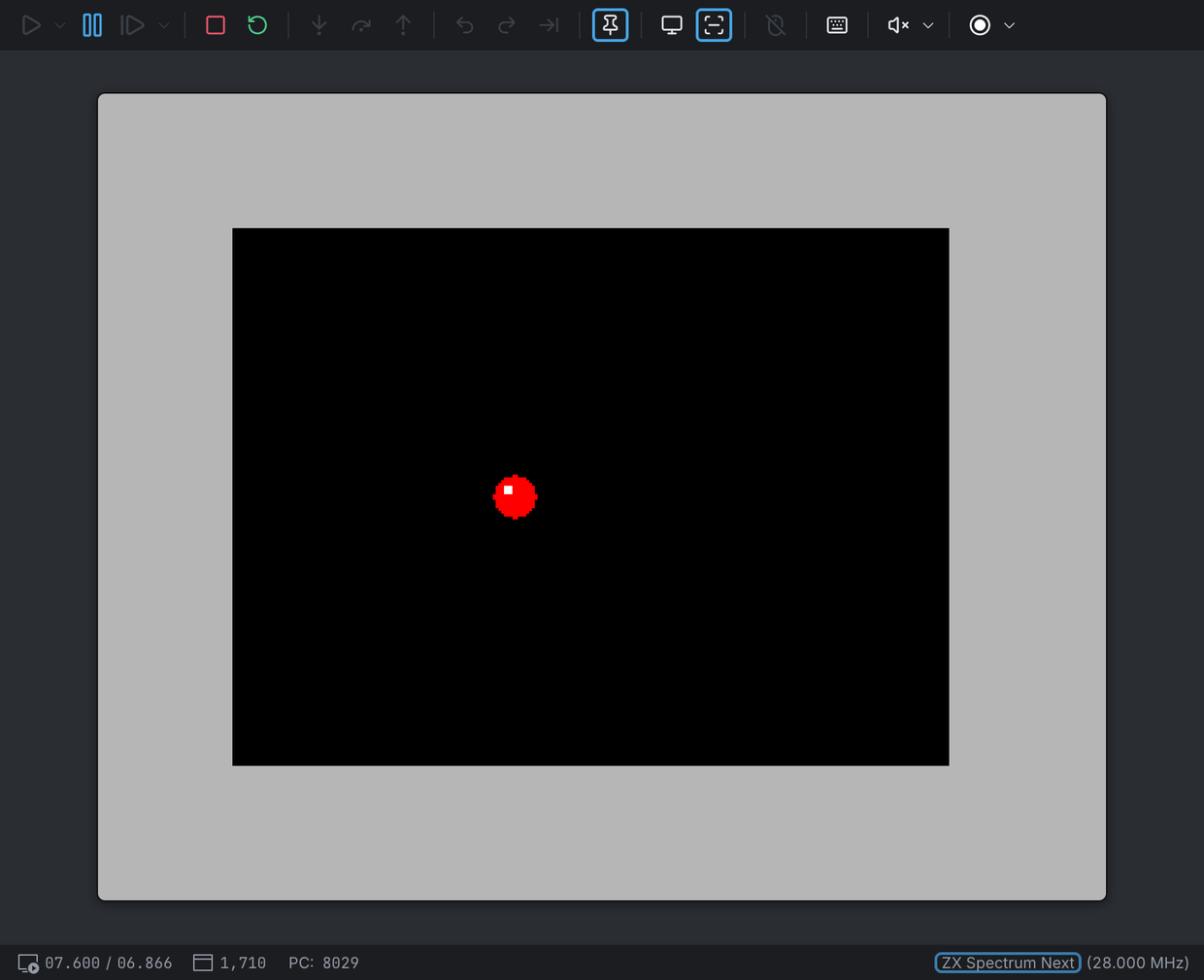
Change ld a,120 to another value and run the program again to move the ball up or down. To see every sprite’s attributes and patterns while the program runs, open the Sprite Inspector.
The Next’s SD card
A Next does not start without its SD card: NextZXOS and the programs you run are on it. In Klive the card is an image file in the Klive folder of your home folder, and Klive looks after it for you:
- The ZX Spectrum Next (KS3, core 3.03.03), the model new projects use, comes with its card. The first time it runs, Klive makes a copy of it,
ks3-30303.cim, which the Next reads and writes. There is nothing to do. - The other Next models each need their own NextZXOS release. The machine menus mark them with “download needed” and the size. The first time you select one, Klive offers to download its card from kliveide.net:
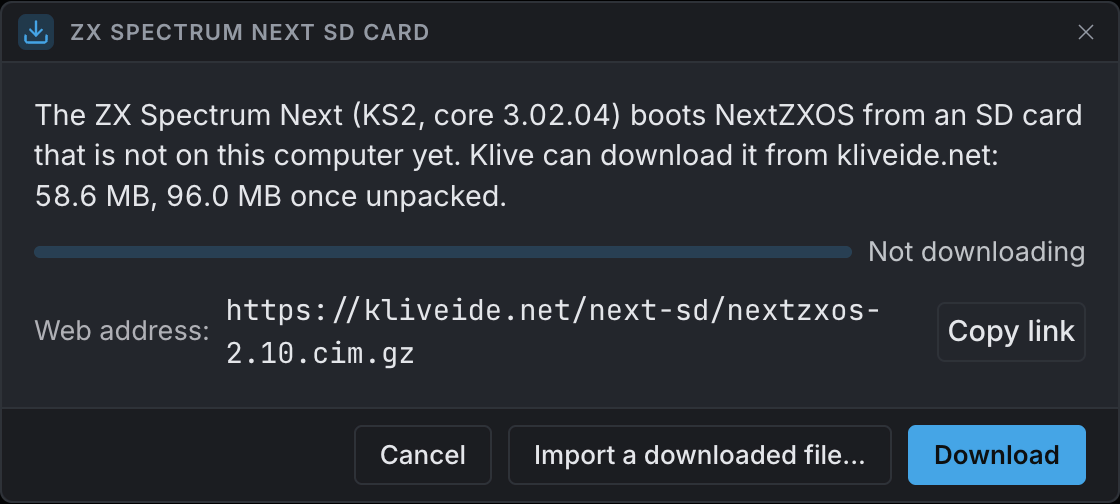
Click Download. When the download is done, the model starts. If Klive cannot reach the internet, click Copy link, download the file in a browser, and choose Import a downloaded file…. If you close the dialog, the machine you were using stays.
Before a Next starts, Klive also checks its card. When NextZXOS could not boot from it (a damaged card, for example), Klive says what is wrong and offers to reset the card. The old card is kept under another name, so nothing is lost.
The Next’s SD card explains the Machine › SD Card menu, how to use a card image of your own, and how to copy files to and from the card.
The ZX Spectrum Next assembler reference describes the Next’s instructions, .savenex and the other Next features of the Klive assembler.
Next, save and share your work.