The Project Explorer
The Project Explorer shows the files and folders of the open project. Use it to open files, to create, rename and delete them, to choose the build root, and to load tapes and other media into the machine. Klive opens each file in the editor or viewer that fits its type.
Opening the Explorer
Click Explorer in the activity bar. The side bar is on the left by default; to move it to the right, turn on Settings › Appearance › Sidebar on the right, or right-click the activity bar and choose Move Sidebar to the Right.
With no folder open, the Explorer offers Open Folder and Create a Klive Project. Above the tree, the Open Editors panel, collapsed at first, lists the documents you have open; its badge shows how many.
Working with the tree
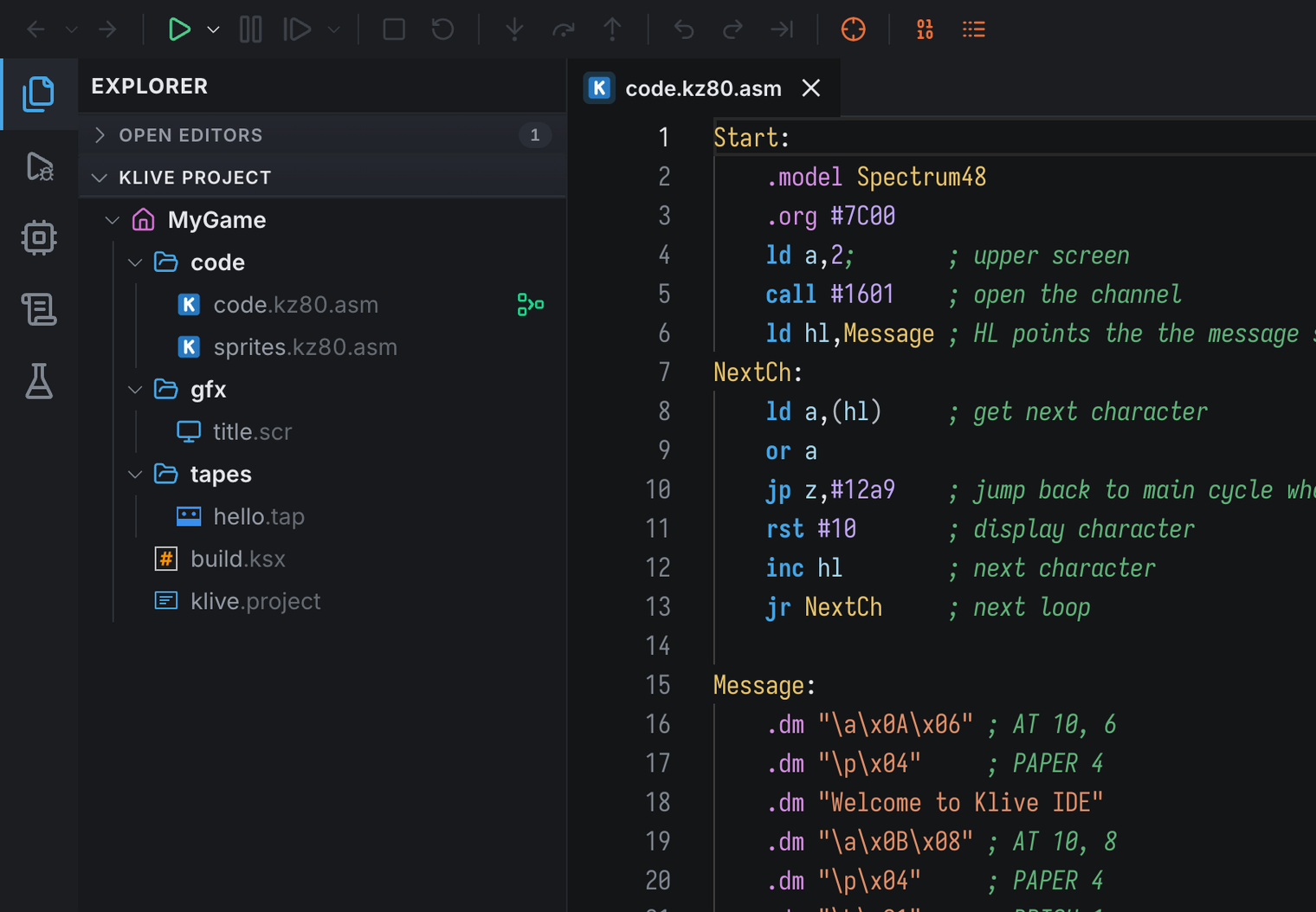
- Click a file to open it. A folder expands and collapses when you click it.
- Keyboard: ↑ and ↓ move through the tree, Space opens a file or expands a folder, Delete deletes the selected item.
- Drag a file onto the Disk Explorer to add it to a disk image.
- The root folder of a Klive project shows a home icon, and the build root a build icon after its name.
The context menu
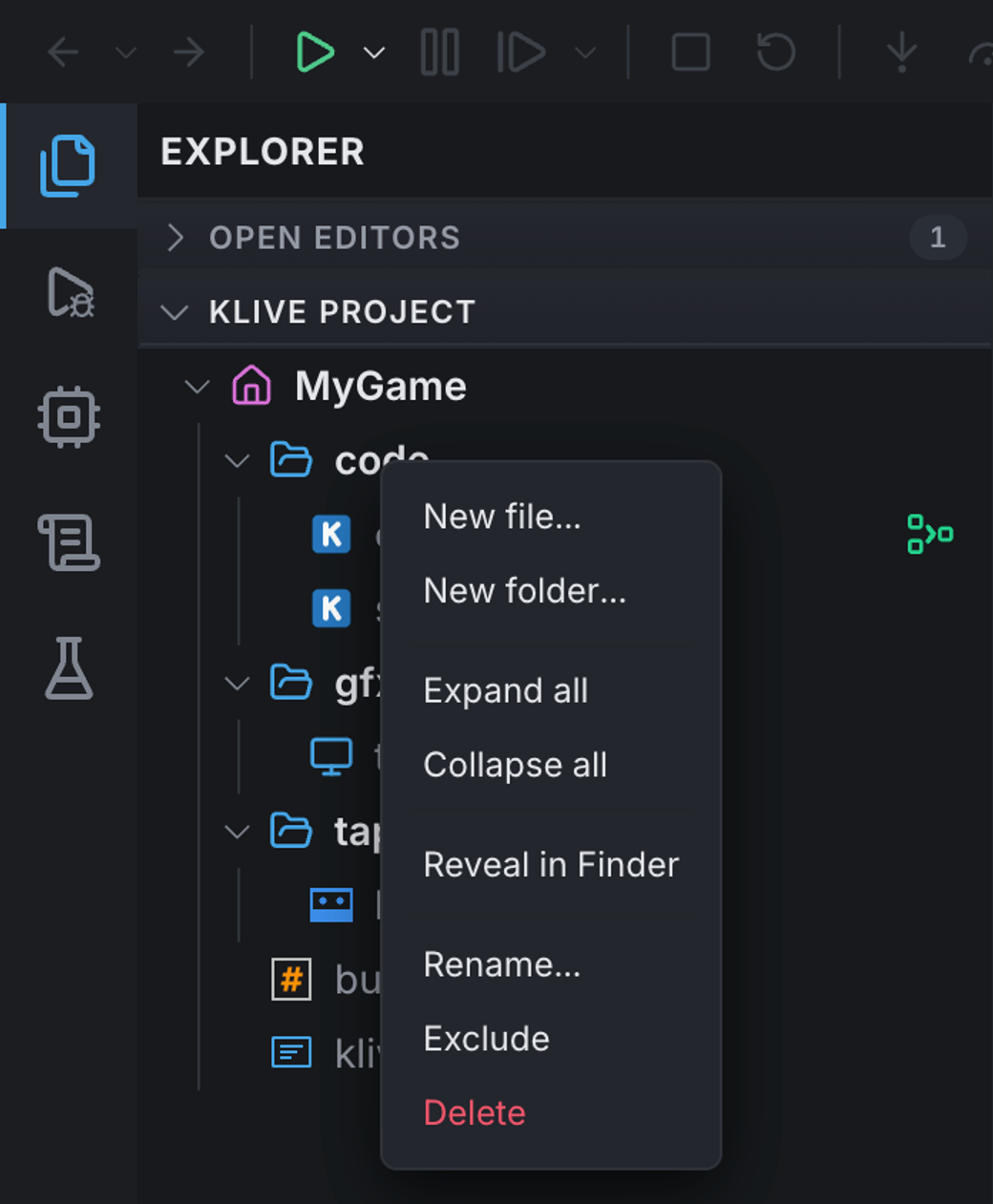
Right-click a file or folder:
| Item | Shown for | Does |
|---|---|---|
| Refresh | The root folder | Reads the folder again from disk. |
| Make Klive Project… | The root folder, in a plain folder | Opens the dialog that makes the folder a Klive project. See Make a folder a Klive project. |
| New file…, New folder… | Folders | Creates an item in the folder. |
| Expand all, Collapse all | Folders | Opens or closes every folder below. |
| Reveal in Finder (macOS) / Reveal in File Explorer (Windows) | Every item | Shows the item in your system’s file manager. |
| Rename… | Every item except the root and klive.project | Renames the item. Rename a file to change the extension, and with it the editor that opens it. |
| Exclude | Every item except the root and klive.project, in a Klive project | Hides the item from the Explorer. |
| Delete | Every item except the root and klive.project | Deletes the item from disk, after you confirm. It does not go to the trash. |
| Promote to Build Root / Demote from Build Root | Source files | Makes the file the build root, or stops it being one. In a plain folder it is disabled, and its tooltip points to Make Klive Project…. |
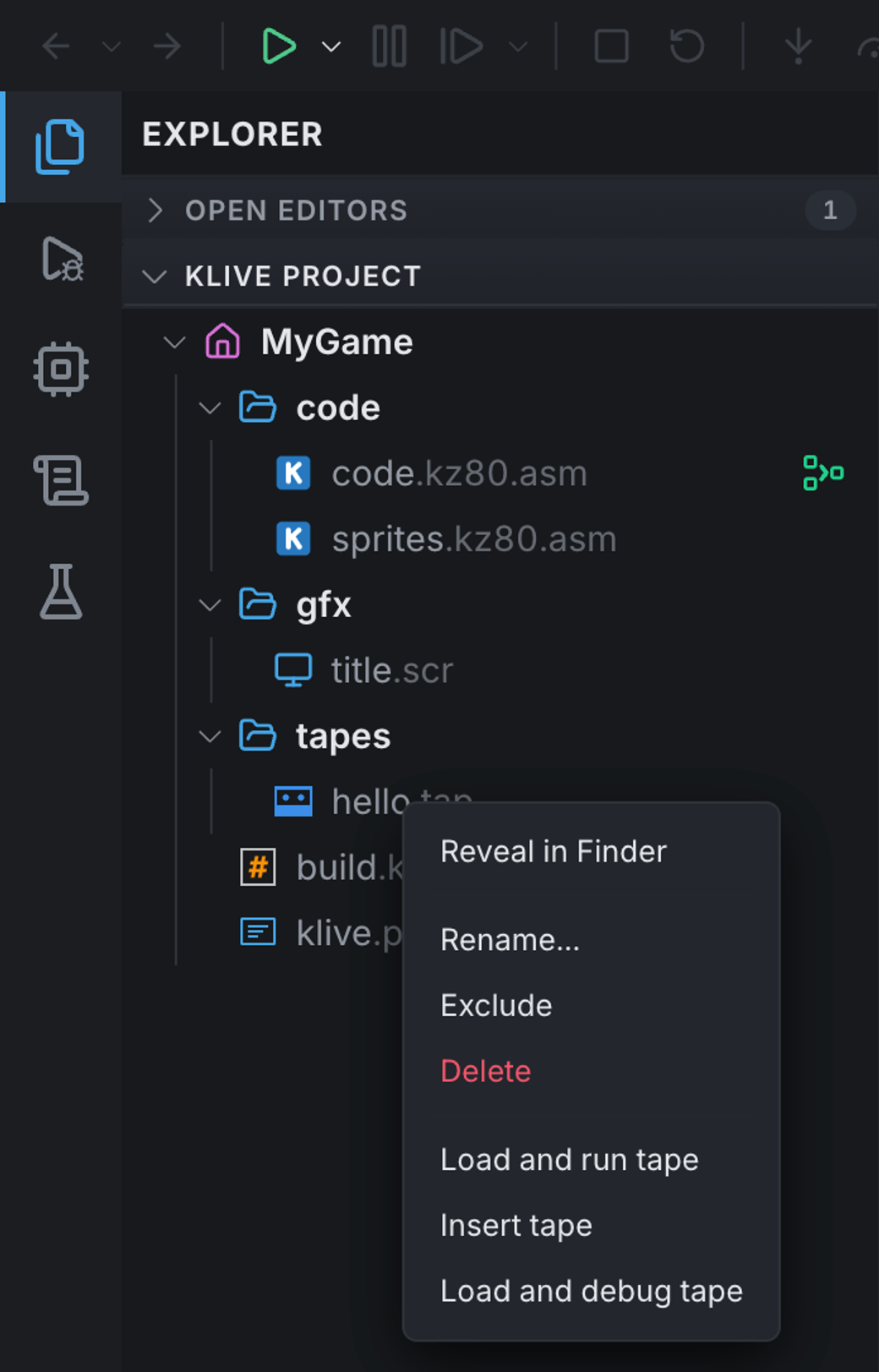
Some file types add items of their own. Tapes (.tap, .tzx) offer to load and run, insert, or
load and debug the tape, on the machines that can play them; see
Tapes. ZX80 and ZX81 program files, HT-1080Z tapes, NEX files, Z88
snapshots and .ksx scripts have their own items too.
Excluded items
Excluded files and folders are hidden from the tree but stay on disk. The button at the right of the project’s root folder opens the Excluded Items dialog, where you can bring them back. The list is saved in the project.
What opens where
Klive decides by the file name; the first matching rule wins.
Source code opens in the code editor, with the language’s colouring and features. The extensions
and their compilers are in File types: .kz80.asm, .asm,
.zxbas, .bas, .sjasm, .c, .h, .pas, .zxb.asm, .ksx, plus .lua and
.dis.
Text: .txt, and SkoolKit’s .skool and .ctl, open in the text editor.
Media and machine files open in their own viewers:
| Extensions | Opens in |
|---|---|
.tap, .tzx | The tape viewer (Tapes) |
.p, .81, .o, .80 | The ZX81/ZX80 program viewer (ZX81 and ZX80) |
.cas, .cmd, tokenised .bas | The HT-1080Z tape viewer (HT-1080Z) |
.dsk, .trd, .scl, .mdr | The Disk Explorer |
.img, .hdf, .cim | The hard-disk and SD card explorer (Disk Explorer) |
.sna, .z80, .szx | The snapshot viewer (Snapshots) |
.z88 | The Z88 snapshot viewer (Z88 snapshots) |
.rzx | The RZX viewer (RZX recordings) |
.kls | The machine state viewer (Machine state files) |
.klr | The debug recording viewer (Debug recordings) |
.nex | The NEX viewer (NEX files) |
.rom.dis | The ROM annotation editor (Annotations) |
.scr, .sl2, .nxi, .slr, .shc, .shr | The screen file viewer |
.pal, .npl | The palette editor (Sprite and palette editors) |
.spr | The sprite editor (Sprite and palette editors) |
.vid | The video viewer |
.bin, .rom | The binary dump viewer |
.png, .jpg, .jpeg, .gif, .bmp, .webp, .svg, .ico, .tiff, .tif | The image viewer |
The binary dump viewer shows the bytes with their characters beside them, with the toolbar of
the Memory view: Go to an offset, Find bytes
(21 ?? 58) or quoted text, 8, 16 or 32 Bytes a row, Hex or Dec, and an Inspector
that reads the byte under the cursor every way and sums up a selection (click, Shift+click
or Shift+arrows). It only reads the file. The image viewer offers Original size (with zoom buttons), Fit Width
and Fit Page, and you can drag a large image to pan it.
Any other file is checked when you first open it: valid UTF-8 text opens in the text editor, anything else in the binary dump viewer. Klive remembers the result, and the Explorer’s icon, until you close the project.
To make Klive treat your own extensions (such as .z80) as a source language, see
Use your own extensions.
Related
- Creating a project
- File types
- The editor
- Navigating back and forward
- The File Manager: two panes for copying between the project, disk images, SD cards and tapes