Tapes
Tape files (.tap and .tzx for the ZX Spectrum) are recordings of cassettes, and Klive plays them
to the emulated machine as a tape recorder would. This page covers loading a tape from the emulator
and from the IDE, fast load, rewinding, the tape viewer, and where the machine’s SAVE goes.
Load a program from tape walks through a first load step by step.
Applies to: ZX Spectrum models, Timex machines, Scorpion. The ZX81 and ZX80 load program files through Machine › Program, and the HT-1080Z has tapes of its own; see The ZX81 and ZX80 and The HT-1080Z.
Load a tape from the emulator
Insert the tape
Choose Machine › Tape › Insert Tape… and pick the file. File › Open File… and dropping a
.tap or .tzx file onto the emulator window insert it too. You can change the tape at any time,
even while the machine runs.
Start loading
Type LOAD "" on a 48K (J, then SYMBOL SHIFT+P twice, then Enter), or
choose Tape Loader from the 128K’s start-up menu (Loader on a +2A/+3).
Machine › Tape › Eject takes the tape out.
Load a tape from the IDE
A .tap or .tzx file’s document tab in the IDE has three buttons, and the Explorer’s context menu
on the file has the same three items:
- Load and run tape resets the machine and starts loading: it types
LOAD ""on a 48K and chooses the Tape Loader on a 128K (the Loader on a +2A/+3, which boots a disk instead if one is in drive A). - Insert tape puts the tape in the deck without a reset. Inserting the tape that is already in the deck rewinds it.
- Load and debug tape is Load and run tape with your breakpoints armed.
The tape-load command does the same: tape-load game.tzx
inserts the tape, -r loads and runs it, and -d loads it with breakpoints armed.
These actions work on the ZX Spectrum 48K, 128K and +2A/+3/+2E/+3E, the Timex machines and the Scorpion (where the Timex and Scorpion ROMs allow; see Custom ROMs). On other machines they are disabled, and the tooltip says why.
The ZX Spectrum Next has a tape deck too, but no one-click loading, since it boots NextZXOS
rather than a BASIC prompt. Insert the tape with Machine › Tape › Insert; it loads whenever a
program uses the 48K ROM’s tape routines, as LOAD "" in the Next’s 48K BASIC does, with fast load
or in real time. In real time, as on the real machine, a load only works with the CPU at 3.5 MHz.
A SAVE is captured the same way and offered as a .tzx.
Fast load
With fast load on (the default), a program loads in a fraction of a second: Klive watches for the ROM’s load routine and copies the tape’s data straight into memory. With it off, the tape plays in real time, with the loading stripes in the border.
Switch it with the Fast LOAD mode button (the rocket) on the emulator toolbar, Machine › Tape › Fast load, or Settings › Emulator › Fast load. A change takes effect at the next load.
Rewind the tape
After a load, the tape stays where it stopped, as a real one would, and the next LOAD searches on
from there. To start again from the beginning, click Rewind the tape on the emulator toolbar or
choose Machine › Tape › Rewind.
Look inside a tape
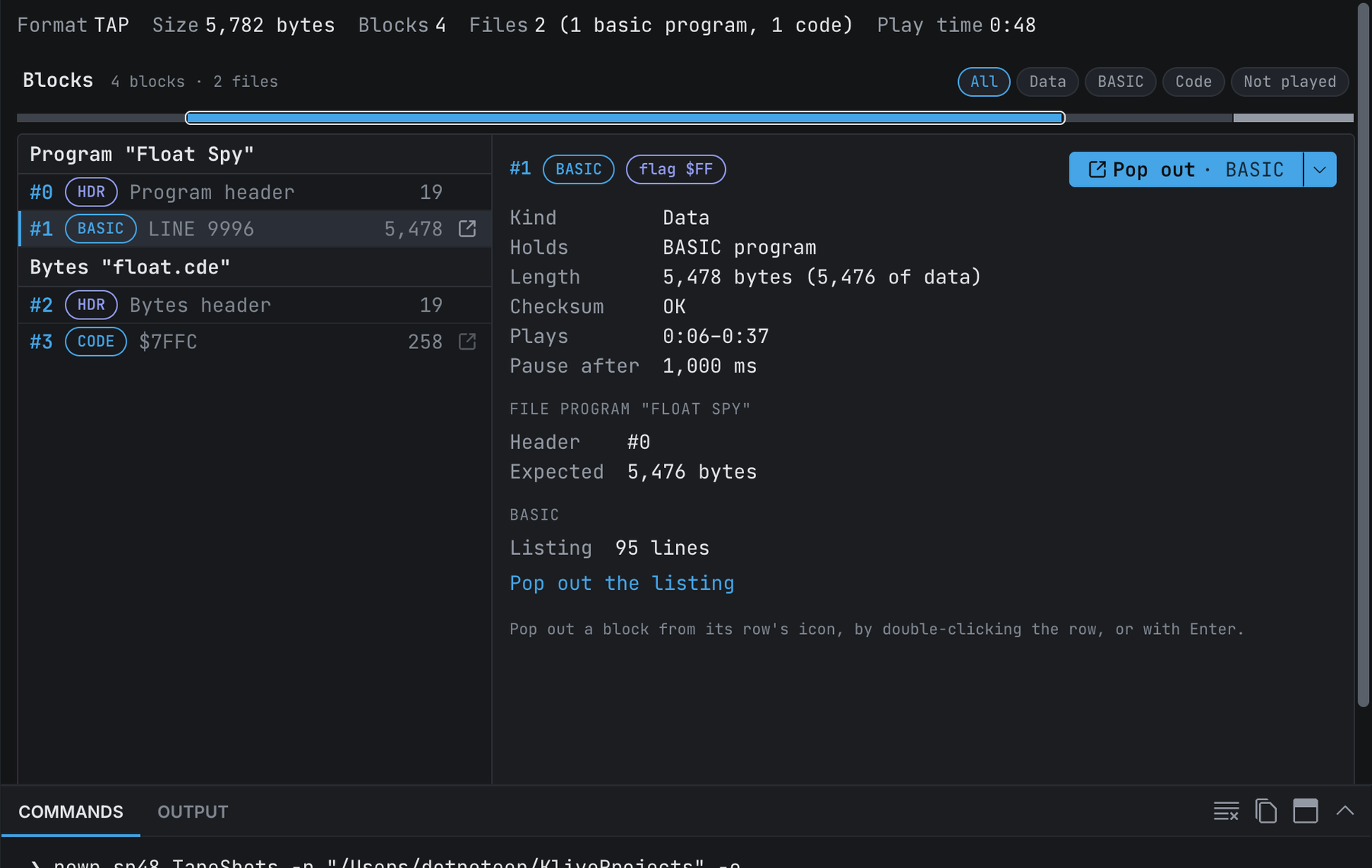
Open a .tap or .tzx file in the IDE’s Explorer to see what it holds: a summary, a timeline of its
blocks, and every block grouped by file, with headers decoded field by field, BASIC programs and
screens shown, and each block ready to pop out as a memory dump, a disassembly or a listing. Blocks
Klive cannot play are marked. Load a program from tape
describes the viewer in full.
Where SAVE goes
When a program saves to tape, Klive writes a .tzx file. On the ZX81 (and a ZX80 with the 8K ROM),
SAVE "NAME" writes NAME.p instead, and the HT-1080Z’s CSAVE writes a .cas file.
- With a Klive project open, the file goes into the project’s
SavedFilesfolder, and the Explorer shows it. - Otherwise it goes into
Klive/SavedFilesin your home folder.
The folder cannot be changed yet. Move the files anywhere you like, and load one back with
Machine › Tape › Insert Tape… (a ZX81 .p file with Machine › Program, or Load and run
tape in the Explorer).
To put your own compiled program on a tape, use Exporting your program
instead of SAVE.