The Cambridge Z88
The Cambridge Z88 is Sir Clive Sinclair’s 1987 portable: a Z80 with the OZ operating system in ROM, a 640-pixel-wide LCD, and three slots for RAM, EPROM and Flash cards. This page covers choosing a model, managing the cards, typing, the LCD, and debugging. To continue from a snapshot saved by the OZvm emulator, see Cambridge Z88 snapshots. To learn OZ itself and its applications (PipeDream, the Diary, the Filer, BBC BASIC and the others), read the Cambridge Z88 User Guide; to write programs for it, read the Z88 Developers’ Notes and, for BBC BASIC, the BBC BASIC (Z80) Reference Guide.
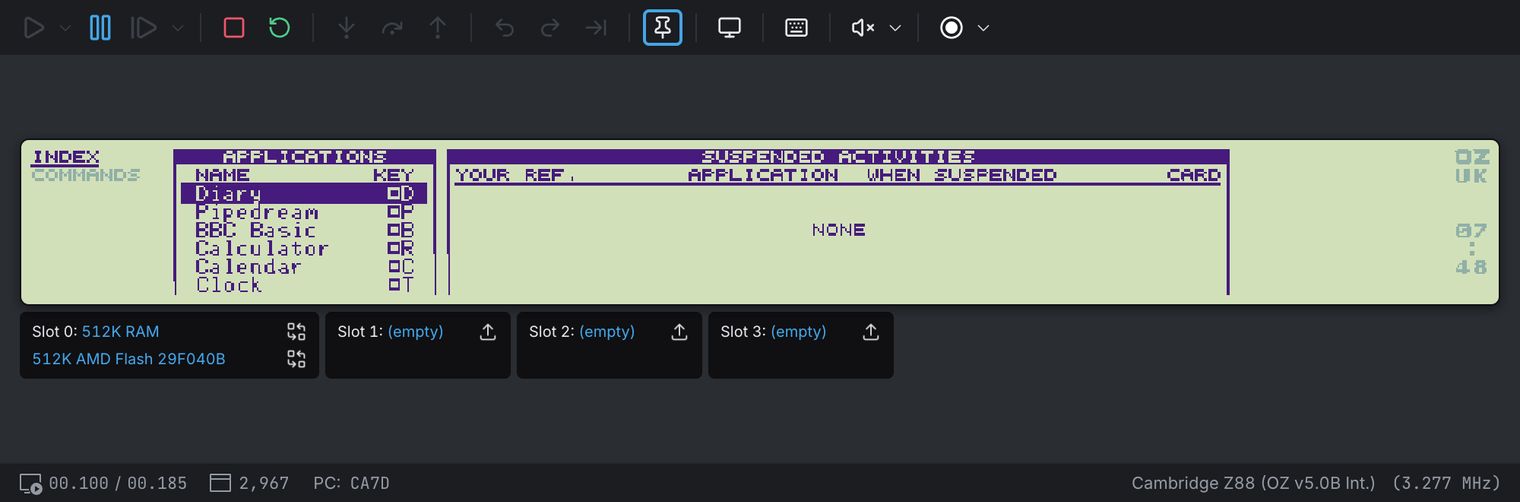
Models
Choose a model with Machine › Machine Type or Select machine… (see Choosing a machine). The models differ in the OZ version in slot 0, the internal RAM, and the keyboard layout they start with:
| Model | Slot 0 | Internal RAM |
|---|---|---|
| Cambridge Z88 (OZ v5.0B Int.) | 512K AMD Flash | 512K |
| Cambridge Z88 (OZ v4.7 Int.) | 512K AMD Flash | 512K |
| Cambridge Z88 (OZ v4.0 UK) | 128K ROM | 128K |
| Cambridge Z88 (OZ v4.01 SE/FI) | 128K ROM, Swedish/Finnish keyboard | 128K |
| Cambridge Z88 (OZ v3.0 UK) | 128K ROM | 32K |
| OZ v3.23 IT, v3.26 FR, v3.19 ES, v3.21 DK, v3.18 DE | The national ROMs |
The OZ ROMs ship with Klive. Machine types lists the model IDs.
Slots and cards
The Z88’s slots show in a strip under its screen, one panel per slot:
- Slot 0 shows the internal RAM and the ROM (or Flash) that holds OZ.
- Slots 1–3 show the card in each slot, its size and type, or that the slot is empty. An asterisk marks a pristine (blank) card.
Each panel has small buttons: insert a card into an empty slot, eject a card, and, on slot 0, change the internal RAM or replace the ROM.
Insert a card
Click the insert button
Click the insert button on an empty slot’s panel. Klive signals the Z88 that the slot’s flap opened, as the real machine does, and opens Insert Z88 Card - Slot n.
Choose the card file or the card type
Click the file row to select a card file (an EPROM or ROM image). Klive selects the card type from the image’s size: a UV EPROM of 32K, 128K or 256K for an image up to that size, an AMD Flash 29F040B (512K) up to 512K, and an AMD Flash 29F080B (1M) above. If you chose a type first, Klive keeps to its kind (EPROM, Intel Flash or AMD Flash) when one of them is large enough.
You can still pick another Card type: a RAM card (32K to 1M), a UV EPROM (32K, 128K or 256K), an Intel Flash (28F004S5 512K, 28F008S5 1M) or an AMD Flash (29F040B 512K, 29F080B 1M).
Use a file or a blank card
An image smaller than its card, such as a 16K application on a 32K EPROM, goes at the top of the card, where the Z88 looks for the card’s header; the dialog says so under the file. A card too small for the image turns that line red, and OK stays disabled until you choose a larger one. A file that is not a whole number of 16K banks, or is larger than 1M, is refused. Slot 0 takes only a 128K, 256K or 512K ROM image, on a card of exactly that size.
With no file, keep Use pristine card for an empty card.
The eject button asks Are you sure you want to remove card from Slot n? before it takes a card out.
Internal RAM and the ROM
The button on slot 0’s RAM line opens Change Z88 RAM size: 32K, 128K or 512K. Changing it stops the machine. Slot 0’s ROM line has buttons to replace the ROM with another image or to eject a ROM you inserted.
The IDE’s Run and Debug cannot put a program into a Z88’s memory: OZ owns the memory and its paging. Put your program on a card image and insert the card.
The keyboard
The Z88’s keys map to your keyboard like this:
| Your key | Z88 key |
|---|---|
| Ctrl (either) | ◇ (Diamond) |
| Left Alt | □ (Square) |
| F1, F2, F3 | HELP, INDEX, MENU (the context-menu key is MENU too) |
| Esc | ESC |
| Backspace | DEL |
| Caps Lock or F7 | CAPS LOCK |
| F6 | Both SHIFT keys |
| Home, End | ◇ with ← and → |
| Page Up, Page Down | Right SHIFT with ↑ and ↓ |
The virtual keyboard shows the Z88’s keys. Both it and the machine follow Settings › Machine › Keyboard layout: British & American, Spanish, French, Italian, German, Danish & Norwegian or Swedish & Finnish.
The LCD
Settings › Machine › LCD resolution sets the screen size: 640 x 64 (the real Z88’s), 640 x 256, 640 x 320 or 640 x 480. Changing it restarts the machine. View › Fit Window to Screen shrinks the emulator window around the LCD.
The Cambridge Z88 menu
Machine › Cambridge Z88 has the machine’s hardware actions:
- Soft Reset: the reset button, which keeps the memory.
- Hard Reset: sets the machine up again, with the configured ROM and cards.
- Press Both SHIFT Keys: presses the two SHIFT keys together (F6 does the same).
- Raise Battery Low Signal: tells OZ its batteries are low.
Help › Cambridge Z88 Resources links to the Z88 user guide, the developers’ notes, the BBC BASIC guide, the OZ source code and other resources.
Debugging
Breakpoints, stepping, the memory and disassembly views, the execution history, reverse debugging,
code coverage and the profiler work on the Z88 as on the other machines. The disassembly decodes the
OZ system call after each RST 20h. The BLINK panel on the Debug side bar shows the BLINK chip’s
registers: the command and interrupt registers, the segment registers that page banks into the four
address ranges, the screen and font bases (with the bank and offset they point at), the timers and
the keyboard lines. Point at a register to see what it does.
The Memory and Disassembly views’ Bank map lays the 256 banks out as the four slots, each headed by what is in it, and marks a card’s mirrors (a card smaller than its slot repeats across it) and empty slots; see the Memory view.
You can save the Z88’s complete state with File › Save Machine State…; see Machine state files.