The keyboard
The Cambridge Z88 keyboard looks like a normal typewriter keyboard with the familiar qwerty arrangement of letters.
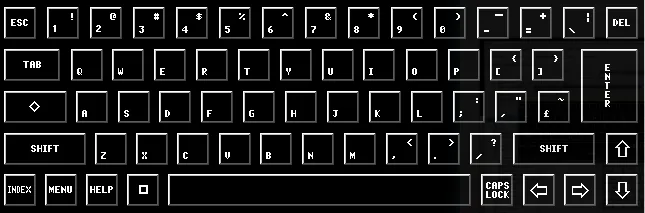
There are some additional keys on each side of the keyboard which have the special functions explained below.
The letter and number keys
Press the letter keys alone to give the lower-case letters, or with SHIFT to get capitals. You can get capitals without needing to hold down SHIFT by pressing CAPS LOCK - see below.
Press the digit keys on the top row of the keyboard to give the digits, or with SHIFT to give the symbol above each digit on the key.
Note that, unlike on some typewriters, the letter O is quite different in meaning from the digit 0, and the letter l (lower-case L) from the digit 1.
On the left-hand side of the keyboard
| ESC | will normally cancel what you are currently doing, and go back to the most appropriate point just before. |
| TAB | is like the tabulate key on a typewriter. Use it for making columns of figures, or arranging tables. See more about this in Pipdream. |
Whilst using tabs in columns:-
| SHIFTTAB | Moves the cursor back one column (to the left). |
| ← | also act as a SHIFT TAB when the cursor reaches the left-hand margin of any column, otherwise whilst within a column it works normally. |
| ◇TAB | moves the cursor back to the first column at the beginning of the line. |
| MENU | enables you to view or select which of the Cambridge Z88’s operations you want to carry out within the application. These are explained in greater detail in the section Using menus. |
| INDEX | returns to the INDEX no matter where you are.. |
| HELP | gives you a display of information about the action you are currently carrying out. Further information is then available on related topics. Having the larger ROM area, the help pages that were removed from previous OZ versions where ROM space was at a premium, have been re-instated. The main pages now have a description of each application and popdown. |
| ◇ | is a FUNCTION key which introduces a short cut for carrying out an operation within an application or popdown. A list of the most useful of these operations is given on the Single key functions card, above the Cambridge Z88 keyboard. All other operations are displayed using the MENU command in the relevant application or popdown. |
| □ | This is the primary short cut FUNCTION key. It allows selection of all the APPLICATIONS or POPDOWNS without having to use the INDEX. |
The Space Bar
| SPACE | Inserts a Space. |
| □SPACE | gives an exact space, displayed as ’…’ . |
On the right-hand side of the keyboard
| DEL | rubs out the last character you typed at the keyboard. |
| ENTER | is normally typed at the end of a line to confirm what you have just typed, or to go to the beginning of the next line, like the carriage return on a typewriter. It can also be used for the start of a paragraph in Pipedream. Finally as an execute key to select a file, menu, or function in a menu after being highlighted using the cursor keys. |
| ↑↓←→ | move the cursor up, down, left or right on the screen. |
| SHIFT↑↓←→ | if the SHIFT key is used with the CURSOR key left and right the cursor will jump between words, up and down will jump screenfuls. |
| ◇↑↓←→ | if the DIAMOND key is used with the CURSOR key left and right the cursor will jump between the left and right of the line, up and down will jump between the beginning and end of the file. |
Caps lock modes
Two caps lock modes are available which determine the way that the SHIFT key operates. The mode selected is indicated by a symbol at the bottom right-hand corner of the screen. The state of the caps lock mode is stored with each application, so you can, for example, keep one mode set up for PipeDream and another for BASIC. The operation of each mode is as follows:
| ◇CAPS LOCK | selects Normal Caps mode. The letter keys give capitals, irrespective of the SHIFT key. Displays: CAPS |
| □CAPS LOCK | selects Inverted Caps mode, giving capital letters normally, and lower case with the SHIFT key. Displays: caps |
| CAPS LOCK | switches on and off the selected mode. |
Special characters
◇’ gives ’ (grave accent).
Cleaning the keyboard
The keyboard should be kept free from dust by cleaning it periodically with a damp lint-free cloth, or sponge. Solvents should not be used.