Keyboard, joysticks and mouse
The emulated machine reads your computer’s keyboard, so you can type on it as on the real one. This page covers the virtual keyboard that shows the machine’s own keys, changing which host key presses which machine key, the joysticks of the Next and the Timex machines, and the Next’s mouse.
Typing on your keyboard
The machine reads the keyboard while the emulator window has the focus: click its screen, or switch to the window. Start the machine first and let it reach its prompt; a machine that is still booting does not scan its keys.
Each machine maps your keys to its own in the way its users expect: on the ZX Spectrum, for example, either Shift is CAPS SHIFT and the right Alt is SYMBOL SHIFT. The pages of the other machines list their mappings: The ZX81 and ZX80, The HT-1080Z and The Cambridge Z88.
The virtual keyboard
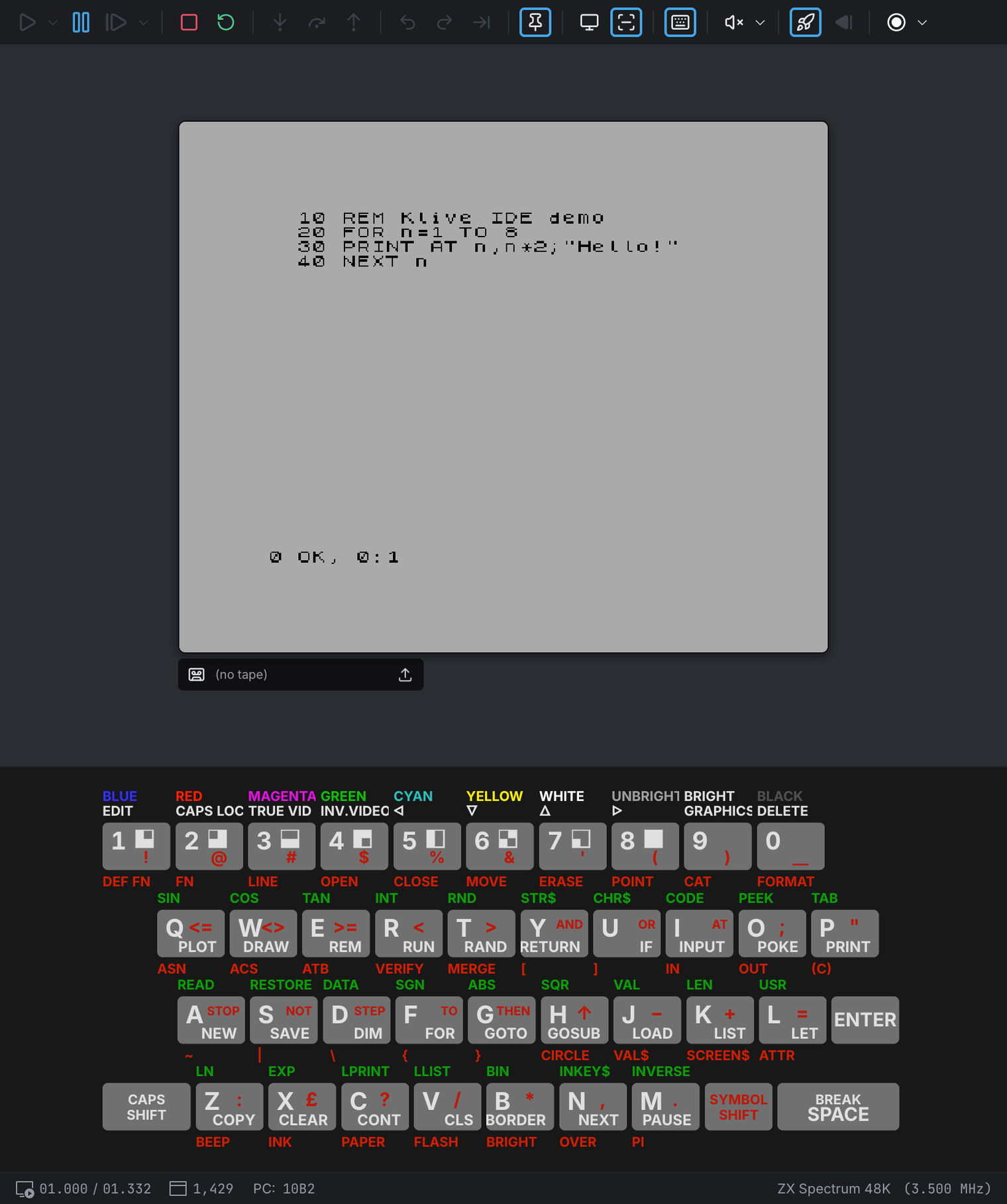
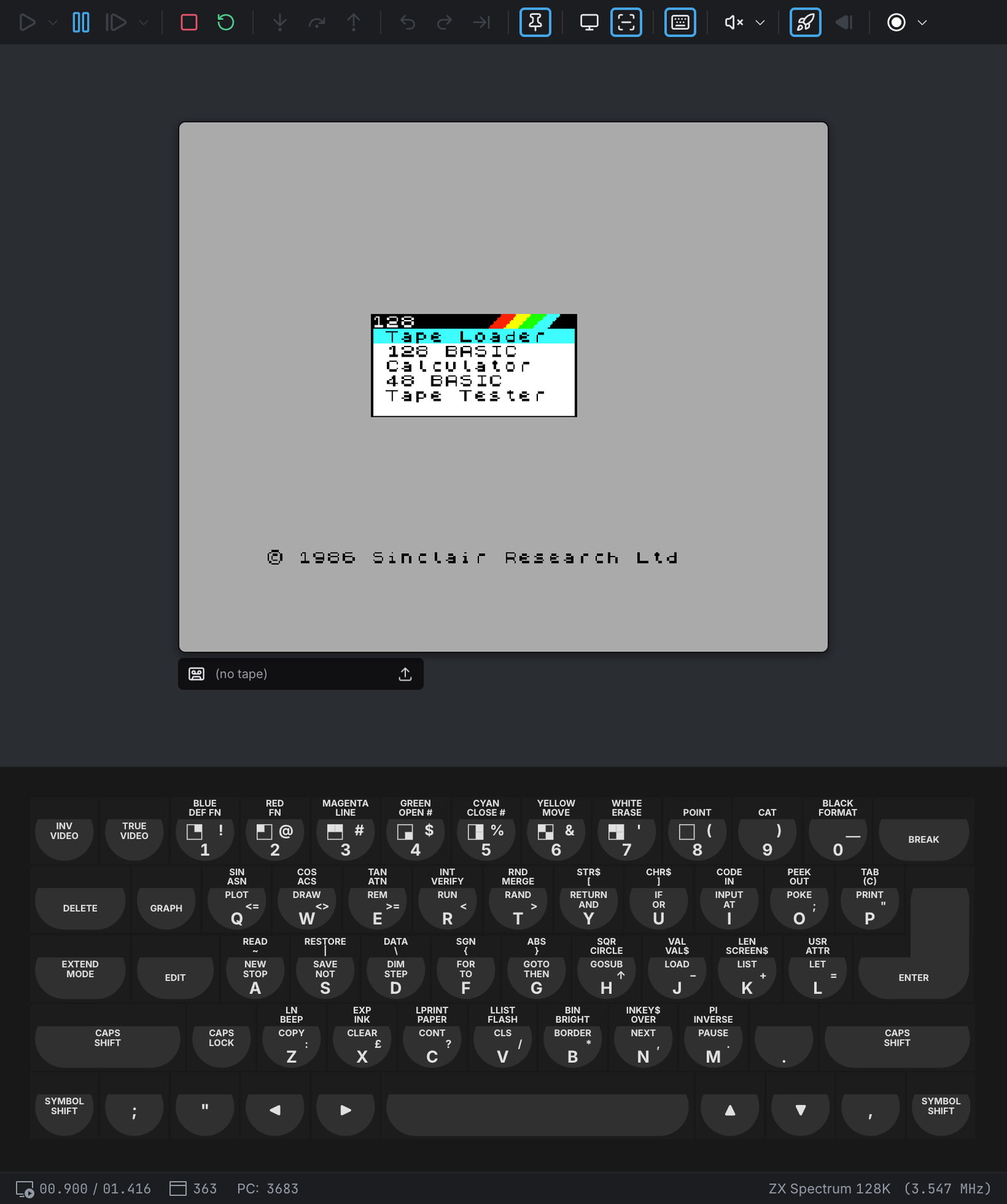
Show or hide the virtual keyboard with the Show/Hide keyboard button on the emulator toolbar, or with View › Virtual Keyboard while the emulator window has the focus. It shows the keyboard of the running machine:
| Machine | Keyboard |
|---|---|
| ZX Spectrum 48K and 16K, Timex TC2048/TC2068/TS2068 | The 48K’s 40 keys and their legends |
| ZX Spectrum 128K, Pentagon 128, +2A/+3/+2E/+3E, Scorpion | The 128K’s keyboard |
| ZX Spectrum Next | The Next’s keyboard |
| Sinclair ZX81, and the ZX80 with the 8K ROM | The ZX81’s keyboard |
| Sinclair ZX80 | The ZX80’s own keyboard |
| HT-1080Z | The HT-1080Z’s keyboard, with its model’s characters |
| Cambridge Z88 | The Z88’s keyboard, in the layout set in Settings › Machine › Keyboard layout |
Pressing keys
Click a key to press it. Holding the mouse button down holds the key, and releasing it releases the key. On the ZX Spectrum keyboards:
- The main legend (a letter or a digit) types what that key types in the current cursor mode.
With the right mouse button, CAPS SHIFT is pressed with it: the left button on the I key gives
INPUTori, the right buttonINPUTorI. - A legend printed on the key in red (such as
ATon I) presses SYMBOL SHIFT with the key, whichever mouse button you use. - A legend above the key (such as
CODE) or below it (such asIN) enters extended mode and types that keyword, whichever button you use. - A block graphic on a digit key types that graphic with the left button and its inverse with the right button.
Move the mouse slowly over a key to see which part of it is highlighted: that is what a click types.
To type a block graphic, Klive presses GRAPHICS, the key, and GRAPHICS again. Holding the button down does not repeat a graphic, and clicking graphics very quickly can leave the editor in graphics mode. Click them a little slower.
Resizing the keyboard
Point at the top edge of the virtual keyboard until the splitter appears, then drag it. The screen shrinks or grows to make room. Klive remembers the height for each machine.
Remapping keys
A key mapping file changes which host key presses which ZX Spectrum key. It is a JSON file
with the .keymap extension. Each property names a host key by its
KeyboardEvent.code
and gives one Spectrum key, or two pressed together. With "$merge": true the file changes only the
keys it lists and keeps the default mapping for the rest:
{
  "$merge": true,
  "Quote": ["SShift", "P"],
  "Backquote": "CShift"
}
The Spectrum keys are CShift, SShift, Enter, Space, the letters A to Z and the digits
N0 to N9.
Open the Input settings
Choose Machine › Input › Input Settings…, which opens the Input page of the Settings.
Choose the file
Next to Key mapping file, click Browse… and pick your .keymap file. The mapping applies
at once; a file with a mistake in it is refused with the reason.
Reset on the same row returns to the default mapping.
Joysticks
The ZX Spectrum Next and the Timex machines have joystick ports. Each joystick is driven by the host keyboard, a gamepad, or nothing.
| Machine | Joysticks | Menu |
|---|---|---|
| ZX Spectrum Next | Joystick 1 (left) and Joystick 2 (right) | Machine › Input › Joystick |
| Timex TC2048 | The built-in Kempston port, driven by joystick 1’s bindings | Machine › Input › Kempston Joystick |
| Timex TC2068, TS2068 | Two joysticks, read through the AY chip | Machine › Input › Joysticks |
Each joystick’s Driven by submenu chooses Host keyboard, Host gamepad or Not connected.
On the Next, a joystick’s Set machine mode submenu picks what the machine sees on that port:
Sinclair 2 (keys 1-5), Kempston 1 (port $1F), Cursor / Protek, Sinclair 1 (keys 6-0),
Kempston 2 (port $37), MD 1 (port $1F), MD 2 (port $37) or User-defined (joymap). The
mode is NextReg $05, so NextZXOS may set it again when it starts.
Joystick bindings
Configure bindings… in the joystick submenu (or Configure… next to Joystick bindings on the Input settings page) opens the Joystick bindings dialog. For each joystick, choose what drives it, then click a pin (Up, Down, Left, Right, Fire 1 (B), Fire 2 (C), and the Mega Drive pad’s extra buttons) and press the key for it. A key bound to a joystick no longer reaches the machine’s keyboard, and the dialog says so. Save keeps the bindings; Reset brings back the defaults.
The mouse
Applies to: ZX Spectrum Next.
The Next has a Kempston mouse. Capturing is off by default: turn on Machine › Input › Mouse › Capture the mouse (or the same option on the Input settings page) first; until then, the toolbar button is disabled.

To drive the Next’s mouse with yours, capture the mouse: click the Capture the mouse button on the emulator toolbar (between the screen buttons and the keyboard button: a crossed-out mouse, which turns into a lit, plain mouse while the mouse is captured), or press Ctrl+M (Cmd+M on macOS) with the emulator window focused. While the mouse is captured, your pointer is hidden and every movement goes to the machine. Press Esc, or the same shortcut, to release it.
Machine › Input › Mouse, and the Mouse group of the Input settings page, have the options:
- Capture the mouse: whether capturing is allowed at all (off by default).
- Show the captured pointer: draw Klive’s own pointer over the screen Always, Only while no program reads the mouse, or Never.
- Sensitivity: from Very Slow (0.25x) to Fastest (2x). This is separate from the DPI setting software can choose on the machine.
Related
- The emulator window
- Settings: the Input page
- Meet the emulator: typing your first BASIC line