Description of Escape Sequences
Introduction
The character ASCII code 1 is used as an ‘Escape’ character to introduce special code sequences that:
- Generate special characters
- Position the cursor
- Set text attributes
- Define text justification
- Define windows
- Provide miscellaneous screen control operations
The escape character is followed by
A single character
or
A sequence of codes, the first of which specifies the number of parameters (bytes) to follow.
The parameter count may take one of two forms.
It may be the ASCII code for a single decimal digit, “1” (49) to “9” (57).
or
It may be a binary number with bit 7 set (128 added to the number).
Most escape sequences have less than 10 following parameters, and the first method of specifying the parameter count is generally used. Numbers, not characters, are used as parameters in the VDU command, so the ASCII character ‘2’, for example, would appear as 50 (its ASCII value), or as ASC”2”.
Where appropriate, the escape sequences are shown in 2 ways (both of which send identical code sequences to the screen driver). The first is the easiest to remember since it uses characters that are related to the name of the function the sequence is performing (a mnemonic). However, this method uses the ASC function to convert the characters into their ASCII codes. The second method uses the actual codes sent to the screen driver. Whilst this is more difficult to remember, it involves less typing.
The following table lists the special display characters such as ‘INDEX’, ‘MENU’, ‘HELP’, etc. The ‘Code’ column shows both ASC code (where applicable) and the Screen driver mnemonic (see Developers’ Notes).
Special characters
| Code | Sequence | Value (H) | Description | Width | Boldable |
|---|---|---|---|---|---|
| ’ ’ | VDU 1,32 | &20 | Exact symbol | 1 | |
| ’!’ | VDU 1,33 | &21 | Bell symbol | 3 | |
| ''' | VDU 1,39 | &27 | Grave accent | 1 | yes |
| ’*’ | VDU 1,42 | &2A | Square | 1 | yes |
| ’+’ | VDU 1,43 | &2B | Diamond | 1 | yes |
| ’-’ | VDU 1,45 | &2D | SHIFT symbol | 3 | |
| ’|’ | VDU 1,124 | &7D | Vertical unbroken bar | 1 | yes |
| SD_SPC | VDU 1,224 | &E0 | SPACE symbol | 3 | |
| SD_ENT | VDU 1,225 | &E1 | ENTER symbol | 3 | |
| SD_TAB | VDU 1,226 | &E2 | TAB symbol | 3 | |
| SD_DEL | VDU 1,227 | &E3 | DEL symbol | 3 | |
| SD_ESC | VDU 1,228 | &E4 | ESC symbol | 3 | |
| SD_MNU | VDU 1,229 | &E5 | MENU symbol | 3 | |
| SD_INX | VDU 1,230 | &E6 | INDEX symbol | 3 | |
| SD_HLP | VDU 1,231 | &E7 | HELP symbol | 3 | |
| SD_OLFT | VDU 1,240 | &F0 | Outline arrow Left | 2 | |
| SD_ORGT | VDU 1,241 | &F1 | Outline arrow Right | 2 | |
| SD_ODWN | VDU 1,242 | &F2 | Outline arrow Down | 2 | |
| SD_OUP | VDU 1,243 | &F3 | Outline arrow Up | 2 | |
| SD_BLFT | VDU 1,244 | &F4 | Bullet arrow Left | 1 | |
| SD_BRGT | VDU 1,245 | &F5 | Bullet arrow Right | 1 | |
| SD_BDWN | VDU 1,246 | &F6 | Bullet arrow Down | 1 | |
| SD_BUP | VDU 1,247 | &F7 | Bullet arrow Up | 1 | |
| SD_PLFT | VDU 1,248 | &F8 | Pointer arrow Left | 1 | yes |
| SD_PRGT | VDU 1,249 | &F9 | Pointer arrow Right | 1 | yes |
| SD_PDWN | VDU 1,250 | &FA | Pointer arrow Down | 1 | yes |
| SD_PUP | VDU 1,251 | &FB | Pointer arrow Up | 1 | yes |
Box Characters
VDU 1, ‘2’, ’*’, <char>
(where <char> is from ‘A’ to ‘O’) draws various characters such as arrows or box construction shapes (which are all boldable), with the following logic. Each of the bottom 4 bits of ‘char’ represents a direction:
bit 0 decimal 1 Left
bit 1 decimal 2 Down
bit 2 decimal 4 Right
bit 3 decimal 8 Up
If one bit is set, a pointer arrow in the relevant direction is drawn. If two bits are set, two sides of a square or a line will be drawn. If three bits are set, a ‘T’ shape will be drawn. If all four bits are set, a cross will be drawn.
For example, the corner generated:
VDU 1, ASC”2”, ASC”*”, ASC”F”
makes a reasonable logical NOT sign.

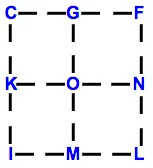
This example, VDU 1,50,42,79 - without using ASC, will draw a cross:

Here’s the complete VDU’s:
| Code | Up | Left | Down | Right | Symbol |
|---|---|---|---|---|---|
| 0 | 0 | 0 | 1 | Pointer arrow Right |
| 0 | 0 | 1 | 0 | Pointer arrow Down |
| 0 | 0 | 1 | 1 | Corner Down Right |
| 0 | 1 | 0 | 0 | Pointer arrow Left |
| 0 | 1 | 0 | 1 | Horizontal bar |
| 0 | 1 | 1 | 0 | Corner Left Down |
| 0 | 1 | 1 | 1 | T Down |
| 1 | 0 | 0 | 0 | Pointer arrow Up |
| 1 | 0 | 0 | 1 | Corner Up Right |
| 1 | 0 | 1 | 0 | Vertical unbroken bar |
| 1 | 0 | 1 | 1 | T Right |
| 1 | 1 | 0 | 0 | Corner Up Left |
| 1 | 1 | 0 | 1 | T Up |
| 1 | 1 | 1 | 0 | T Left |
| 1 | 1 | 1 | 1 | Cross |
To draw a horizontally and vertically divided window:
Cursor Positioning
The cursor position, ie. the next print position, may be moved by the following sequences - x and y are the column and row respectively, with (0,0) being the top left of the current window:
VDU 1, ASC”3”, ASC”@”, 32+x, 32+y move to x,y
VDU 1, ASC”2”, ASC”X”, 32+x horizontal tabVDU 1, ASC”2”, ASC”Y”, 32+y vertical tab
The origin of the window (see later) is at the top left-hand corner; its coordinates are 0,0.
Display Attributes
These combinations toggle various display modes of the current window (applying to subsequently written characters):
VDU 1, ASC”B” Bold
VDU 1, ASC”C” Cursor visible
VDU 1, ASC”F” Flash
VDU 1, ASC”G” Grey
VDU 1, ASC”L” Caps Lock
VDU 1, ASC”R” Reverse video
VDU 1, ASC”S” Vertical scrolling
VDU 1, ASC”T” Tiny font
VDU 1, ASC”U” Underline
VDU 1, ASC”W” Horizontal scrolling
With vertical scrolling on, the window scrolls when the cursor tries to go outside of the window else the cursor wraps from top row to bottom row or vice versa.
With horizontal scrolling on, the row scrolls between the left and right margins when the cursor tries to go outside of the window margins else the cursor wraps from left column to right column or vice versa.
Horizontal scrolling disable vertical scrolling.
Rather than toggling these modes, they may be set or reset explicitly by prefixing them with ’+’ (on) or ’-’ (off), and a count byte of two to indicate that there are two parameters. For instance:
VDU 1, ASC”2”,ASC”+”,ASC”B”
sets bold on. When written in this form, modes may be combined in a list, for example:
VDU 1, ASC”5”,ASC”-”,ASC”B”, ASC”F”, ASC”T”, ASC”U”
resets the bold, flash, tiny, underline toggles. Finally SD_DTS (&7F) deletes all toggle settings, ie. sets all toggles to off:
VDU 1, SD_DTS
Changing Display Attributes
The display modes are usually set at the time of writing text to the screen, however it is possible to apply various effects to text already present. This approach is used in the menu system to highlight commands and by the Filer to highlight files. The technique can only be used with the hardware attributes ie. flash, grey, inverse and underline. The two commands, apply and eor, work over the next <n> characters where <n> is the second parameter and offset from 32:
VDU 1, ASC”2”, ASC”A”, 32+<n> Apply toggles
VDU 1, ASC”2”, ASC”E”, 32+<n> EOR toggles
The following sequence inverts a 20 character bar at cursor position (0,0):
VDU 1, ASC”2”, ASC”+”, ASC”R”, 1, ASC”3”, ASC”@”, 32, 32, 1, ASC”2”, ASC”E”, 52
Cancelling Display Attributes
All the attributes can be set back to the system default (off) with the command:
VDU 1 , 127Changing Display Attributes
It is possible to change the ‘hardware’ attributes (flash, grey, reverse and underline) of text already printed on screen.
| Sequence | Description |
|---|---|
| Apply the current toggles over the next ‘n’ characters Invert (EOR) the current toggles over the t next ‘n’ characters |
The ‘current toggles’ are the current toggle settings, not the attributes of the character under the cursor.
For example, the following code sequence would invert the first 20 characters on line 0 starting at column 0.
PRINT TAB (O, 0);
VDU 1, 50, 43, 82:REM set invert toggle
VDU 1, 50, 65, 52: REM Apply toggle for 20 (52=32+20) characters
The last 2 lines could be combined as:
VDU 1, 50, 43, 82, 1, 50, 65, 52Text Justification and Margins
You can control how the text is positioned within a window with the following justification Escape sequences.
| Sequence | Description |
|---|---|
| Set normal justification (the default). Centre text between the margins. Left align the text. Right align the text. Set the left margin to ‘n’. (Notice no parameter count.) Set the right margin to ‘n’. (Notice no parameter count.) |
Windows
Up to 6 display windows may be defined by the user on the Z88; they are referred to by a single ASCII character ‘1’ to ‘6’. Windows ‘7’ and ‘8’ are used by the Z88 operating system. Window ‘7’ is the ‘Topic’ area and window ‘8’ is used by a number of system calls for error processing.
Windows ‘remember’ their attribute settings (see earlier), but if a window area is overwritten then the window’s contents are lost.
The OZ window contains special characters which control the scanning of the screen and if these are disturbed, the display will not work properly. Consequently it is very important that windows do not go beyond the width of the screen and overwrite the ‘OZ.’ window. To avoid this, windows should not be more than 94 6-pixel characters from the edge of the application window (104 6-pixel characters from the leftmost edge of the screen).
Defining a Window
The following Escape sequence command defines a window.
VDU 1 ASC”7”,ASC”#”,n,32+x,32+y,32+w,32+h,t
VDU 1, 55,35,n,32+x,32+y,32+w,32+h,t
Where ‘n’ is the ASCII code for the window number (49 to 54).
‘x’ is the start column (left-hand) of the window.
‘y’ is the start row (top) of the window.
‘w’ is the width of the window.
‘h’ is the height of the window.
‘t’ is the ‘type’ of window, made up as follows:
bit-0 = 1 sets left and right vertical bars on.
bit-1 = 1 sets the shelf brackets on.
bits-2 to 6 are ignored.
bit-7 must be set to 1.
The ‘x ’ and ‘y’ parameters are usually relative to the top left-hand corner of the applications area. They may be made absolute (relative to the top left-hand corner of the screen) by using 128+x and 128+y in the Escape sequence. The ‘type’ parameter is optional. If the parameter count is set to 54 (ASC”6”) it may be omitted and a window without bars or brackets will be defined.
Selecting a Window
Once defined, output may be directed to window ‘n’ (‘1’ to ‘6’ - ASCII 49 to 54) with the following Escape sequences:
| Sequence | Description |
|---|---|
| Direct output to window ‘n’ maintaining (Holding) the display attributes previously set for this window Direct output to window ‘n’ resetting (Initializing) the display attributes for this window to their default value (cursor off, scrolling desabled, etc). Direct output to window ‘n’ resetting the display attributes for this window to their default value and clear the window. |
The Z88 system uses windows extensively. The filer, for example, uses a window with ‘shelf brackets’ and tiny/inverted/underlined text to produce a banner heading for the window. The following BBCBASIC(Z80) program demonstrates a ‘bannered’ window.
REM Define window 1 to be 40 wide and 8 high
REM with left and right bars and shelf brackets
REM starting at x=1, y=0 with reference to the
REM applications area.
VDU 1,55,35,49,33,32,72,40,131REM Select window 1 and reset its attributesVDU 1,50,73,49REM Set window attributes to Tiny Font,
REM Underline, Inverse VideoVDU 1,52,43,84,85,82REM Centre the text in the windowVDU 1,50,74,67REM Print window title in centre of first linePRINT TAB(0,0);"Central Window Title";TAB(0,0);REM Apply current toggles over next 40 charactersVDU 1,50,65,72REM Redefine window to exclude top line (window
REM title area). This time, only left and right
REM side-bars are specified (129)VDU 1,55,35,49,33,33,72,39,129REM Select window 1 and reset its attributesVDU 1,50,73,49REM Display the cursor and enable vertical
REM scrollingVDU 1,51,43,67,83User Defined Characters
You can define characters based on a 6x8 matrix with the following Escape sequence:
VDU 1,138,ASC"=",char_code,r0,r1,r2,r3,r4,r5,r6,r7
VDU 1,138,61,char_code,r0,r1,r2,r3,r4,r5,r6,r7
The character code, char code, must be between 64 (`@’) and 127 (DEL).
The parameters ‘r0’ to ‘r7’ are the numeric values of the top to bottom rows of the character with bit-7 set. Their values must, therefore, lie between 128 (bit-7 set to 1) and 191 (bit-7 and bits 1 to 5 set to 1). Bit-5 is the left-hand bit and bit-0 the right. The standard characters have their left-hand column (bit-5) blank. If user-defined characters are to be mixed with standard characters, they should follow this convention.
Notice that the parameter count is 10 and it is consequently specified in the ‘alternative’ way.
If a lesser number of parameters are specified, the unspecified rows will be set to 0. This is useful, since many characters have a blank bottom row.
User defined characters co-exist with standard characters, they do not overwrite them as on the BBC Micro.
Printing User Defined Characters
User defined characters may be printed using the following Escape sequence:
VDU 1,ASC"2",ASC"?",char_code
VDU 1,50,63,char_code
Limitations
On an unexpanded Z88 (one without 128k or more in slot 1), only 16 characters may be defined without encroaching on the PipeDream map. Characters above the limit of 16 may be overwritten by map information when PipeDream is run. If the PipeDream map width is less than 65 pixels, then all the User Defined Characters may be used.
Miscellaneous Functions
Window Scrolling
The following Escape sequences control window scrolling.
Sequence VDU 1,254 VDU 1,255 | Description Scroll current window downwards Scroll current window upwards. |
Grey Window
The following Escape sequences control window greying.
Sequence VDU 1, ASC”2” , ASC”G”, ASC”+” VDU 1,50,71,43 VDU 1, ASC”2”, ASC”G” , ASC”-” VDU 1,50,71,45 | Description Grey the current window Ungrey the current window |
Multiple Output
The following Escape sequences send the same code a number of times.
Sequence Description
VDU 1, 51, 32+n,m Output ‘n’ copies of the code ‘m’.
Multiple Bell
The following Escape sequences rings the ‘bell’ a number of times.
| Sequence | Description |
|---|---|
| VDU 1,52,33,32+r, 32+s, 32+m VDU 1,52,33,35,82,232 | Generate a series of r ‘beeps’ m*10 milliseconds long with a wait of s*10 milliseconds between each ‘beep’. For example, this VDU command will sound 3 ‘beeps’ of 2 seconds each with 1/2 a second between each ‘beep’. |