Save and share your work
Your project lives in its folder, so it is saved as soon as you save its files. To give your program to someone else, export it: Klive builds it and writes a file that any ZX Spectrum emulator, or a real machine, can load.
Export a tape file
Open the export dialog
Open the border-colours project and choose Build › Export code….
Fill it in
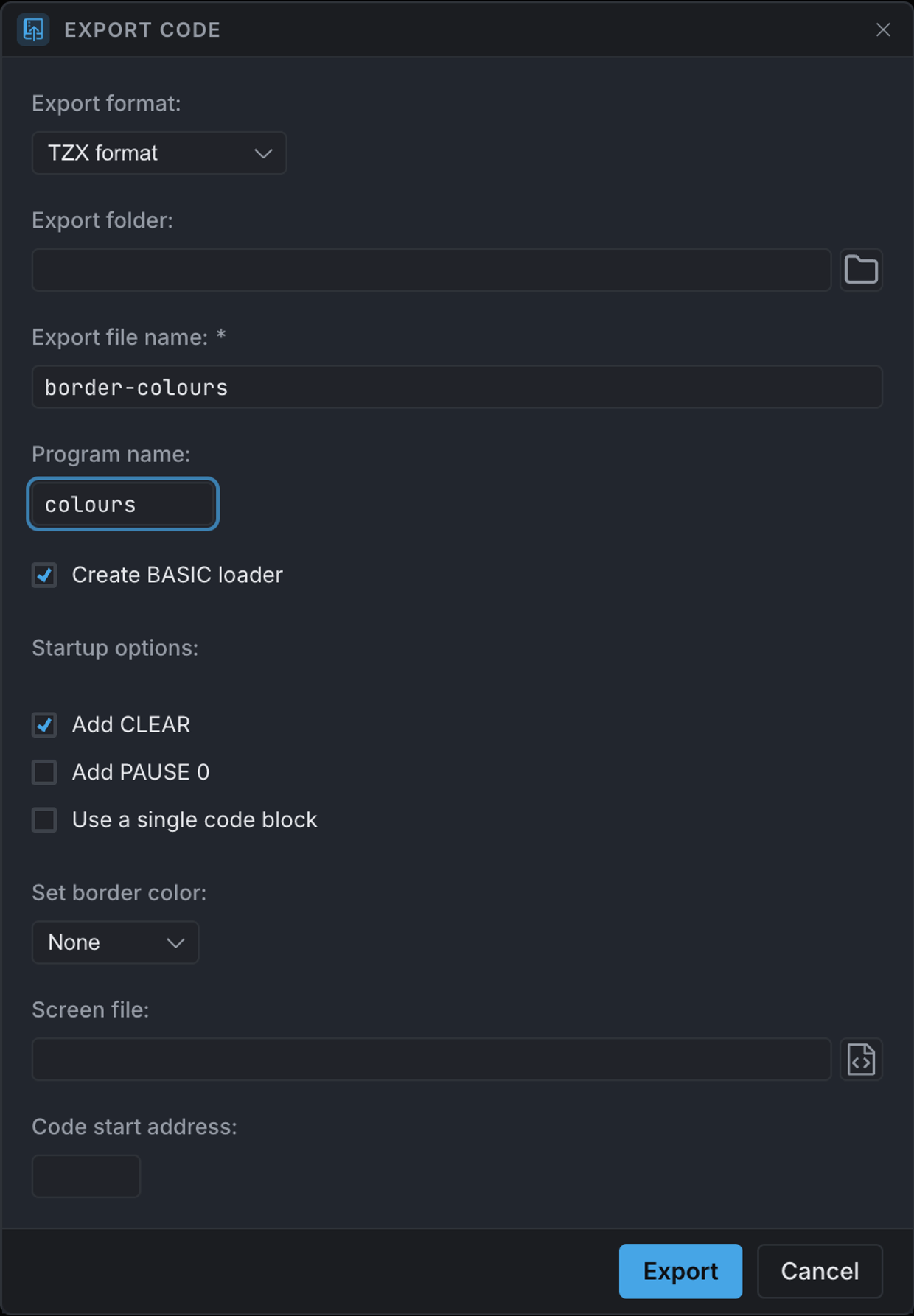
- Export format: TZX (or TAP; both are tape files).
- Export folder: leave it empty, and the file goes into the
KliveExportsfolder in your home folder. - Export file name:
border-colours. Klive adds the extension. - Program name: the name
LOAD ""shows while it loads. - Create BASIC loader: keep it checked. The tape then starts with a short BASIC program that loads your code and runs it, so
LOAD ""is all anyone needs to type.
Export
Click Export. Klive builds the program and writes the file.
Test it
Load the exported file the way your users will: choose Machine › Tape › Insert Tape…, select the file, and type LOAD "" as on the tape page. The BASIC loader runs, loads the code, and the border starts changing colour.
To see the loader’s BASIC program, turn off fast load (the rocket on the emulator’s toolbar), pause the machine after the first block has loaded, and open View › Machine Views › BASIC Listing.
Other formats
| Machine | Format | What it is |
|---|---|---|
| ZX Spectrum 48K, 128K, +2, +3 | .tap, .tzx | Tape files, with an optional BASIC loader and loading screen. |
| ZX Spectrum Next | .nex | The Next’s program file, which NextZXOS runs from the SD card. |
| ZX81, ZX80 | .p, .o | Program files for their LOAD command. |
| Any | Intel HEX | A text format for EPROM programmers and other tools. |
Exporting code explains every option, including multi-bank programs on the 128K.
Next, see where to go next.