Meet the emulator
When Klive starts, it shows the emulator window with a machine that is turned off. This page shows you how to switch it on, type a program, and pick another machine.
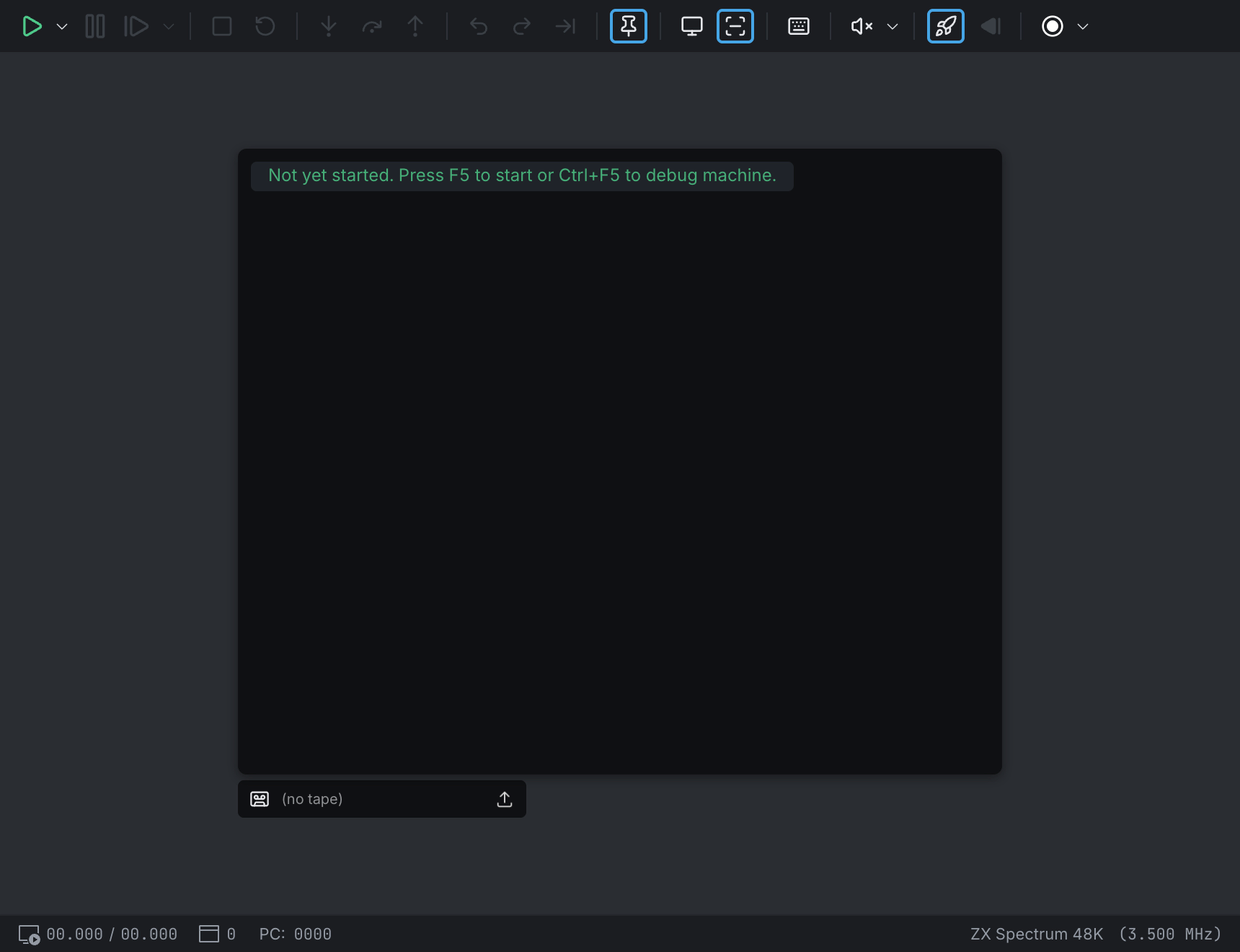 12
- The toolbar starts, pauses, stops and restarts the machine. The first button, the green triangle, is Run Machine.
- The screen. Until you start the machine, it shows a hint about how to start it.
Start the machine
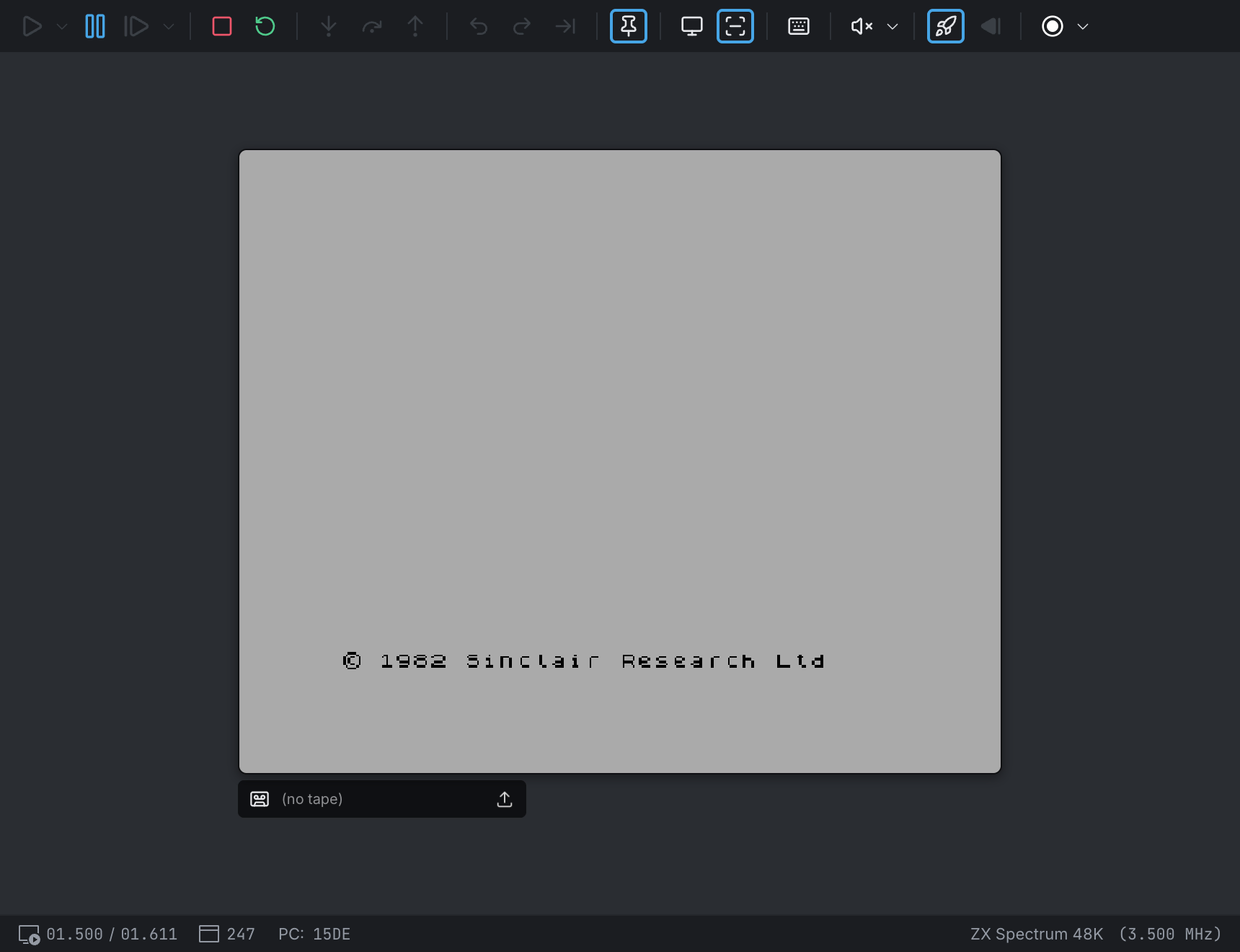
Press F5, click Run Machine on the toolbar, or choose Machine › Start. After a moment the ZX Spectrum shows its copyright message, just as the real computer did in 1982.
Type a BASIC program
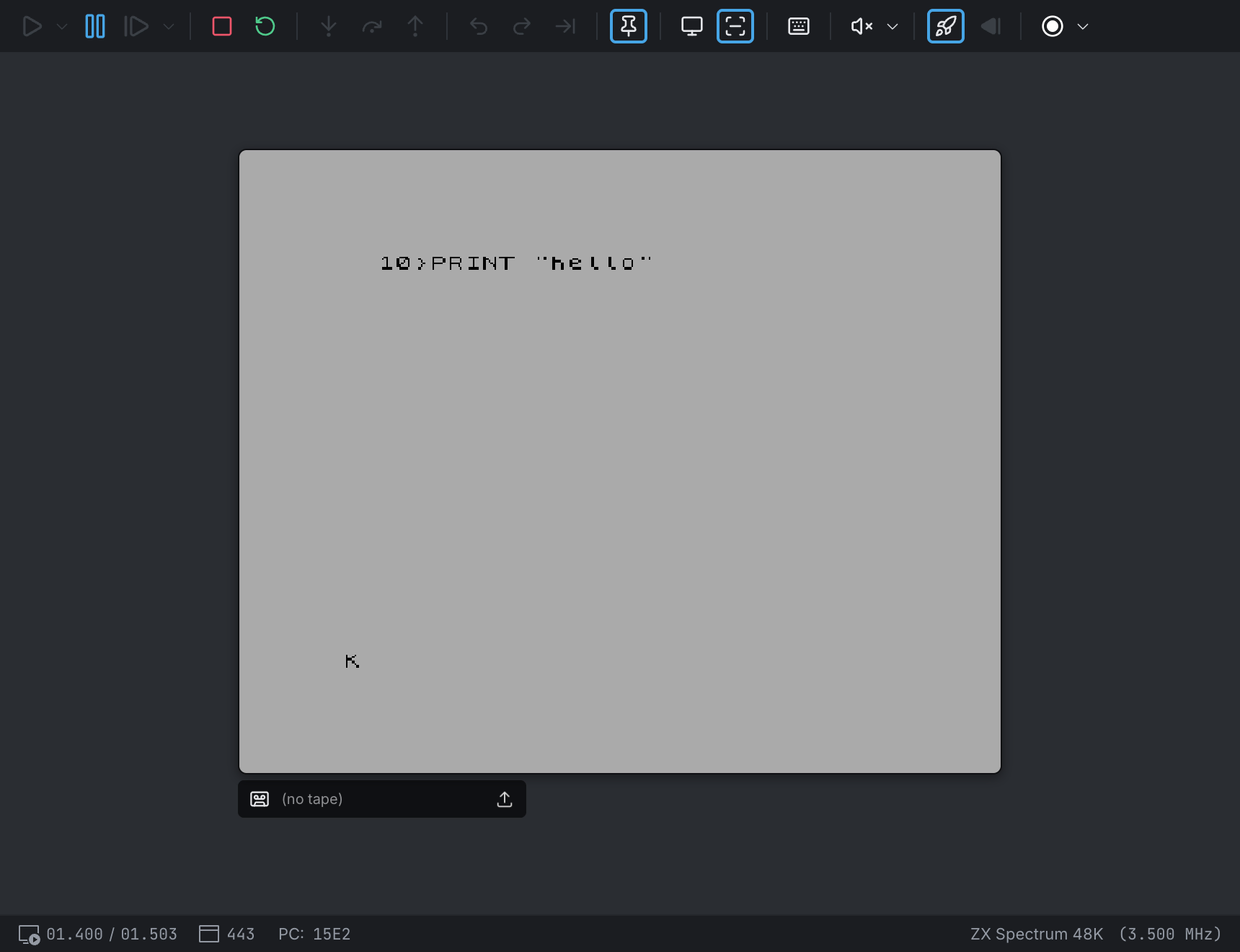
Click the emulator’s screen so it gets your keystrokes. The ZX Spectrum 48K enters BASIC keywords with a single key: at the start of a line, the cursor shows K, and pressing P types the whole word PRINT.
Type the line
Type 1 0, then P for PRINT. For the quotation mark, hold Symbol Shift and press P. Klive’s Symbol Shift is the right Alt key (the right Option key on a Mac). Type hello, then the closing quotation mark the same way, and press Enter.
Run it
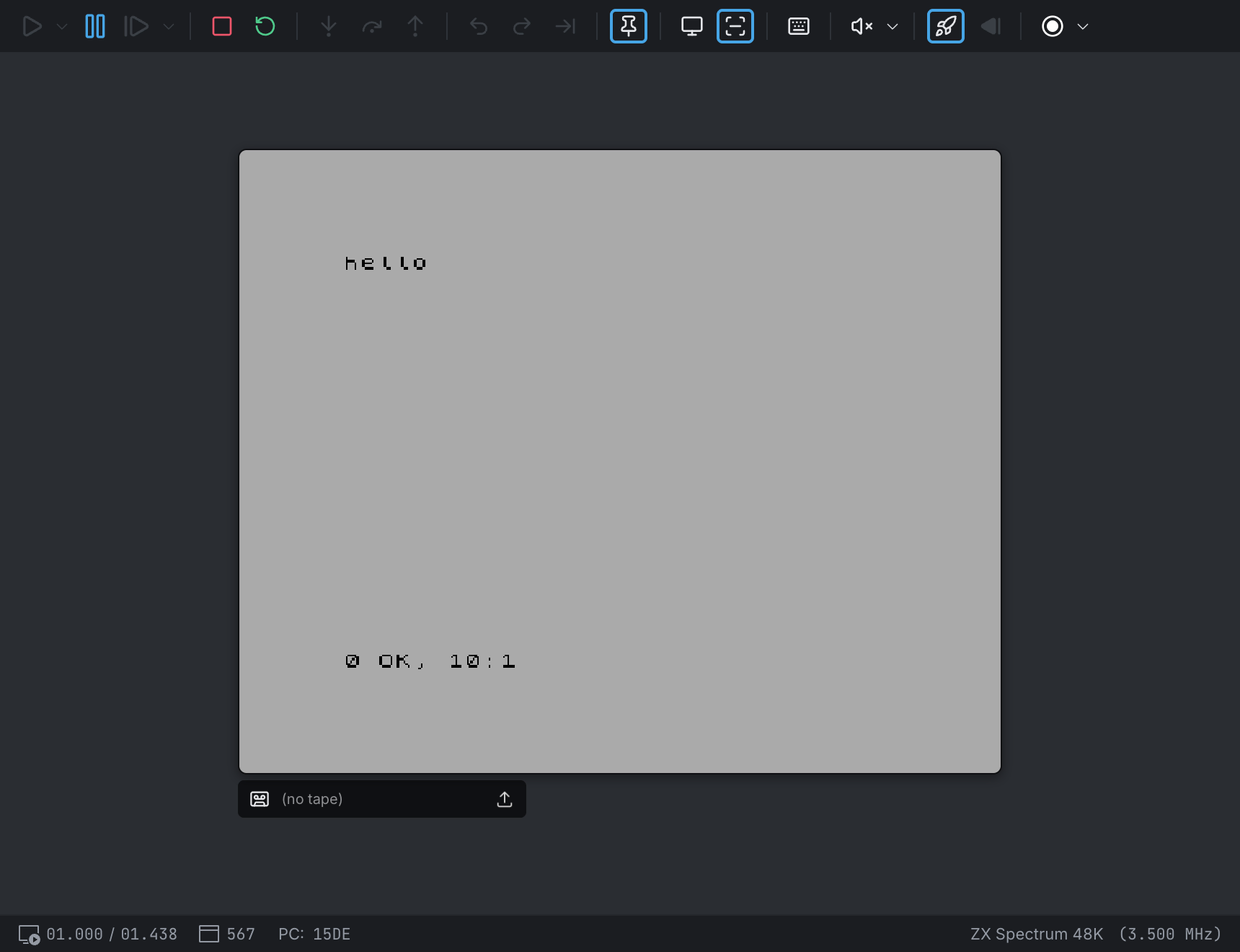
Press R, which types RUN, then Enter. The program prints hello and reports 0 OK, 10:1: it finished without an error, at line 10, statement 1.
If the keyword keys are hard to remember, show the virtual keyboard with the keyboard button on the emulator’s toolbar or with View › Virtual Keyboard. It shows every keyword, and you can click its keys. See The keyboard.
Control the machine
| To | Press | Toolbar |
|---|---|---|
| Start or continue | F5 | Run Machine (green triangle) |
| Pause | Shift+F5 | Pause |
| Stop (switch off) | F4 | Stop |
| Restart | Shift+F4 | Restart |
A stopped machine cannot continue, but you can still look at its memory and registers in the IDE.
Choose another machine
Machine › Machine Type lists your favourite machines. Select machine… (Cmd+Shift+M on macOS, Ctrl+Shift+M on Windows and Linux) opens a dialog with every model Klive emulates. You can also click the machine’s name at the right end of the emulator’s status bar.
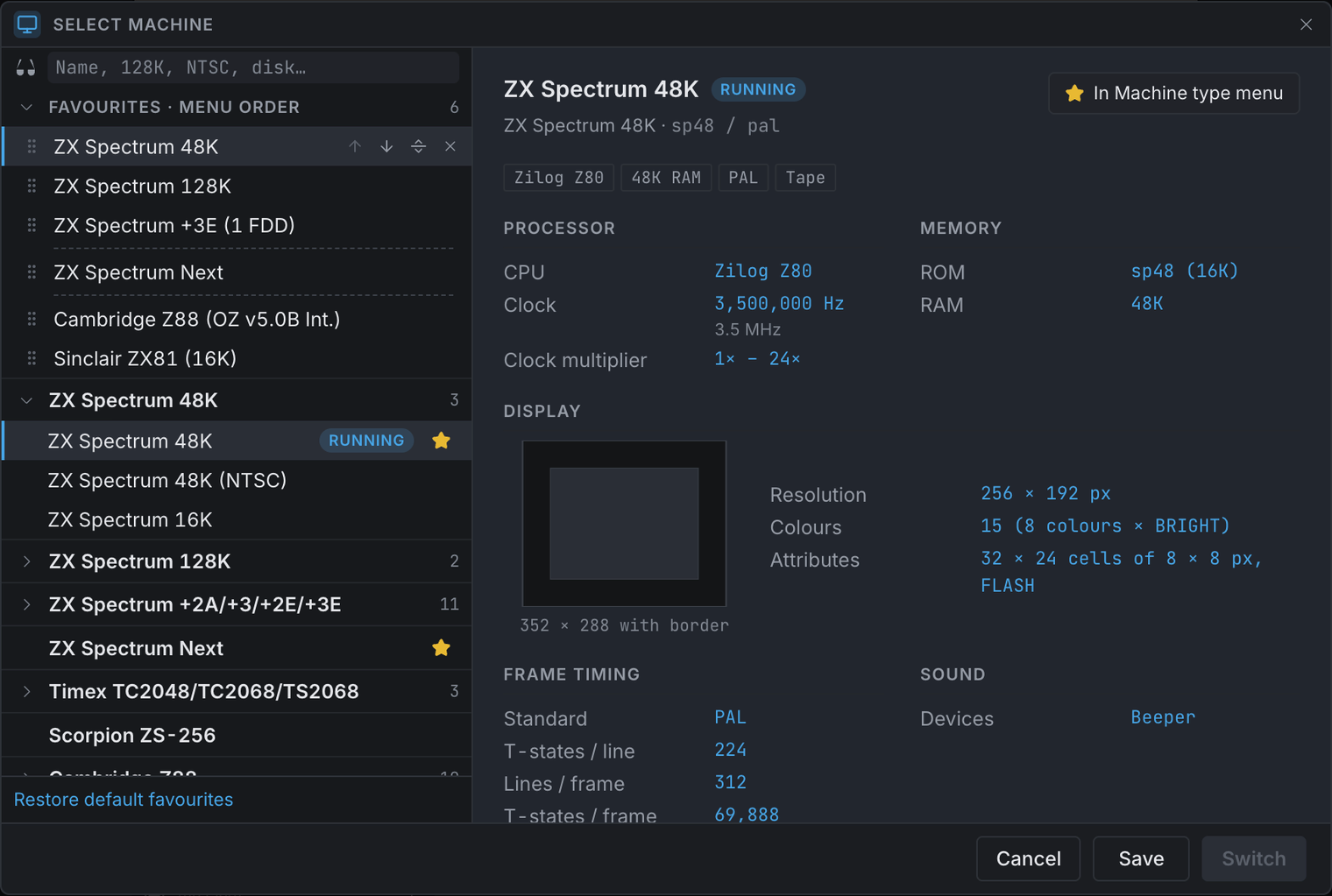
Type in the filter box to find a model (for example 128K or NTSC), select it to see its details, and double-click it to switch. The star adds a model to the Machine Type menu. Machine types lists every machine and model.
Next, load a program from tape.