Meet the IDE
The IDE is Klive’s second window. In the emulator window, choose View › Show IDE. Klive remembers which windows were open and where, so next time it opens them the same way.
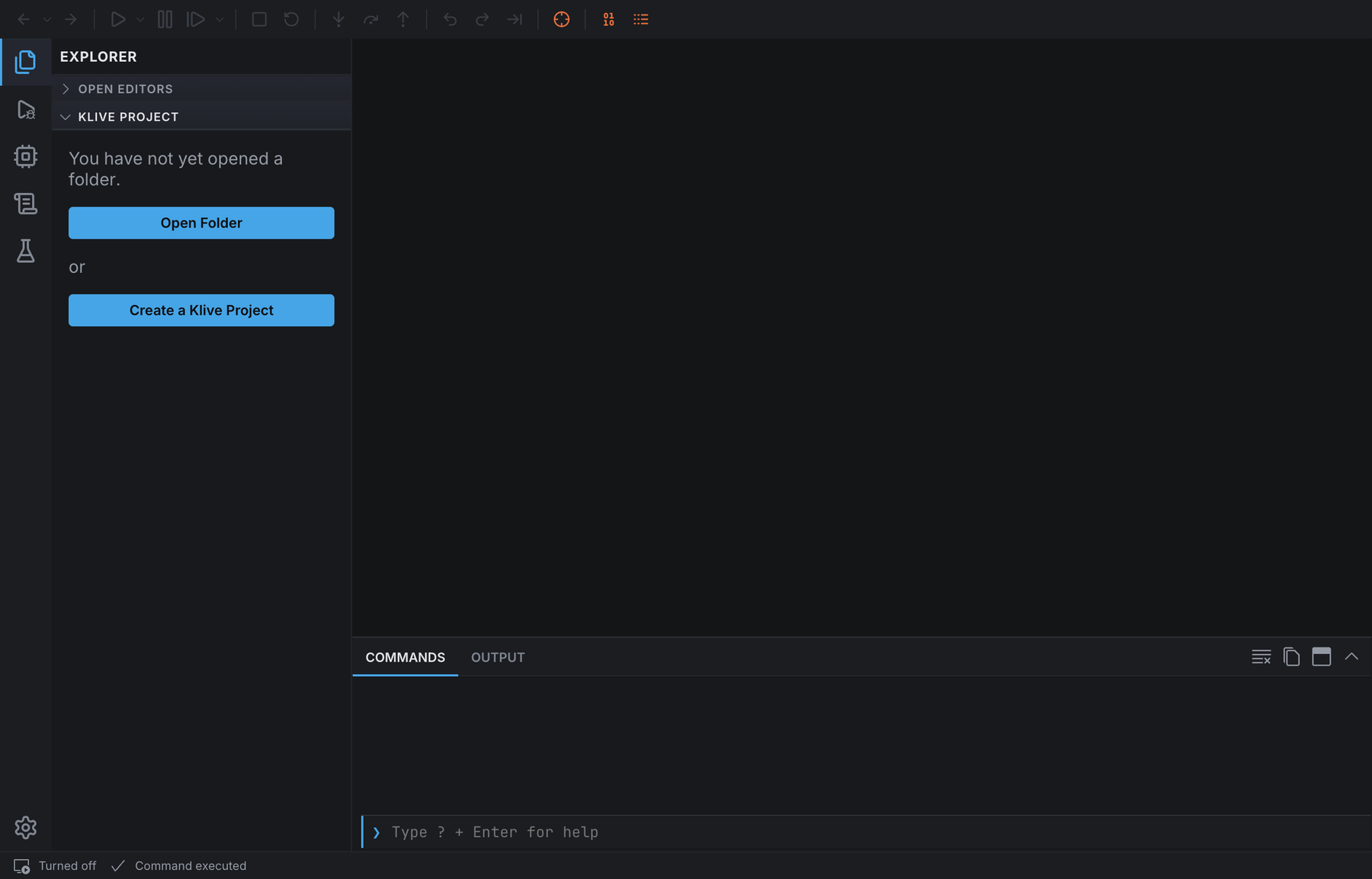
When no project is open, the explorer offers two buttons: Open Folder and Create a Klive Project. The next page explains what a project is, and the page after it creates one.
 1
- Create a Klive Project opens the Create a new Klive project dialog.
The parts of the IDE
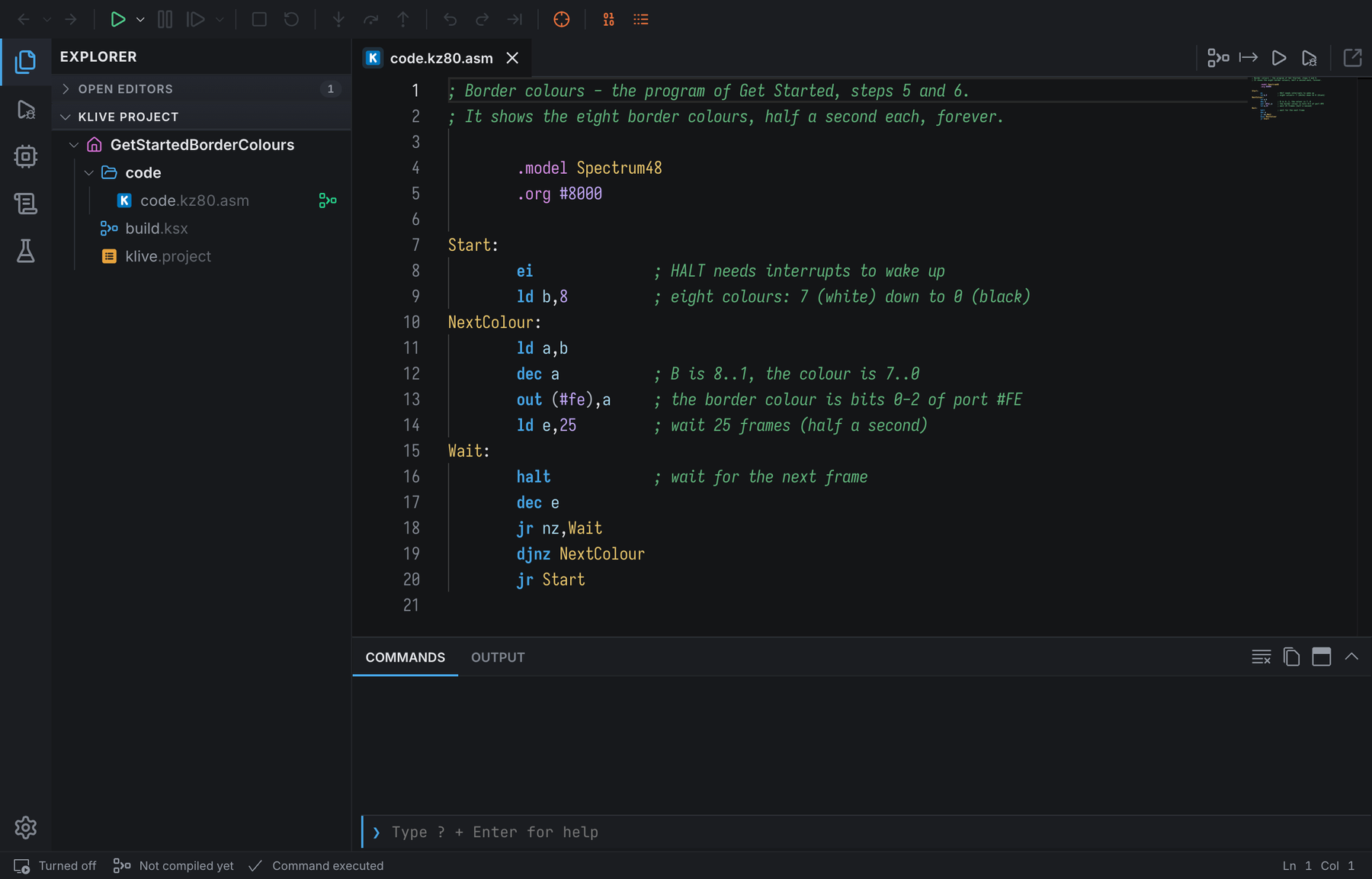
This is the IDE with a project open:
 12345678
- The toolbar controls the machine: run or debug your project, pause, stop, restart, and step through code.
- The activity bar switches the side bar between the Explorer, Debug (registers, call stack, variables, watches and breakpoints), Machine info, Scripting and Testing. The gear at the bottom opens the Settings.
- The side bar, here the Explorer, with the files of your project.
- The code editor. It knows Z80 assembly and ZX BASIC: it colours the code, completes names, and shows errors as you type.
- The build bar of the main file: compile, inject, run and debug it.
- Commands and Output. The Commands tab shows what you typed at the prompt and the answers; Output shows what builds and the emulator report.
- The command prompt. Type
?and Enter to list every command. Commands are a fast way to do almost anything in Klive. - The status bar: the machine’s state, the last build’s result, and the cursor’s position.
Try the prompt now: type em-start and press Enter, and the emulator starts. em-stop stops it. IDE commands lists them all.
Set the language and the theme
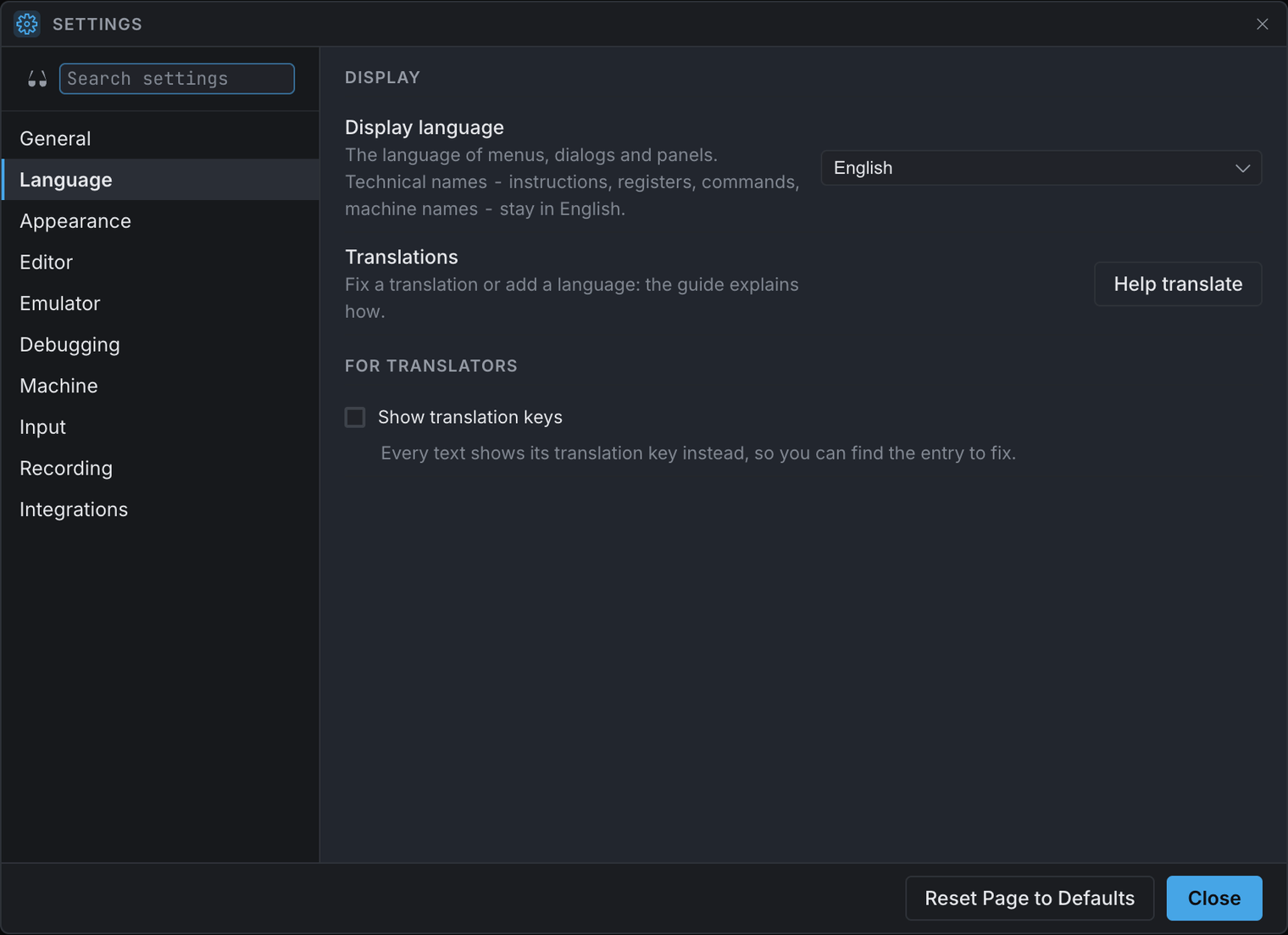
Klive’s menus, dialogs and panels are available in English, Spanish, Portuguese (Brazil and Portugal), German and Hungarian. Open the Settings with Klive › Settings… on macOS (Cmd+,) or File › Settings… on Windows and Linux, and choose the Language page.
 1
- Display language picks the language. System default follows your operating system. Technical names, such as Z80 instructions, registers, commands and machine names, stay in English in every language.
The Appearance page sets the theme: a light or a dark Tone, and one of six Accent colours. Changes apply at once; there is no OK button.
Next, see how Klive handles projects.