Next Registers, Memory Mapping and Palettes
Most of the ZX Spectrum Next’s behaviour lives in its Next Registers (NextRegs), its MMU slots and its four palettes, and a program cannot read much of it back reliably. Klive shows that state while the machine runs or is paused: the Next Registers document, and the Next Memory Mapping and Next Palettes side-bar panels. Use them to answer “what speed is the CPU at”, “which bank is in slot 3” and “which palette is Layer 2 drawing with”.
Applies to: ZX Spectrum Next.
Opening the views
Select the Next
The views appear only while the ZX Spectrum Next is the current machine.
Open the Next Registers document
Choose View › Machine Views › Next Registers, or type show-nextregs in the command prompt.
Open the panels
Next Memory Mapping and Next Palettes are in the Machine info activity. Click a panel’s header to expand it. The views refresh as the machine runs, and show the exact state whenever it is paused.
The Next Registers document
The Next Registers document opens in the editor area with every register:
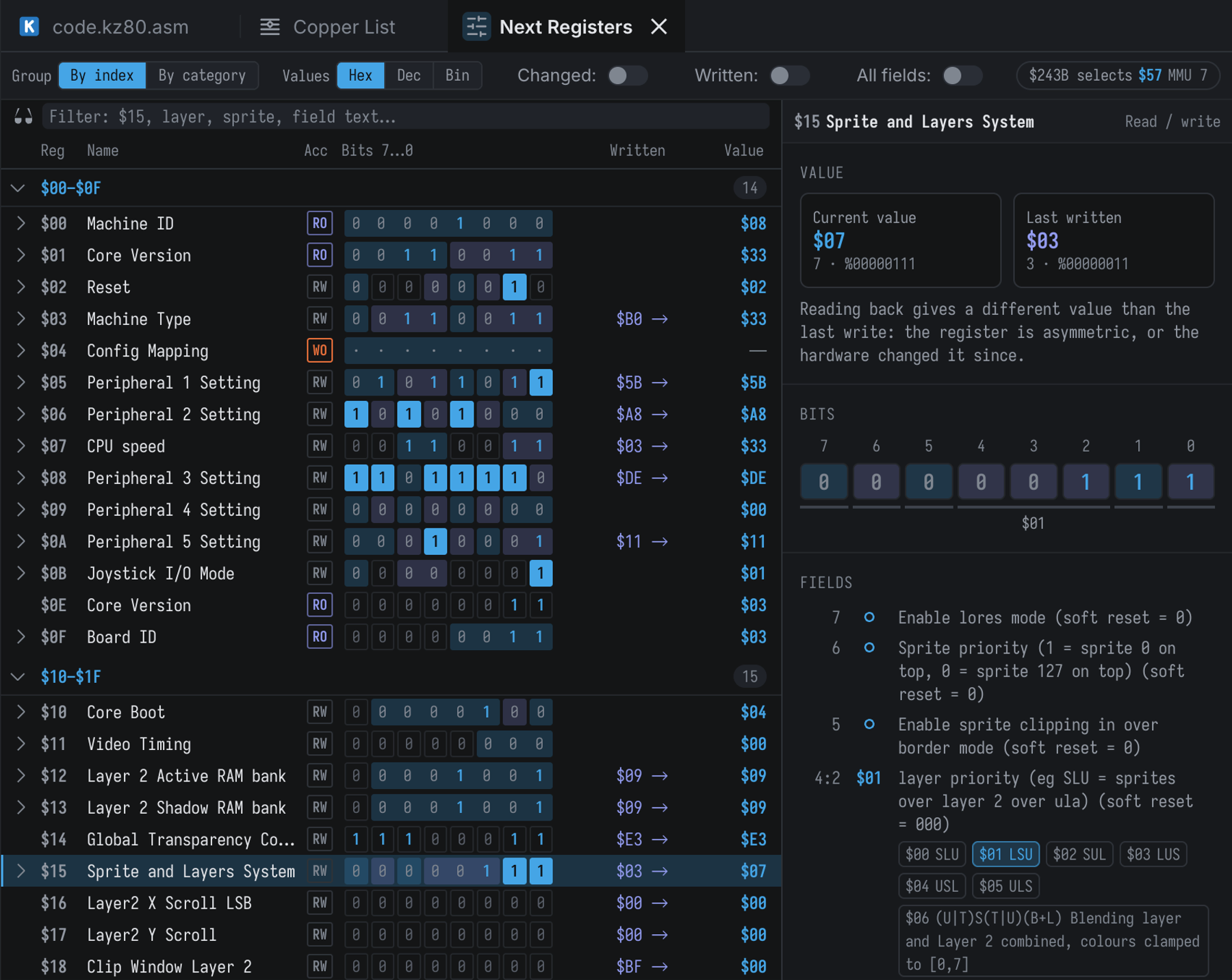
- Group them By index, sixteen registers to a block (
$00–$0F,$10–$1F, …), or By category, under the headings of the book’s NextReg reference (Memory (MMU), Layer 2, Sprites, Audio, Interrupts and so on). A register that belongs to several categories, such as$69, is listed in each of them, with also in … after its name. - Each row shows the register number, its name, whether it is read/write (RW), read-only (RO) or write-only (WO), its eight bits, the last written value and the current value. Many Next registers are asymmetric: a write requests something and a read reports what took effect, so the last written and the current value can differ. The bits are tinted field by field, so you can see where each field starts and ends; a set flag is filled.
- Show the values in Hex, Dec or Bin.
- Type in the filter box to narrow the list:
$52finds that register, and a word finds it in register names, field descriptions, value names and category names. - Switch on Changed to keep only the registers whose value changed since the previous stop (a dot after the register number marks them, and each group heading counts them), Written to keep only those your program has written, and All fields to decode every register.
- The $243B selects readout names the register currently selected through port
$243B; click it to go to that register.
Click a register to decode it in the inspector column: its current and last written values in
hexadecimal, decimal and binary, a diagram of its bits with a bracket per field, every field with its
value and the meaning of each of its named values, the categories it belongs to (click one to show it
in the list), and the nextreg instruction that writes its current value, with a copy button.
Use the arrow keys to move through the list; the right and left arrows open and close a register’s
fields.
show-nextregs $15 opens the document with register $15 selected; hide-nextregs closes it.
The same register names appear wherever Klive mentions a NextReg: the
Copper List decodes its MOVE instructions with them, and a
NextReg write breakpoint names the register it stopped on.
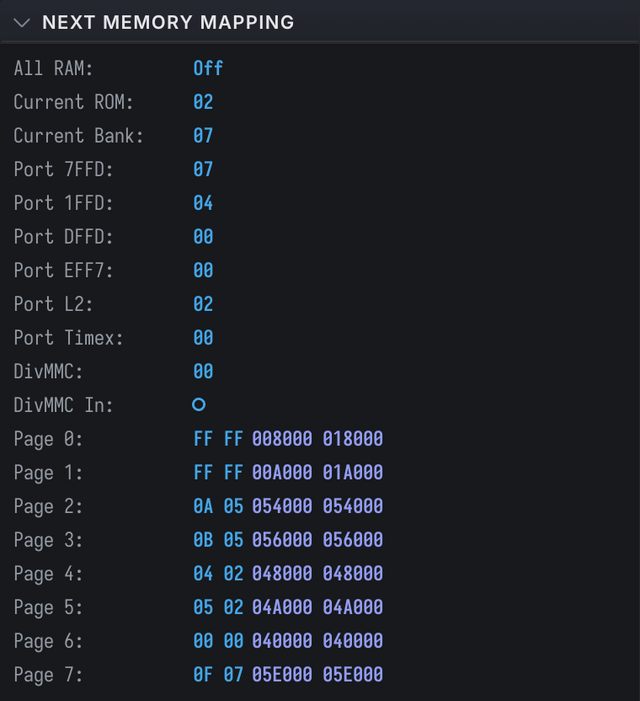
The Next Memory Mapping panel
| Row | Shows |
|---|---|
| All RAM: | The four banks of the +3-style all-RAM mode, or Off. |
| Current ROM: | The selected ROM. |
| Current Bank: | The selected 16K bank of the 128K-style paging. |
Port 7FFD:, Port 1FFD:, Port DFFD:, Port EFF7: | The paging ports’ last values. |
Port L2: | The Layer 2 port, $123B. |
Port Timex: | The Timex port. |
DivMMC: | The DivMMC control register. |
DivMMC In: | Whether the DivMMC’s memory is paged in. |
Page 0: to Page 7: | The eight 8K slots of the address space, $0000 to $E000. |
A page row shows four numbers: the 8K bank and the 16K bank in that slot (-- for a ROM page,
which has no 16K bank), then the read and write offsets into physical memory. Hover the row to have
each one named. When a NEX file was started with nex-run in this session, the tooltip also says
which of the file’s banks the slot holds; see NEX files.
The Memory and Disassembly views show the same paging on their memory map, and their Bank map marks the pages the ULA screens, Layer 2 and the tilemap live in, read from these registers as the machine runs; see the Memory view.
The Next Palettes panel
The Next has a palette for each of four devices: ULA, Layer 2, Sprites and Tilemap, and each device has two banks of 256 colours. The panel has one row per device, with a thumbnail of its palette and a pair of buttons for the First palette and the Second palette.
-
By default a device shows the bank the machine is drawing with now (selected by NextReg
$43, or$6Bfor the tilemap). The live bank’s button is marked; hover it to see which register bit selects it. -
Click the other button to pin that bank and compare the two. The live mark stays on the bank the hardware uses, so you can see when the program flips it.
-
Expand a device to see its palette as a grid. The sprite and tilemap palettes mark their transparency index.
-
A dot after a device’s name means its palette was written since the last stop; a dot before it, that a palette breakpoint watches it.
The pop-out button in the panel’s header opens the Palette document, which shows both banks side by side, the colours written entries replaced, and palette breakpoints: see Debugging palettes. To edit a palette file rather than read the machine’s, use the palette editor.
While stepping through history
When you step back with the execution history, the Next Registers document and the Next Memory Mapping panel keep showing the present and say so in a banner (The memory mapping shows the present, not history step 12).