sjasmplus
sjasmplus is a popular Z80 cross-assembler. Klive builds, runs and debugs sjasmplus programs once you have told it where the assembler is: breakpoints and the execution point work in your sjasmplus source, as they do for Klive’s own assembler.
Applies to: ZX Spectrum 48K, 128K, +2A/+3, +2E/+3E, Timex and Scorpion (the sjasmplus template),
and the ZX Spectrum Next.
sjasmplus is not part of Klive: install it, or let Klive download it, before you use it.
Setting up SJASMPLUS
Open Settings › Integrations (see Settings) and click Configure… next to SjasmPlus to display the SJASMPLUS Integration dialog.
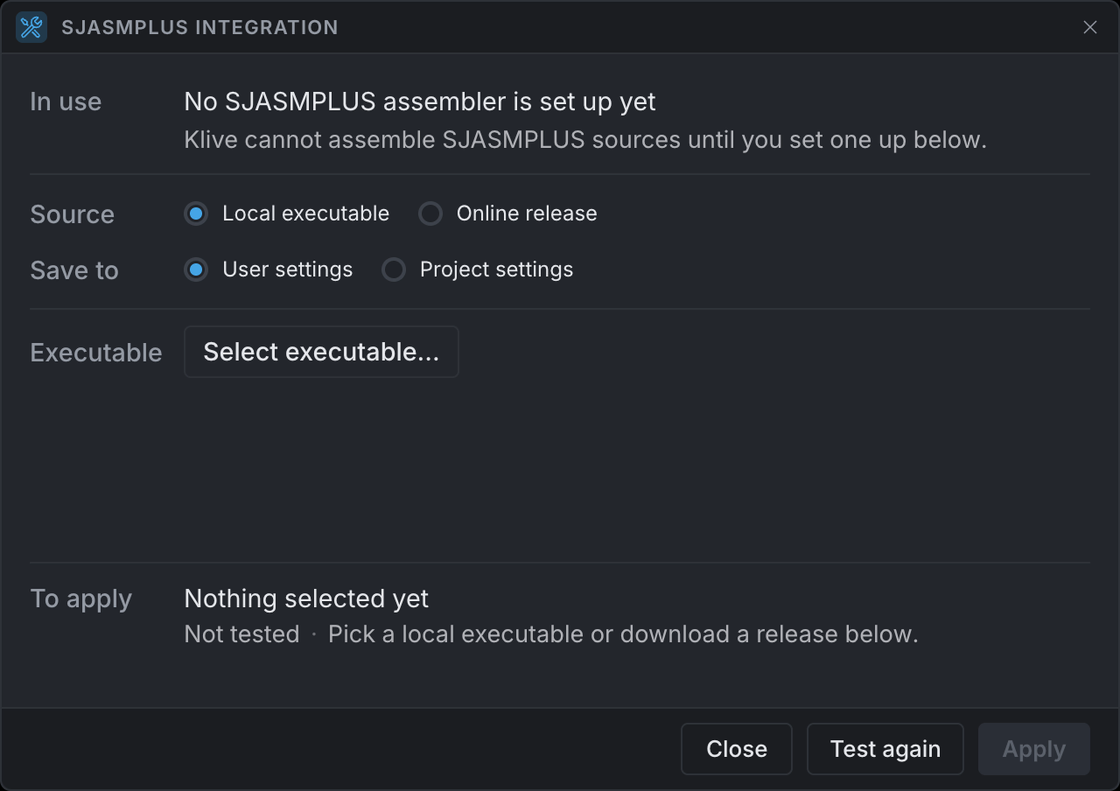
The dialog is built around two summary blocks, with the setup controls between them:
- In use: the assembler Klive uses right now, and whether it still works.
- To apply: the executable you are setting up, and the result of its last test.
The In use block: is the current setup still good?
Klive re-runs its test every time you open the dialog. The stored setting alone proves nothing: you may have moved, renamed, or deleted the SjasmPlus folder since you set it up, or replaced its content. The test compiles a tiny Z80 program with the configured executable and checks the bytes it generates.
The block reports the outcome like this:
| Display | Meaning |
|---|---|
Configured, no badge | The test is still running. |
Configured, with the SJASMPLUS is set up badge | The configured executable passed its test: the integration works. |
Not working, with the SJASMPLUS is not usable badge | The configured executable is missing or failed, with the reason next to it (for example, Path does not exist: ...). |
A Not working state means Klive cannot assemble SJASMPLUS sources until you fix it. If the folder moved back, press Test again; otherwise set up the executable at its new location, as described below.
Choosing the executable
The Source row selects where the executable comes from:
- Local executable: SjasmPlus is already on your machine. Press
Select executable...and pick the binary. Anysjasmplusexecutable found on yourPATHis offered as a one-click shortcut in theOn PATHrow. - Online release: let Klive fetch one for you. It lists the latest 20 official SjasmPlus GitHub releases, marks how many builds each one offers for your system, and preselects a compatible stable release and asset. Choose a target folder with
Select folder..., then pressDownload....
A download is installed into a versioned folder, <the folder you chose>/sjasmplus/<release tag>, so several releases can live side by side. Klive never overwrites an existing one: if that folder is already there, the download stops with SJASMPLUS release folder already exists. Delete it first, or pick another folder.
Whichever route you take, Klive runs the same test on the result and reports it in the To apply block as Passed or Failed, with the compiler’s own message when it fails.
SjasmPlus publishes Windows binaries and source archives only. On macOS and Linux, Online release therefore shows build instructions and a link to the SjasmPlus repository instead of a download list: build SjasmPlus from source (or install it from your package manager), then set it up with Local executable.
The release list hides prereleases by default. Enable the prerelease option only when you explicitly want to test a non-stable build.
Saving the setup
The Save to row decides where the setting goes. By default, Klive saves the integration in user settings. When a Klive project is open, you can choose project settings instead to override the user-level SJASMPLUS path for that project.
Three buttons close the loop:
- Test again: re-runs the test on the executable currently shown in To apply. Use it after you restore a missing folder, or to double-check a setup.
- Apply: saves the setup and closes the dialog. It stays disabled until a test has passed, so a broken executable can never be saved.
- Close: leaves the settings untouched. If you picked an executable but did not apply it, Klive asks before discarding it.
When you test an executable that is not the configured one, the In use block steps back from its own verdict and tells you what the new result means for your setup: Press Apply to replace it with the executable below when the tested executable works, or Unchanged — the executable below failed its test when it does not. The two blocks never show a success and a failure that look like they are about the same thing.
Command-line setup
The sjasmp-reset command (alias sjasmpr) connects Klive with SjasmPlus from the
command prompt:
sjasmp-reset <full path of the SjasmPlus installation folder> [-p]The command expects a single parameter: the path of the SjasmPlus installation folder. When Klive invokes the assembler, the SjasmPlus executable name is added to this path.
Unlike the dialog, this command stores the path without testing it. Open the integration dialog afterwards if you want to confirm that the folder really holds a working assembler.
The command saves the path in your user settings. To use another SjasmPlus for one project (to test
another version, for example), add -p to save it in the open project. Without a path, the command
removes the SjasmPlus settings.
Using SJASMPLUS
Create a project with the sjasmplus template (File › New Project…). Its build root is
code/code.asm, which starts with a device line for its machine (device zxspectrum128 on the
128K, for example).
Which files sjasmplus builds. sjasmplus owns the .sjasm extension. .asm belongs to the
Klive Z80 Assembler by default, so the template’s project
settings map both .asm and .sjasm to sjasmplus:
"settings": { "languages": { "sjasmp": ".asm|.sjasm" } }In any other project, name your files .sjasm, or add the same setting with
set languages.sjasmp ".asm|.sjasm" (File types),
then promote the main file to the build root.
The target machine. Klive takes the machine from the source’s device directive:
zxspectrum48 (or zxspectrum16), zxspectrum128 (the +3 when the project runs on the +2E/+3E),
or zxspectrumnext. Without one, the code is built for the machine the emulator runs. On the 128K,
+3 and Next, breakpoints know which memory bank they belong to.
Related
- Project templates
- File types
- PASTA/80, which uses sjasmplus as its assembler
- Settings