The audio mixer
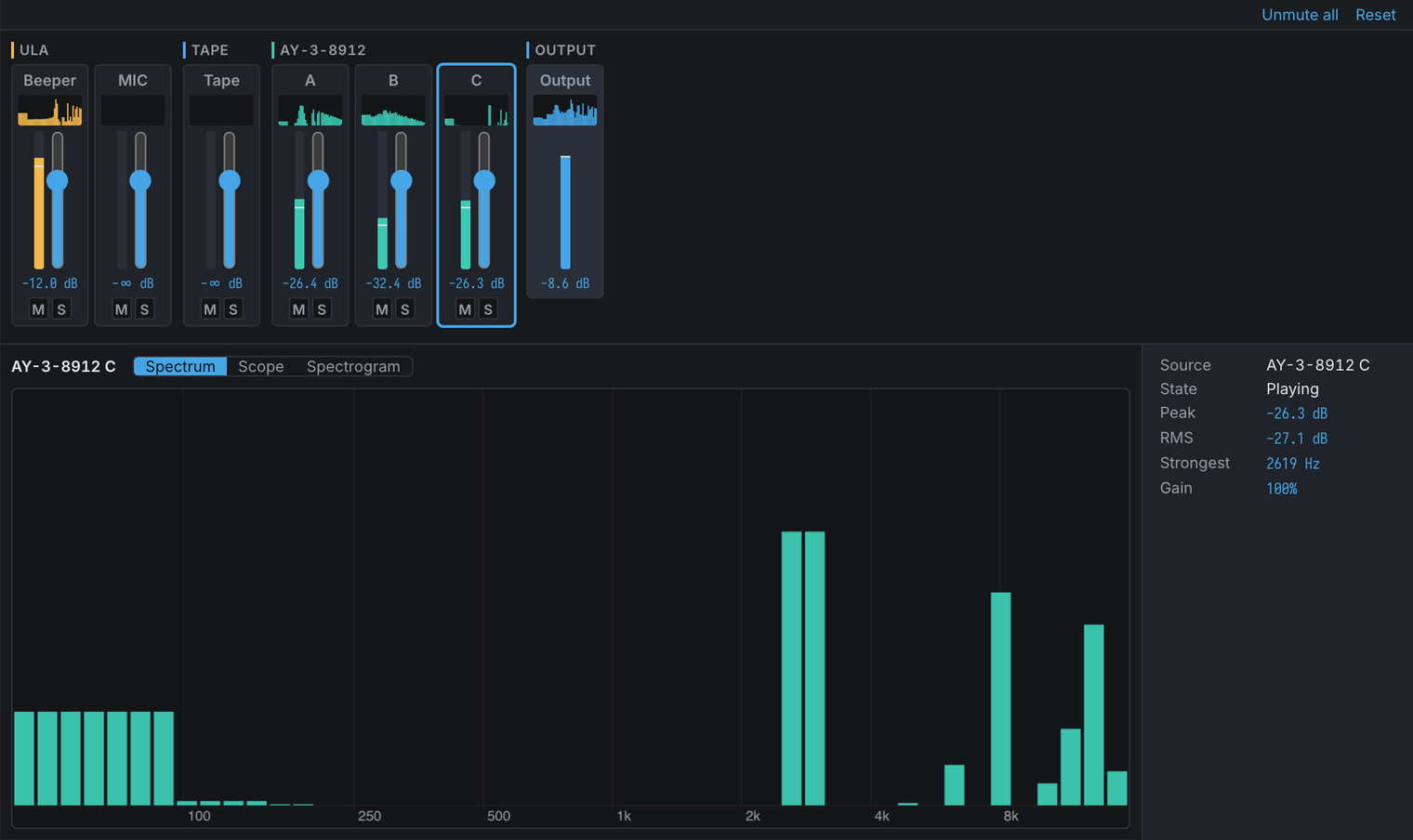
The audio mixer lists every sound source the emulated machine has (the beeper, each AY channel, the Next’s DACs, …) with a live level meter and spectrum, and lets you mute, solo or change the level of each one. Use it to hear one voice of a tune on its own, to find which channel makes a noise, or to check that your program drives a channel at all.
Applies to: every machine with sound. The ZX80 and the ZX81 have no sound output, so they have no mixer.
There are two views of the same mixer:
- The Audio Mixer document in the IDE: a strip per source, and an analyser with the selected source’s spectrum, waveform or spectrogram.
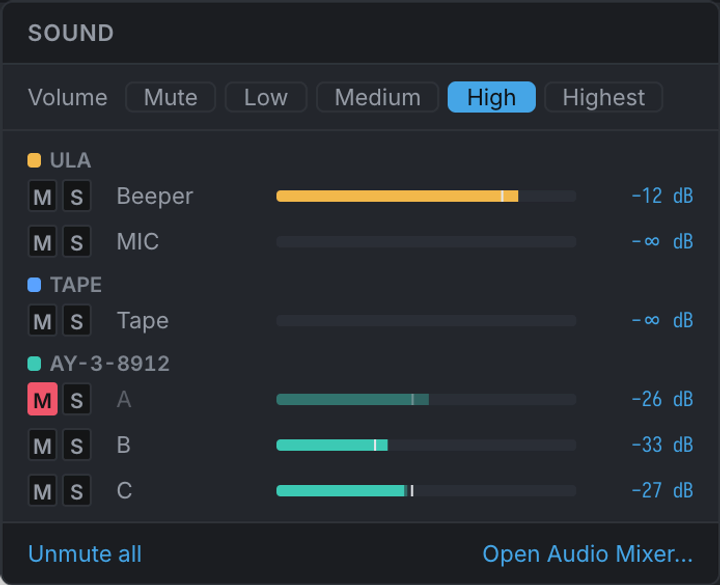
- The sound popover in the emulator window: the volume, and each source with mute and solo buttons and a level meter.
Both show the same settings: a source muted in one is muted in the other.
Open the mixer
- In the IDE: View › Machine Views › Audio Mixer, or the
show-audio-mixercommand (aliasshmix) at the IDE’s prompt. - In the emulator window: click the arrow beside the sound button on the toolbar. The popover’s Open Audio Mixer… link opens the document in the IDE.
The mixer measures the sources only while one of its views is open; closed, it costs nothing.
Mute, solo and level
Mute a source
Click its M button. The source falls silent, but its meter keeps moving: the meters show each source’s own level, before the mute and the fader, so you can still see what a muted channel plays.
Solo one or more sources
Click a source’s S button to hear it alone. Solo more sources to hear them together. While any source is soloed, only the soloed ones play, even one that is also muted. Clear the last solo and the mutes come back as they were.
Change a level
Drag a strip’s fader: from silent up to one and a half times the source’s own level. The facts under the analyser show the gain the machine applies now, in percent.
Unmute all clears every mute and solo and keeps the faders. Reset puts every source back to its own level, unmuted.
The settings are kept for each machine type and survive a restart of Klive: mute the 128K’s beeper and it stays muted on every 128K until you unmute it.
Analyse a source
Click a strip’s name to select it. The analyser below the strips shows it three ways:
- Spectrum: how loud the source is at each frequency, from 40 Hz to 16 kHz.
- Scope: its waveform.
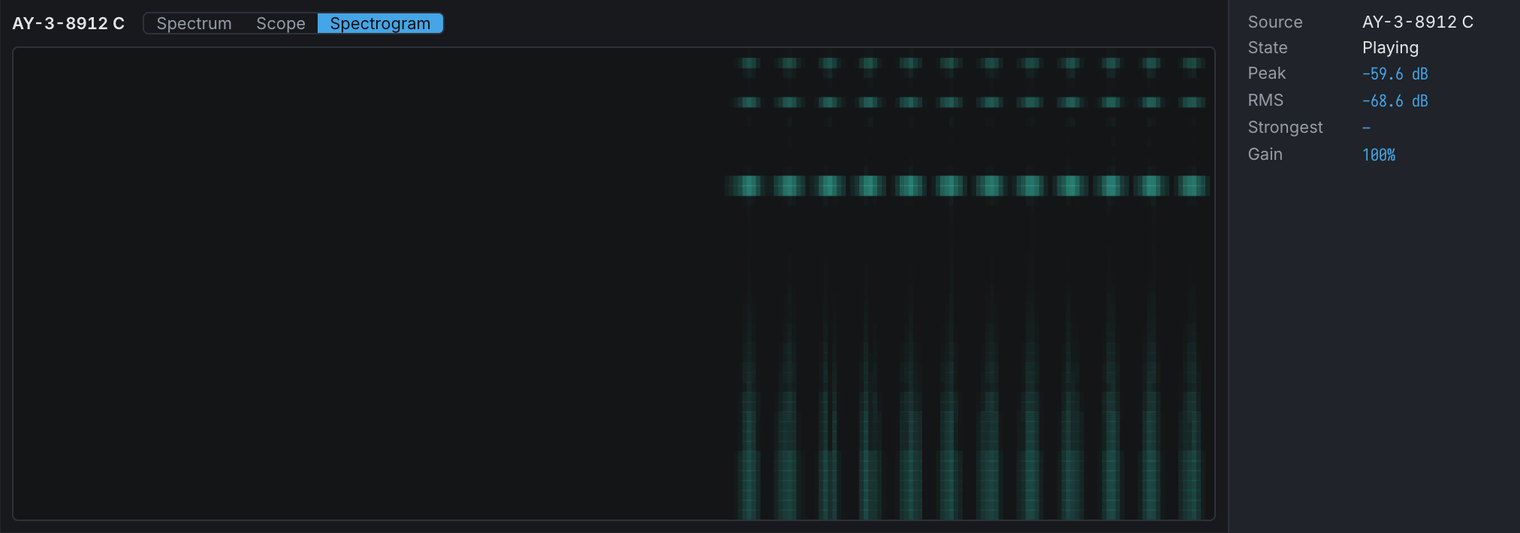
- Spectrogram: its spectrum over time, newest on the right. A tone is a line, an envelope makes it pulse, noise fills a band.
The facts beside it give the source’s peak and RMS level, the frequency band where it is loudest, and its state (playing, muted, soloed, or silent because another source is soloed).
The sources of each machine
| Machine | Sources |
|---|---|
| ZX Spectrum 48K | Beeper, MIC, Tape |
| ZX Spectrum 128K, +2, +3, +3E, Scorpion | Beeper, MIC, Tape, AY channels A, B and C |
| Timex TC2048 | Beeper, MIC, Tape |
| Timex TC2068, TS2068 | Beeper, MIC, Tape, AY channels A, B and C |
| ZX Spectrum Next | Beeper, MIC / Tape, TurboSound AY1, AY2 and AY3 (channels A, B and C each), DAC A to D, Pi I2S left and right |
| Cambridge Z88 | Speaker |
| HT-1080Z | Beeper, AY channels A, B and C |
| Videoton TVC | Sound |
| Enterprise 64/128 | DAVE’s Tone 0, Tone 1, Tone 2 and Noise |
On the Spectrums the tape you load plays through its own Tape source. On the Next the tape input reaches the speaker through the MIC line, so the two share the MIC / Tape source.
What the mixer changes
The mixer changes only what you hear and record: a video recording of the screen has the sound as the mixer plays it. It never changes the machine. A muted AY channel still runs, its registers read back as written, and a program cannot tell. Saved machine states and debugging (stepping back included) are not affected by the mixer’s settings.
Related
- The emulator window: the toolbar’s sound button
- Recording the screen
- Commands:
show-audio-mixer