The Command Prompt
Almost everything Klive does is also a typed command. The prompt is often the fastest way to do something: starting the machine, setting a breakpoint at a label, exporting your program, or viewing a memory range. The prompt is at the bottom of the IDE’s tool area, under the Commands tab, which shows what you typed and Klive’s answers. (Settings › Appearance › Command and Output on top moves the tool area above the documents.)
Running a command
Click the prompt, type a command and press Enter. For example:
em-start
bp-set MainLoop
num $4000
While a command runs, the status bar says so; when it finishes, the status bar shows whether it succeeded. Errors are written in the Commands tab.
Command names are short and grouped by prefix: em- controls the emulator, bp- handles breakpoints, w- handles watch expressions, ann- handles annotations, and so on. Many commands also have a shorter alias.
Finding a command
?(orhelp) lists every command, with its aliases, a description and its usage.? <text>lists only the commands whose name or alias contains the text, so? bpshows the breakpoint commands.- IDE commands in the Reference describes every command in detail.
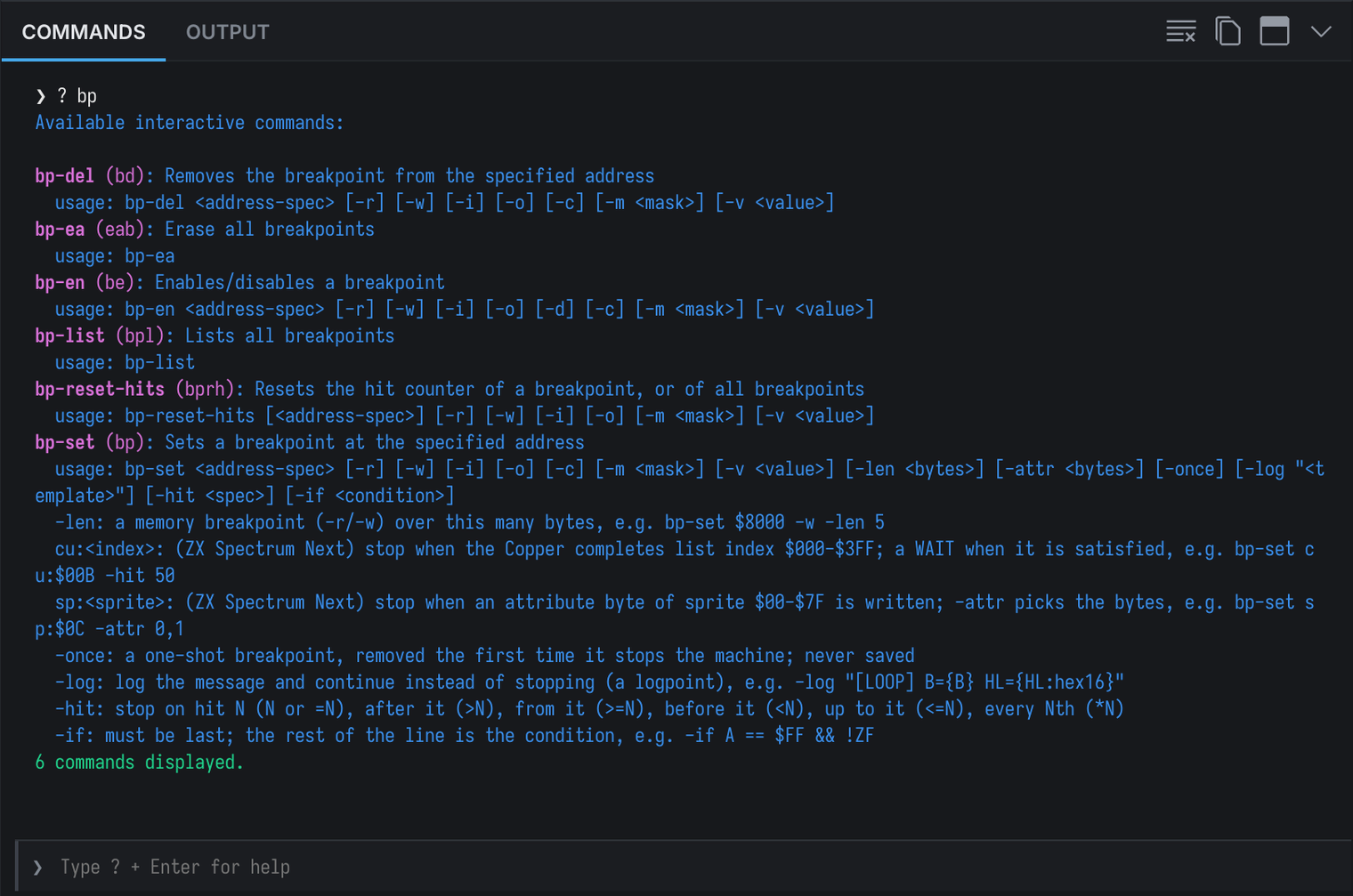
Commands marked [non-interactive] in the list are meant for scripts and automation, not for typing at the prompt.
Recalling earlier commands
Press ↑ and ↓ at the prompt to step through the commands you typed earlier. clh clears this history.
Useful small commands
| Command | Does |
|---|---|
cls | Clears the Commands tab |
num <number> | Shows a number in binary, decimal and hexadecimal (num $C000, num %1010, num 49152) |
outp <pane> | Switches the tool area to the Output tab and selects a pane: emu, build, scripting, log, tests or automation |
sh <file> | Opens a file with the program your system associates with it |
set <key> <value> | Changes a setting; see Settings |
The clear and copy buttons above the Commands tab also clear the tab and copy its contents to the clipboard.
Commands outside the prompt
The same commands run from Klive scripts and through automation, so a sequence you tried at the prompt can become part of your build or a test.