Load a program from tape
ZX Spectrum software was sold on cassette tapes, and today it comes as .tap and .tzx files: recordings of those tapes. Klive plays them to the emulated machine as a tape recorder would.
Load a tape
Insert the tape
Choose Machine › Tape › Insert Tape… (or File › Open File…) and select a .tap or .tzx file. Klive tries to read files with other extensions as tapes, too.
Type LOAD ""
Start the machine if it is not running, and click its screen. On the ZX Spectrum 48K, press J for LOAD, then type two quotation marks (Symbol Shift+P twice; Symbol Shift is the right Alt key) and press Enter. On a 128K or +2, choose Tape Loader from the start-up menu instead.
Wait for the program
The machine loads whatever the tape holds, and most programs start themselves when they are loaded.
You can change the tape at any time, even while the machine is running: it is like ejecting a cassette and putting in another.
Normal and fast load
Loading ZX Spectrum programs and tapes may take a long time, especially for large files. Besides the normal loading mode, Klive supports fast load, which reads the program instantly, in a fraction of a second.
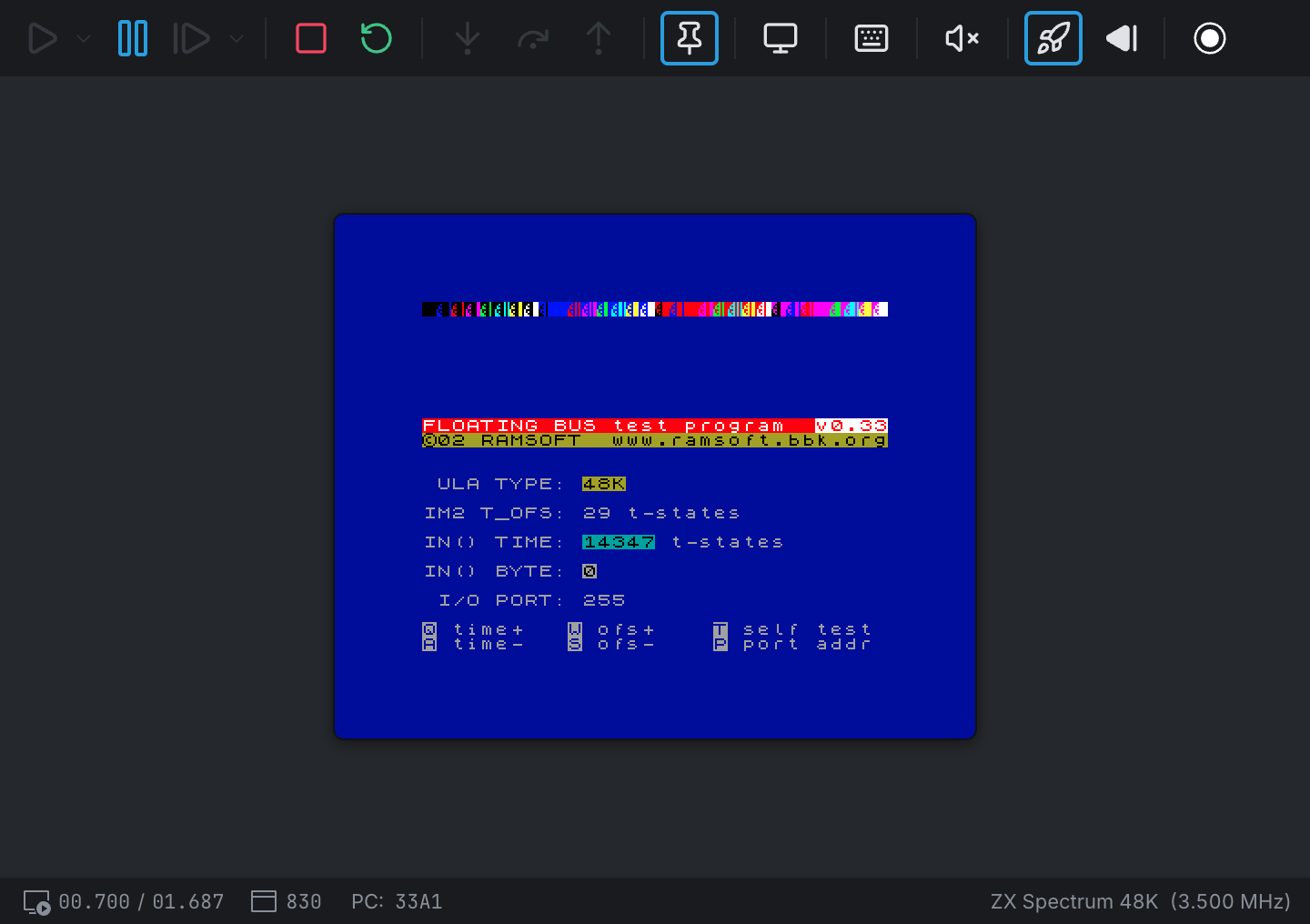
You can turn on or off fast load with the Machine › Tape › Fast Load command (or Settings › Emulator) or by clicking the Fast Load icon (rocket) in the toolbar.
You can change the Fast Load mode even while loading a game. However, the change will take effect only when you start loading a program next time.
By default, fast load is turned on.
Rewinding the tape
When the loading completes or gets interrupted, the tape position stays as if you stopped the physical tape player. When you issue the LOAD command again, the load operation starts searching the following file header from the position where it has been stopped.
You can rewind the tape to its beginning just as you can do it with a physical tape cassette. Click the Rewind icon in the toolbar (the one to the right of the rocket icon) or execute the Machine › Tape › Rewind command.
Look inside a tape
Open a .tap or .tzx file from the Explorer to see what is on it (the extension’s case does not matter: GAME.TAP opens too). The viewer shows:
- A summary: the format (and the TZX version), the file’s size, how many blocks and files it holds, how long it plays, and the title, publisher and year of a TZX file that records them.
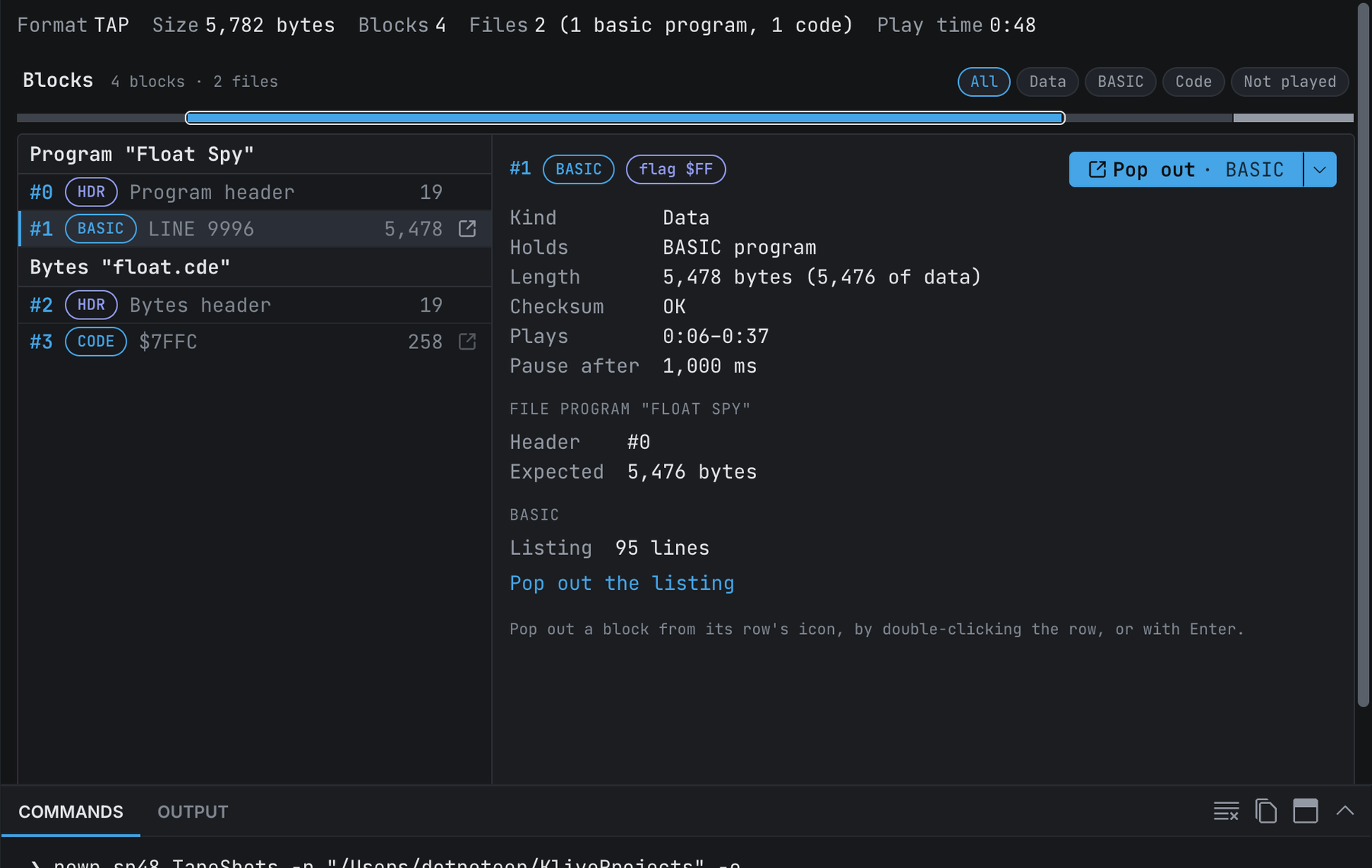
- A timeline strip: the whole tape in play order, each block as wide as the time it takes to play. The selected block is outlined; click a segment to select its block. A BASIC program is drawn in the accent colour, and a block Klive cannot play in red.
- The blocks: every block in a list, grouped by file. A standard header and the data block after it form one file, such as
Program "Float Spy"orBytes "float.cde". Each row shows what the block holds:LINE 9996for a program that starts itself, the load address of code. Use the All, Data, BASIC, Code and Not played buttons to filter the list, and the arrow keys to move through it.
The details beside the list describe the selected block: its length and checksum, when it plays, its header’s fields, and the timing of a turbo block. The list and the details always stay side by side. A BASIC program shows how many lines it has, and a screen (SCREEN$) is drawn; to read a program’s listing or a block’s bytes, pop the block out.
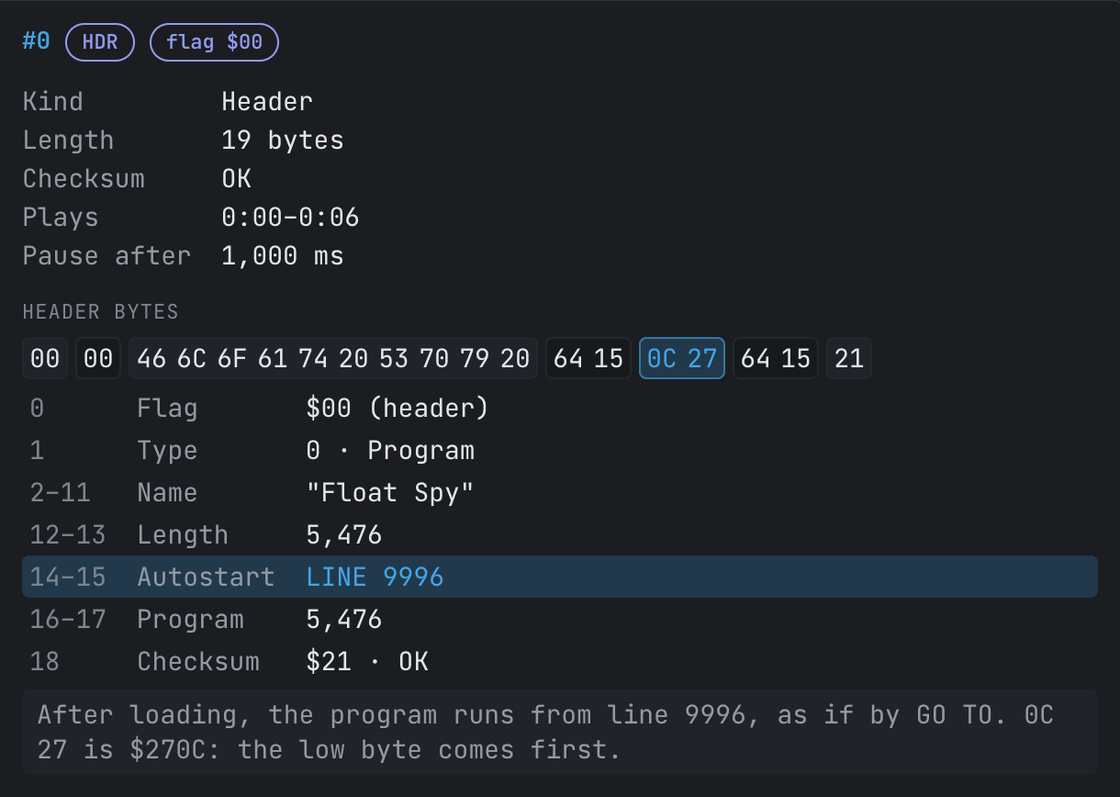
Select a header to see its 19 bytes explained. The bytes are grouped by field (flag, type, the ten-character name, three two-byte values and the checksum) above a list of the fields with their decoded values. Point at a byte or a field (or tab through the list) to highlight both and read what the field means; the autostart line of a program, or the load address of code, is explained from the start. The three two-byte values mean different things for each type of file, and the explanation says which.
Pop out a block to see all of it in its own document: as a memory dump (the default for code), as a disassembly at the address the block loads to, as a full BASIC listing, or as a screen. Use the button beside the block’s details (its arrow chooses the view), the icon on its row, a double-click, or Enter. Go Back returns to the tape. A block with no header has no load address of its own: type one in the List at box to disassemble it there, and right-click it to Read as BASIC when you know it is a program.
Some TZX blocks (pure tones, pulse sequences, pure data, direct and CSW recordings, generalized data) are shown but not played by Klive. A tape that needs them is marked with a banner, and its loading may fail.
Load a tape from the IDE
On a ZX Spectrum 48K, 128K or +2/+3, the tape viewer’s tab has three buttons, and the Explorer’s context menu on a .tap or .tzx file has the same three entries:

- Load and run tape (play icon) resets the machine and starts the tape loading: it types
LOAD ""on a 48K, and chooses Tape Loader from the start-up menu of a 128K or +2 (Loader on a +2A/+3, which boots a disk instead if one is in drive A). Whatever loader the tape carries then runs as it would on the real machine. - Insert tape (cassette icon) puts the tape in the deck without a reset, as Machine › Tape › Insert Tape… does. Inserting the tape that is already in the deck rewinds it.
- Load and debug tape (debug icon) is Load and run tape with your breakpoints armed.
On any other machine, such as the ZX Spectrum Next, the buttons and the menu entries are disabled; a button’s tooltip says why. The same actions are available as the tape-load command.
How fast load works
The Fast Load mode uses ROM hooking. While the emulator runs, it watches the PC register for the entry point of the ROM’s load routine, on every ZX Spectrum model.
When the execution reaches the load routine, the Fast Load mechanism suspends the machine and injects the data from the tape file directly into the memory. While doing this, the algorithm sets the Z80 registers (including the flags) in the same way as the algorithm in the ROM.
When the data is loaded, the mechanism sets the current value of the PC register to the exit point of the load routine as if the CPU has executed that and exits the fast mode.
If there is some error during the load, the fast load mechanism sets PC to the start of the routine that reports a tape error.
Next, meet the IDE.